Ofivio — from onboarding to final delivery · Part 7 · Decisions and money · Chapter 30 of 56
Getting paid: receiving and receipts
Confirm the client's payments against evidence, record money against invoices, and read what came in and what is overdue.
Getting paid: receiving and receipts
Client money reaches the books through one desk, Receiving. A payment lands there when the client submits one from their portal or when somebody logs one the client handed over. A person then accepts it against stated evidence, or sends it back. The principal decides, or someone the principal has given the authority to. Finance also keeps the month's cash received, an alert list for overdue projects and, under Receipts, the slips your own staff bring back.
Accept or send back a payment
- Open Receiving — Three tabs carry their counts: "Awaiting confirmation", "Accepted" and "Rejected". The box at the top right totals what is waiting.
- Read the row — Each row shows when it was received, the client and project, the payment it is against, the amount, the method and the evidence: "Client's receipt" opens the slip they attached, "Nothing attached" means there is none.
- Accept it — Press "Accept". Under "How do you know it arrived?" choose "Receipt attached" (then "Attach the receipt"), "Reference recorded" (then the transaction id or cheque number) or "Verbal" (cash only; write what the client told you, recorded against your name). Press "Accept PKR …".
- Or send it back — Press "Reject", answer "What does the client need to correct?" in a sentence and press "Send back". The client reads it, and the payment goes back to unpaid so they can submit again.
- Check the record — The "Accepted" tab keeps who accepted each payment, on what evidence, and the invoice number it produced. If a payment shows no invoice, press "Raise invoice".
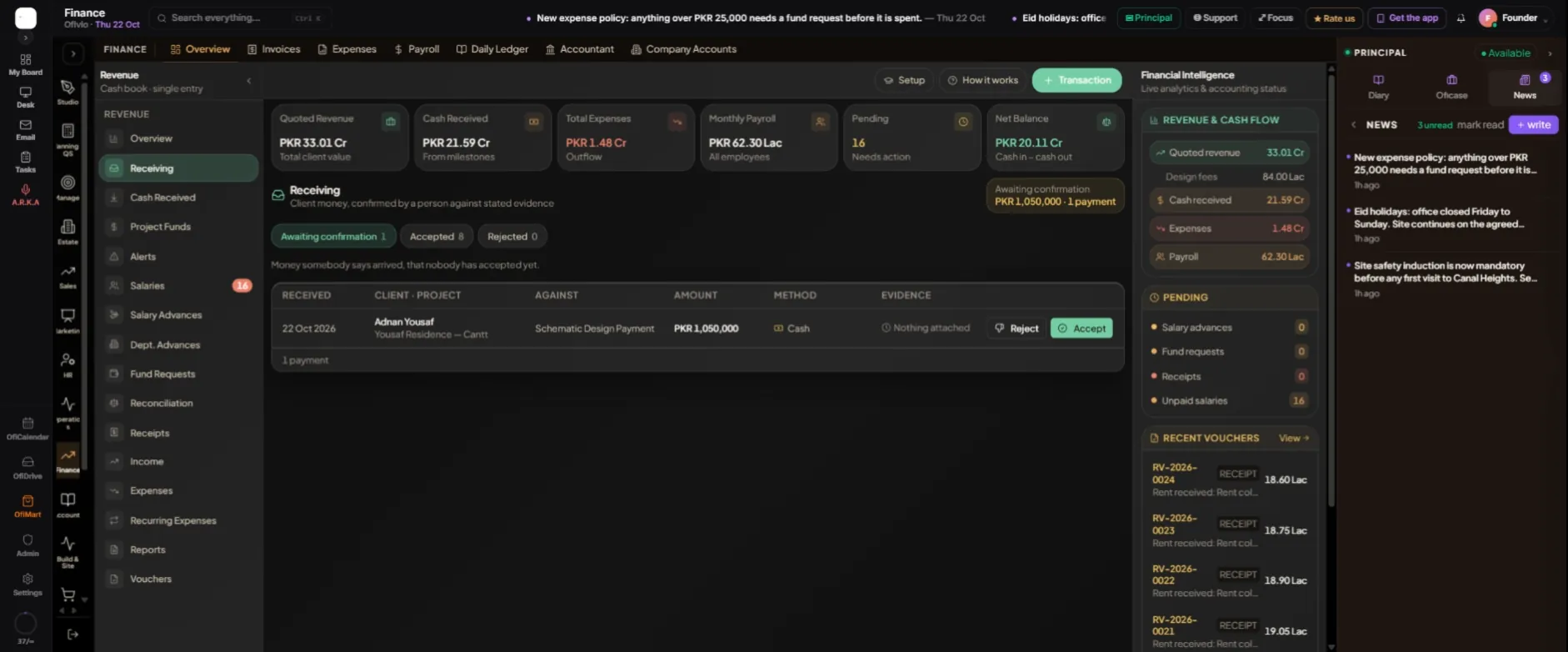
Accepting records the money and completes the milestone. Ofivio raises the paid invoice and sends it to the client's Payments. If the letterhead is not on file yet, the invoice waits for it and the message says so. This paid invoice is the client's receipt.
Money against an invoice
- Find the invoice — Finance › "Invoices". Press "Pay" on its row, or "Record Payment" inside it.
- Record it — Pick "Deposit into account *", check the "Amount (PKR) *" (it starts at what is outstanding), set the "Payment date", add a "Reference (cheque #, txn id, …)" and "Notes", then press "Record & deposit". Cash in Hand and the Income list update at once.
What came in, and who is late
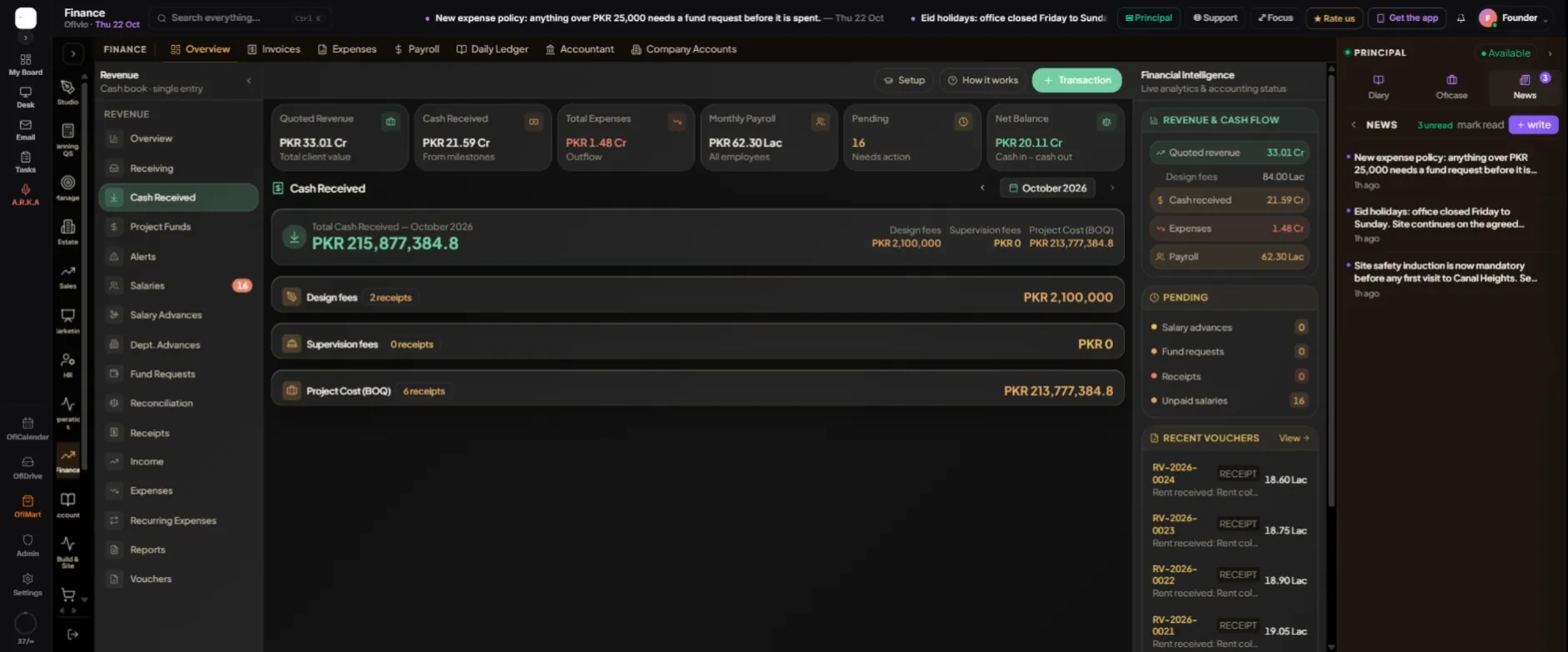
Cash Received shows one month at a time; the arrows step back through the months. The total is split by stream: design fees, supervision fees and project cost (BOQ). Press a stream to see each receipt in it. Project Funds lists every project with what it received, spent and has available.
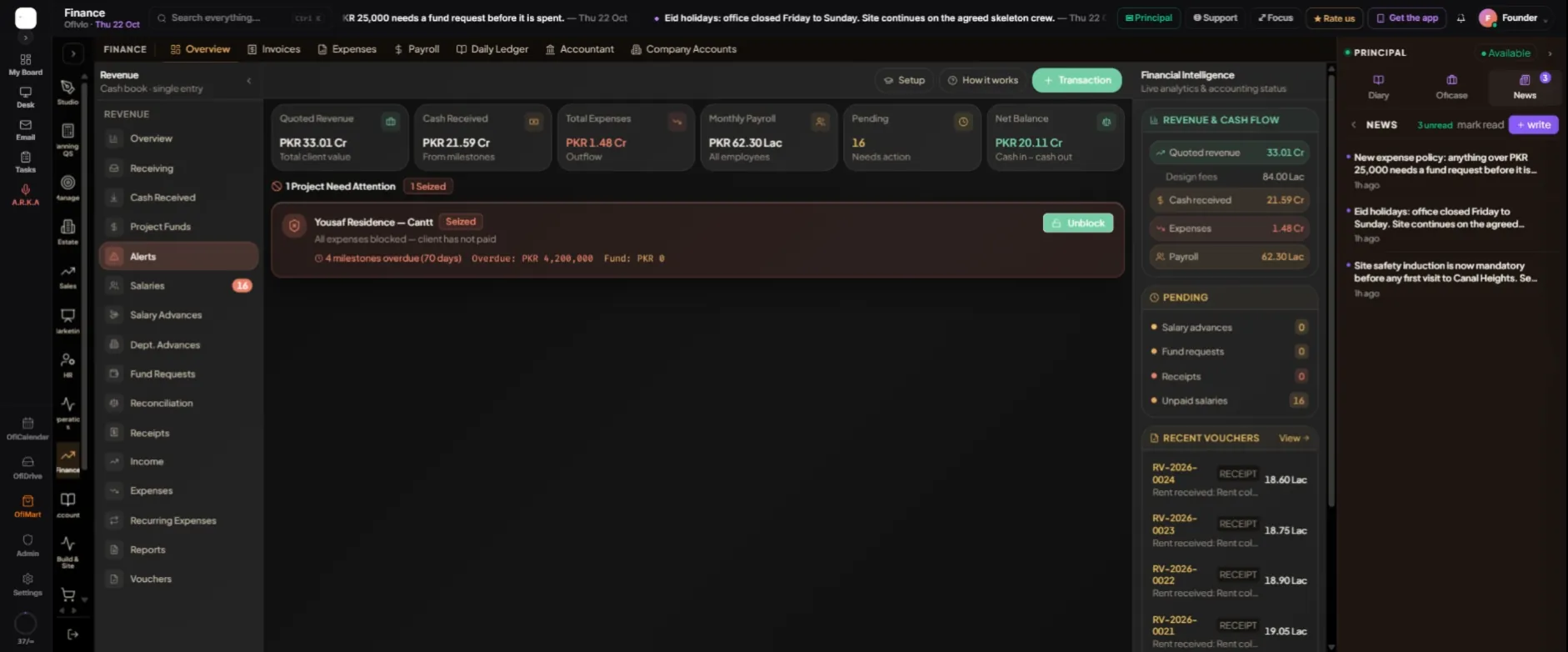
Alerts lists the projects whose client is late. A project with a payment overdue for a week reads Warning, for two weeks Critical, and after thirty days it is seized: its procurement, advances and fund requests stop until the principal presses "Unblock". In Project Funds the principal can also press "Seize" on a project that already reads Warning or Critical.
The other receipts
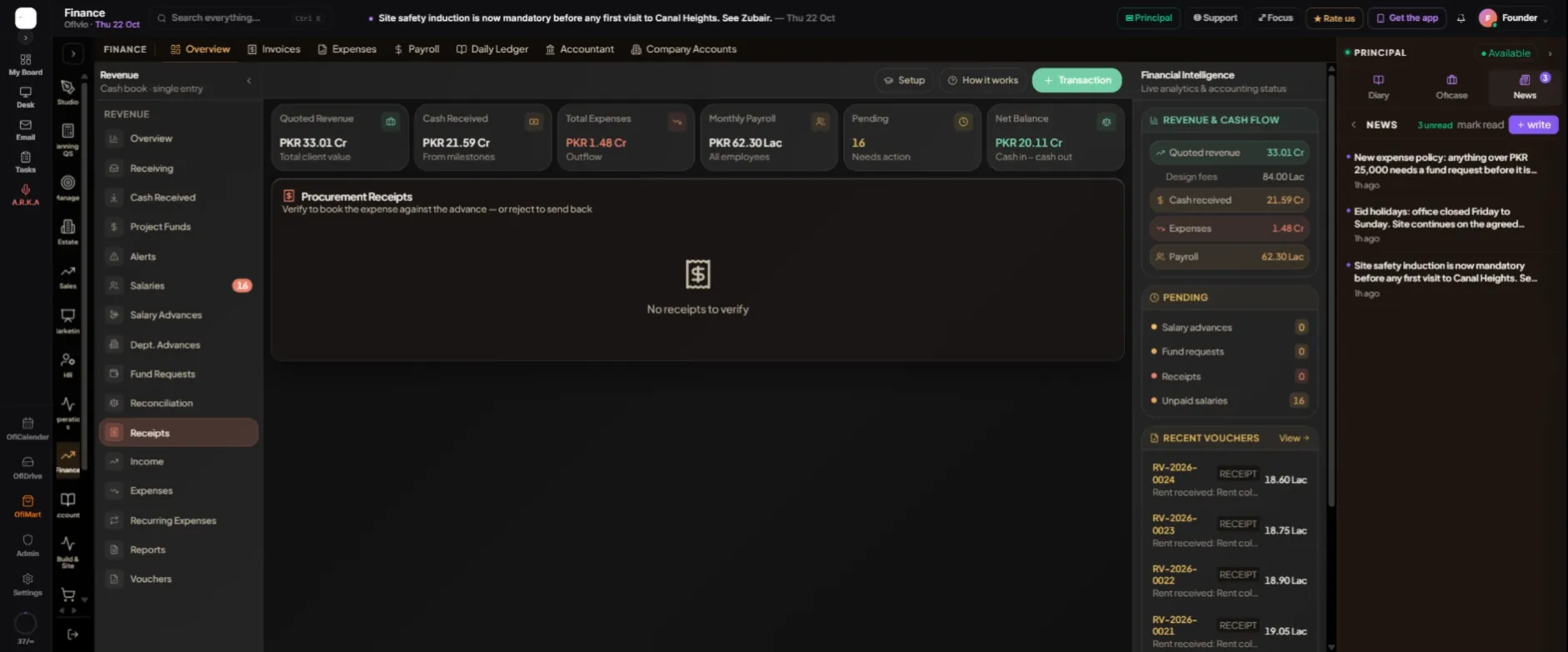
Receipts in the same rail is about money going out, not coming in. When a member of staff spends cash they were advanced, they submit the shop's receipt, and it waits here as a Procurement Receipt. "Verify" books the expense against their advance; "Reject" sends it back. Chapter 32 follows that money from the request to the receipt.