Ofivio — from onboarding to final delivery · Part 1 · Getting started · Chapter 6 of 56
Setting up your organisation
Set the practice's name, contacts, currency, area unit, hours, letterhead, colours and terms in Settings, and read the practice in Admin.
Setting up your organisation
The setup questions at your first sign-in wrote the practice's details into Settings. This chapter shows where they live, so you can finish what you skipped and change what has moved. Do it before your first project: the currency, the area unit, the letterhead and the agreement terms go onto every project, agreement and letter after it. The organisation half of Settings is the principal's; everyone has the personal half.
- Press "Settings" at the foot of the Quick access bar — The page rail on the left has two parts: ORGANIZATION SETTINGS and PERSONAL PREFERENCES.
- Open "Organization Profile" — A strip at the top says which Ofivio product the workspace runs on.
- Fill in who you are — "Organization Name", "Tagline", "Contact Email", "Phone Number", "Address" and "Website URL".
- Set the "Default Settings" — "Default Currency"; "Default Area Unit" (Square Feet, Square Meters, Square Yards, Marla or Kanal); "Time Zone"; "Working Hours Start" and "Working Hours End".
- Press "Save Organization Profile" — The name and the defaults now apply across the workspace.
- Open "Branding & Communication" — Upload the "Logo", the "Favicon" and the "Company Letterhead"; set "Clear space on your letterhead"; choose "Primary Brand Color" and "Secondary Brand Color"; decide whether emails carry the logo. Press "Save Branding Settings".
- Open "Agreement Terms" — The clauses that go onto every agreement the practice issues. Which of them appear on an agreement depends on what that project is engaged to do.
- Open "Project Settings" — The defaults for a new project: its type and first status, automatic project codes, client approval for milestones, deadline reminders, document versions and when finished projects are archived.
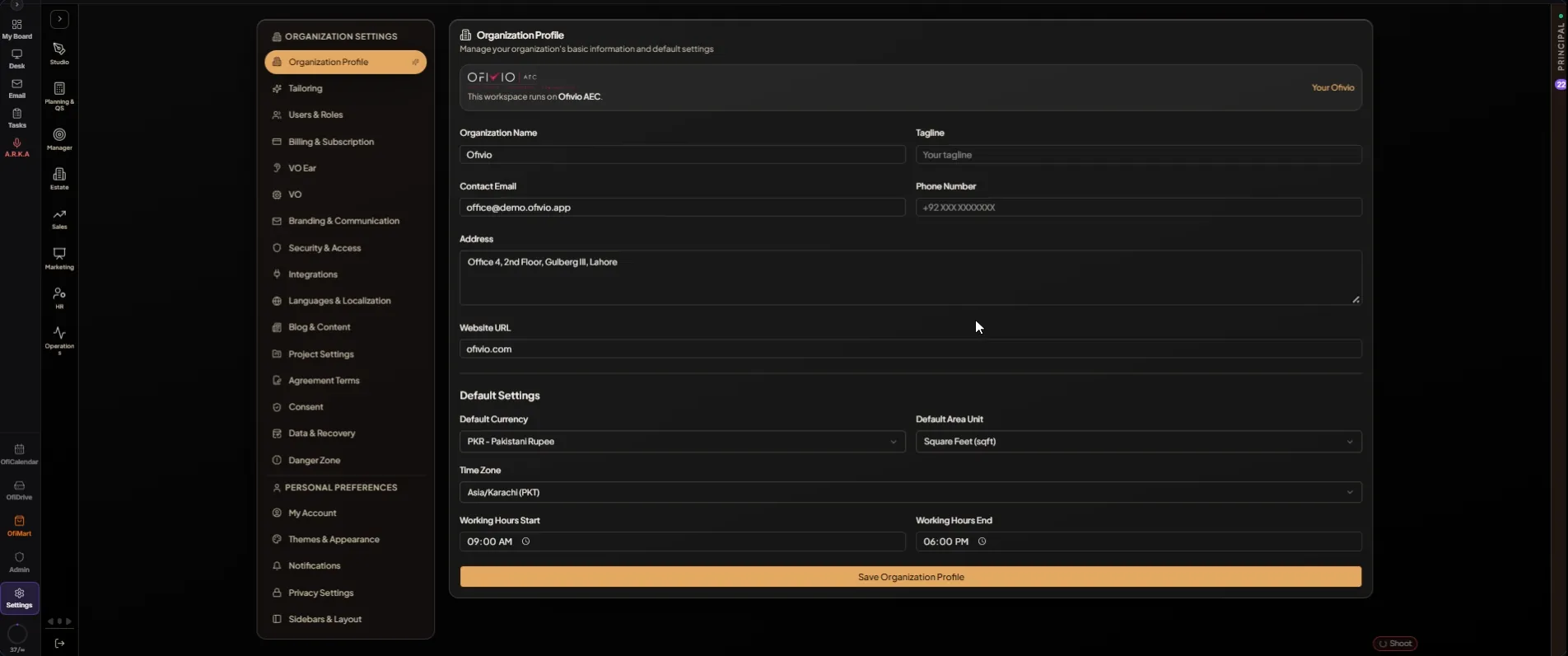
| ORGANIZATION SETTINGS row | What it holds |
|---|---|
| Organization Profile | Name, contacts, address, currency, area unit, time zone, working hours |
| Tailoring | Ofivio Business: your trade's words and your own pipeline |
| Users & Roles | A pointer, "Go to Employees"; people are added in HR (chapter 7) |
| Billing & Subscription | Your plan, payments, plans to move to, what you bought in OfiMart (chapter 8) |
| VO Ear, VO | How VO hears you and how it behaves in the workspace |
| Branding & Communication | Logo, favicon, letterhead, brand colours, email footer |
| Security & Access | How everyone signs in, and locked departments with keys you hand out |
| Integrations, Languages & Localization, Blog & Content | Outside services, language, and blog posts |
| Project Settings, Agreement Terms | Defaults for every new project, and the clauses on every agreement |
| Consent | What the practice has agreed to |
| Data & Recovery | The recycle bin, the whole-workspace download, and restore |
| Danger Zone | "Erase all entries — start over" |
PERSONAL PREFERENCES are each person's own: "My Account" (your name, photo, authenticator and security questions), "Themes & Appearance", "Notifications", "Privacy Settings" and "Sidebars & Layout".
Admin, the door beside Settings on the Quick access bar, is the principal's summary of the practice in cards: Complete Project Summary, Employees Summary, Tasks Summary, Financial Overview, Client Management, Meeting Schedule, Departments & Teams, Performance Metrics and Recent Activities. Each card shows its main figure, two smaller ones and a small chart. Click a card for its "Detailed Report".