Ofivio — from onboarding to final delivery · Part 12 · Running the practice · Chapter 53 of 56
The books: ledger, vouchers and statements
How Finance keeps the cash book and the double-entry ledger, where the money physically sits, and how to read the trial balance, profit and loss and balance sheet.
The books: ledger, vouchers and statements
Finance keeps two sets of eyes on the same money. The cash book ("Revenue — Cash book · single entry") records money in and money out as it happened. The ledger ("Accounts — Ledger · double entry") reads the same money as debits and credits. You rarely post to the ledger by hand: every cash movement in Ofivio (a milestone paid, an expense, a salary, an advance) is posted to it for you, with a voucher as proof. The principal, Finance and the Accountant work here. The double-entry pages come with the Accountant module from OfiMart; without it they say the section is not in your plan.
Day to day: the Daily Ledger
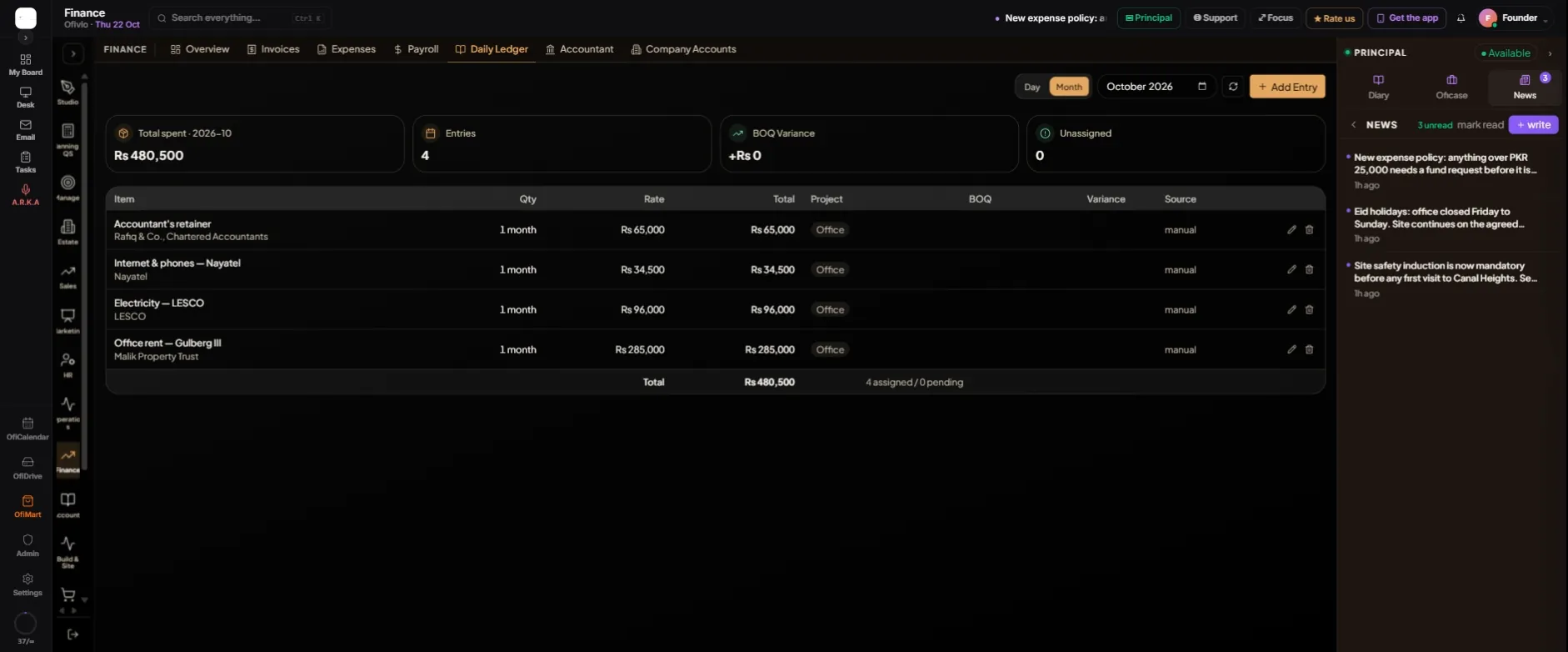
- Open "Daily Ledger" — Choose "Day" or "Month" and the date. The cards read the total spent, the number of entries, the variance against the BOQ and how many entries are unassigned.
- Press "Add Entry" — "Add Purchase Entry" asks for the "Item Name", "Quantity", "Unit", "Rate (PKR)" and "Vendor".
- Say what kind of cost it is — "What kind of cost?" lists plain names; under it Ofivio shows the ledger account the entry books to. Press "Add to Ledger".
- Or tell VO — The form suggests it: "I bought rubber pipe for 90 rupees". Entries made this way show VO as their source.
Where the money sits: Company Accounts
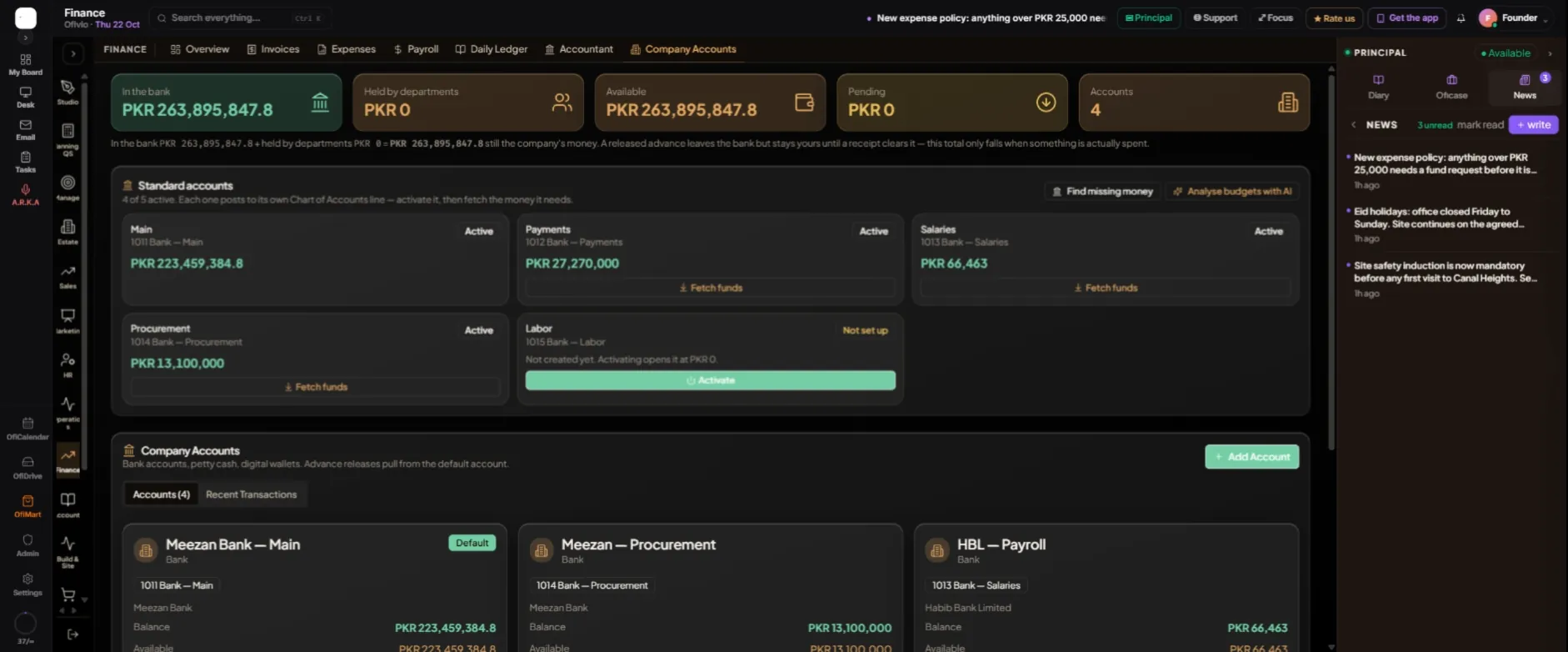
Company Accounts is the bank. The top line reads "In the bank", "Held by departments", "Available", "Pending" and "Accounts", with a sentence explaining how they add up. "Standard accounts" keeps one account for each purpose (Main, Payments, Salaries, Procurement, Labor), each posting to its own line in the chart of accounts. Press "Activate" on one not yet set up; then "Fetch funds" moves money from Main into it as a paired transfer, so both balances and the ledger stay in step. "Find missing money" (principal) looks for milestones recorded as earned whose money never reached an account. "Analyse budgets with AI" reads 90 days of transactions and your recurring expenses. "Add Account" adds a bank account, petty cash or a wallet.
Does the cash agree with the books?
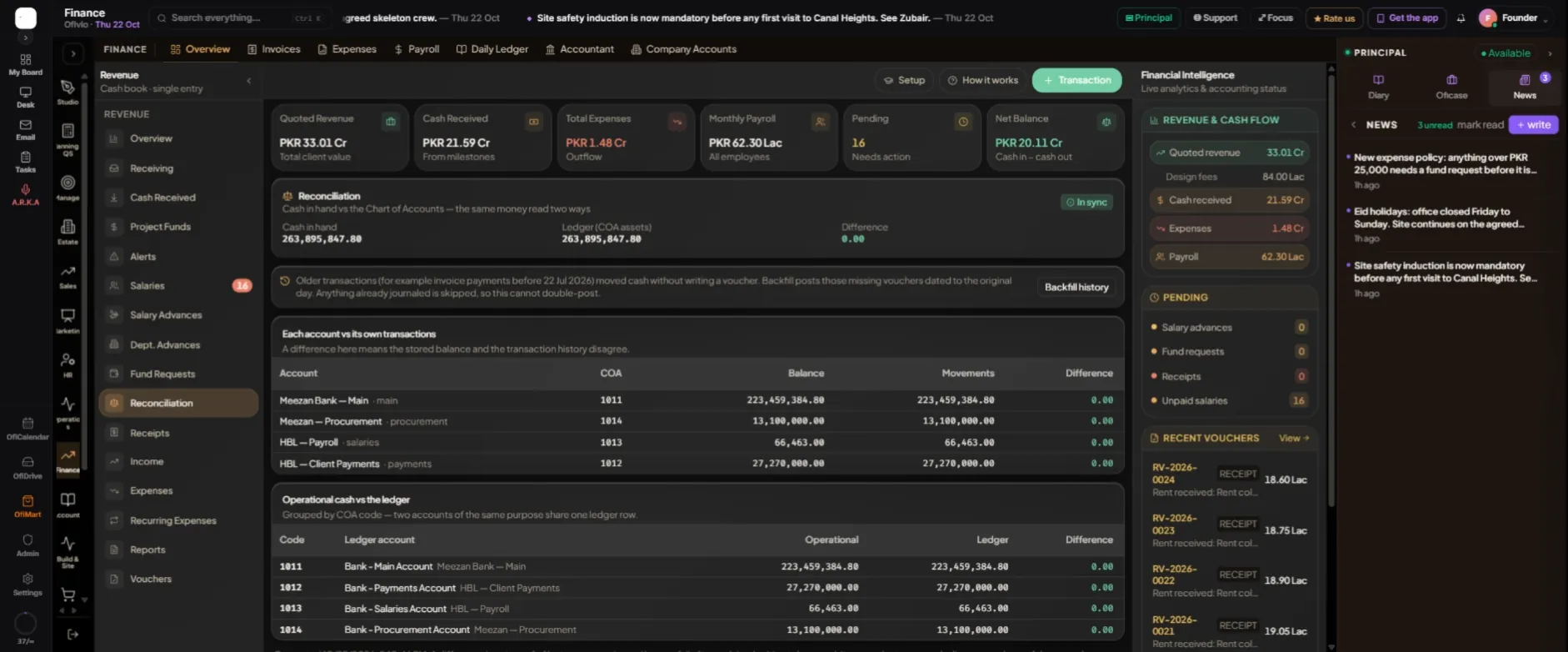
Finance › Overview › Page rail › "Reconciliation" answers that. "Cash in hand vs the Chart of Accounts — the same money read two ways" shows both totals and the difference, and reads "In sync" when they agree. Below, "Each account vs its own transactions" and "Operational cash vs the ledger" check every account. Money that moved before vouchers were written can be posted with "Backfill history"; anything already posted is skipped, so it cannot post twice.
The ledger
- Chart of Accounts — Finance › "Accountant" lands here. Set the year under "Fiscal Years" ("New FY", "Close"). Bring in an old practice with "Opening Balances" (a file of account code, debit and credit, which must balance) or "Import". "Add Account" opens "Create New Account"; "Export" downloads the chart.
- Vouchers — Every posting has one. For a manual entry press "New Voucher": choose the "Voucher Type" (Payment, Receipt, Journal, Contra, Sales, Purchase, Salary, Advance), the "Date" and "Narration", and add the journal lines. "Post Voucher" works only when debits equal credits.
- Trial Balance — Every account's debit or credit balance, worked out again from the journal lines. "Balanced" means the two totals agree. "Export Excel" downloads it.
- Profit & Loss — Revenue, direct costs, gross profit, operating expenses and net profit before tax. "Export" downloads it.
- Balance Sheet — Assets against liabilities plus equity, with the profit to date inside equity. "Balanced" when they agree.
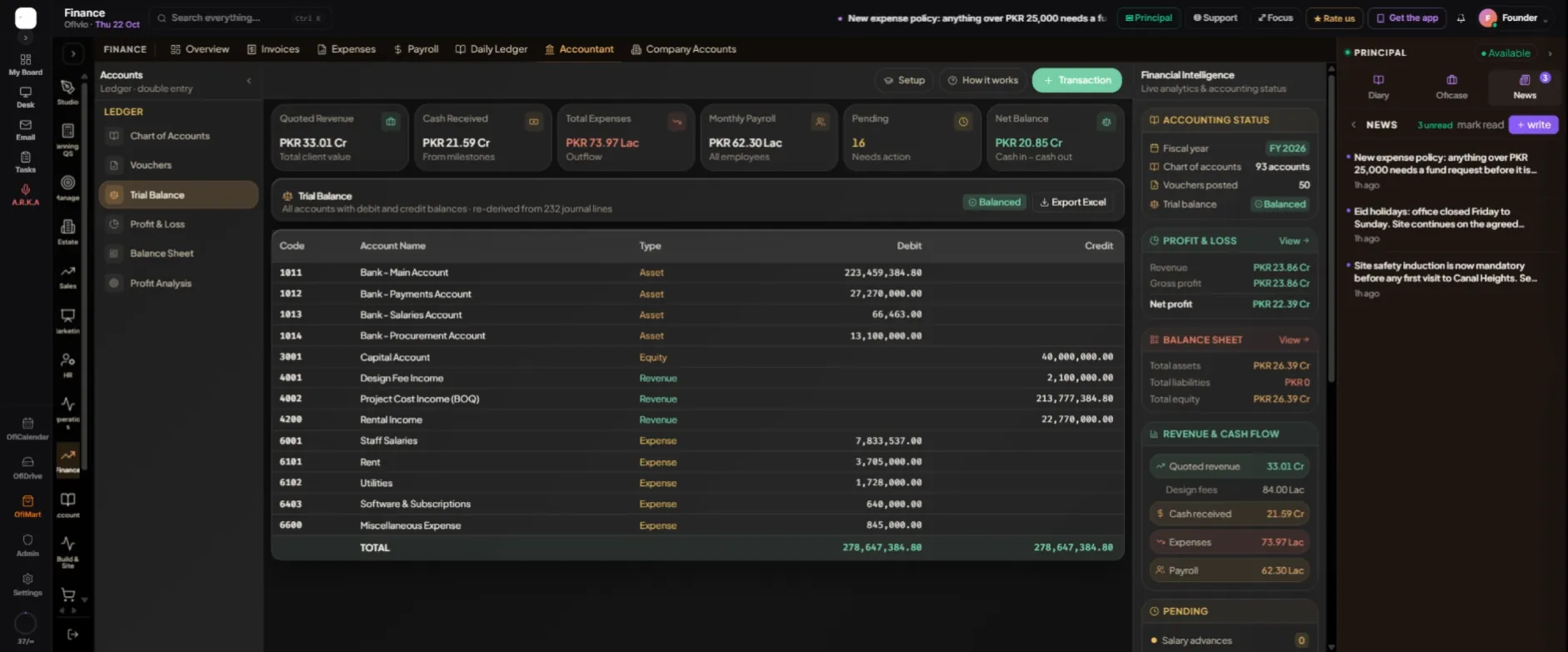
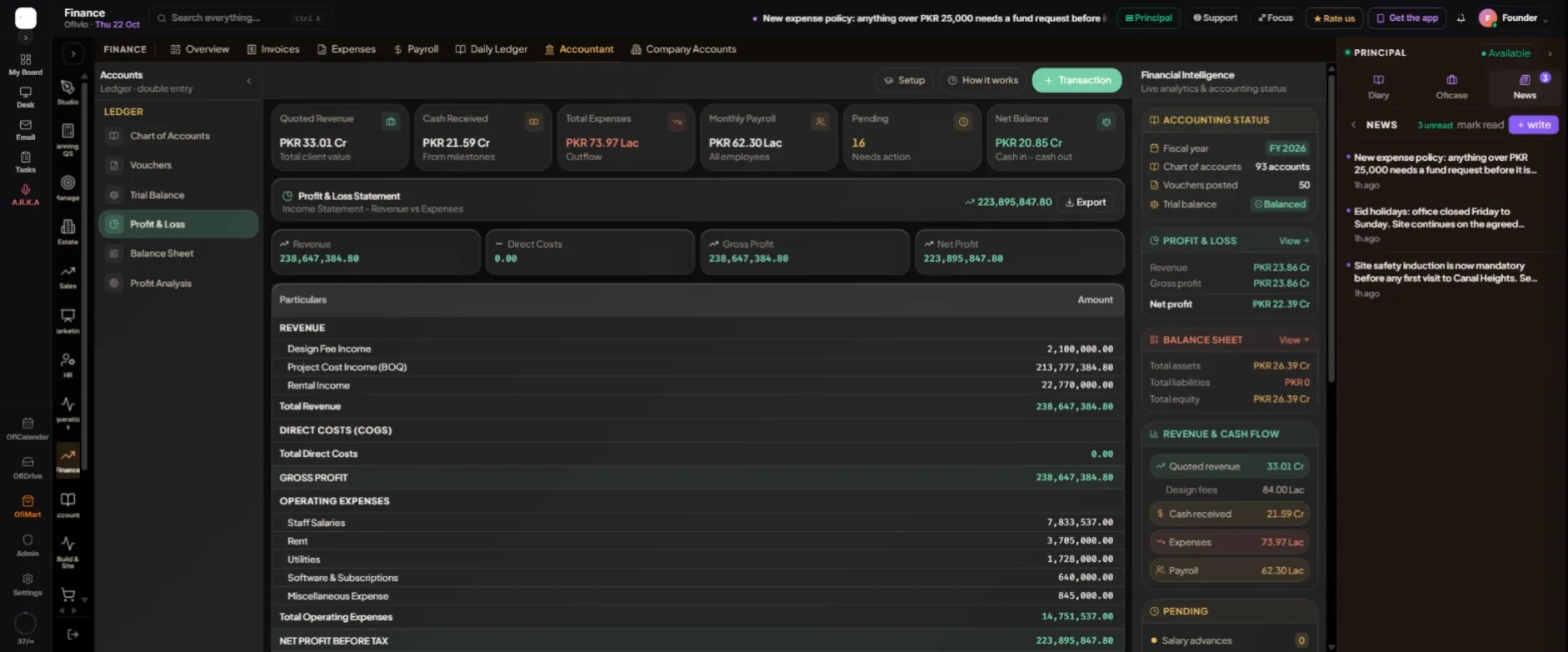
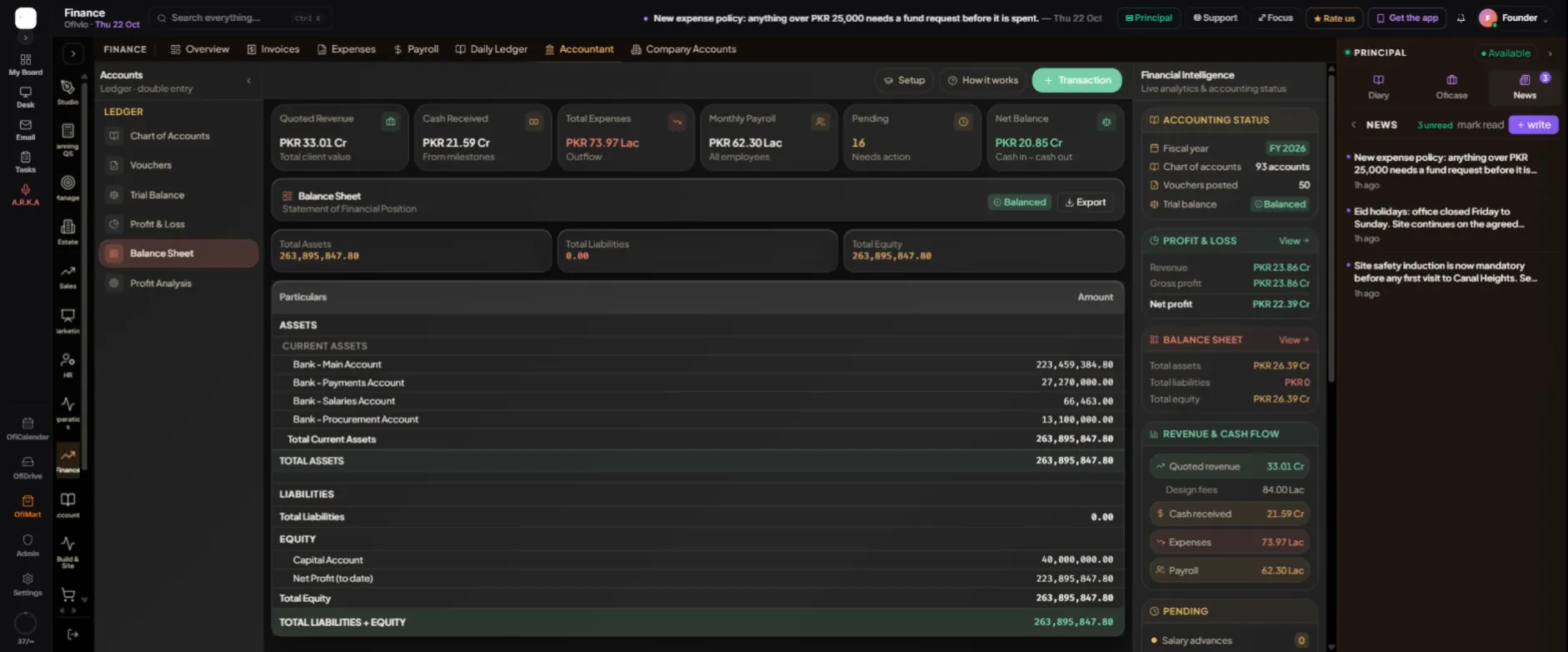
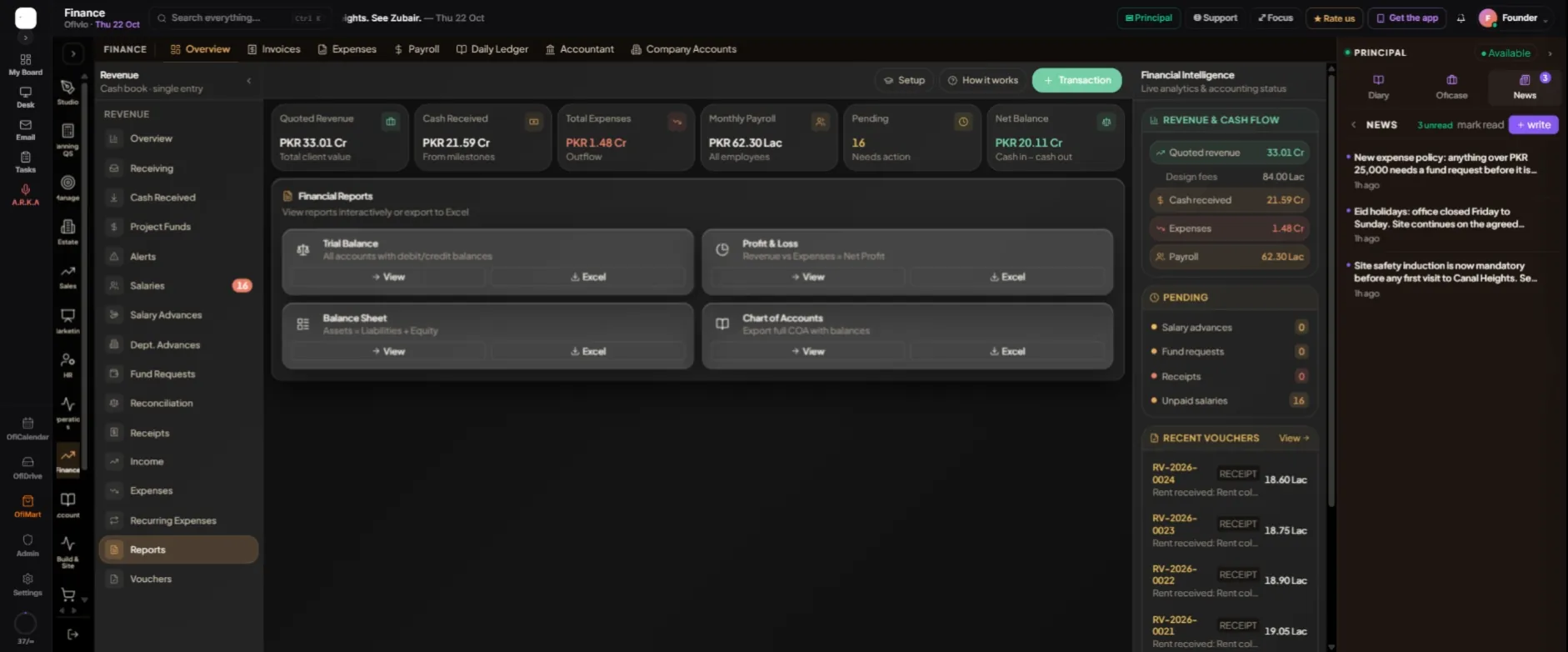
For your accountant or auditor, Finance › Overview › Page rail › "Reports" gathers the four: Trial Balance, Profit & Loss, Balance Sheet and Chart of Accounts, each with "View" and "Excel".