Ofivio — from onboarding to final delivery · Part 12 · Running the practice · Chapter 54 of 56
Oficiate: the office that keeps itself
What Oficiate does on its own (reminders, standard letters, the payment chase, team nudges, deadlines, a weekly summary, posts for finished projects) and how to switch each one on.
Oficiate: the office that keeps itself
Oficiate takes the routine off your hands: it reminds people, sends your standard letters to clients, chases late payments, nudges stalled work, warns before a licence or policy expires, and sends you a weekly summary. It runs on its own clock and writes down everything it does. The principal switches the autopilots on and off; any member of staff can set a reminder for themselves. Clients never see it. Your plan decides how many autopilots can run; when it has none, Oficiate is greyed with a sentence saying so.
Say it in your own words
- Type or speak — On Office, write what should happen in the box, for example "Remind me to pay the office rent on the 1st of every month". "Speak" fills the box from your voice; it does not send.
- Press "Make it →" — Oficiate shows "You said" and "Here's what I'll do", step by step. It may ask "One question".
- Confirm — "Nothing is saved until you press Yes." Press "Yes, turn it on →", or "Change something". If it cannot do the job it says "I can't do that one" and offers "Set it as a reminder →".
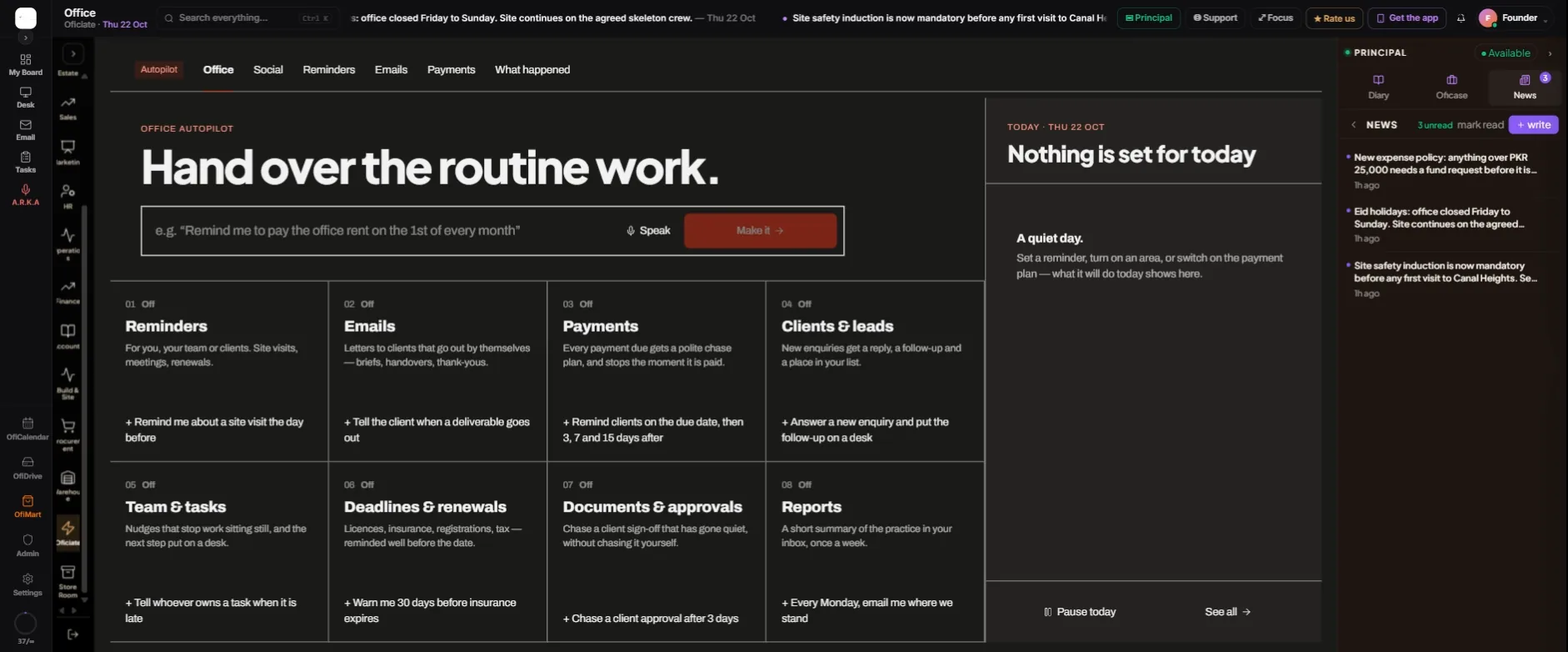
Each of the eight areas opens its list of autopilots, each written as "When … then …", with a switch and "Settings". The "+" line under an area starts its example, such as a site-visit reminder.
| Area | What it does once on |
|---|---|
| Reminders | Sends reminders you set, at their time (see below). |
| Emails | The client's morning project brief on weekdays; "It's ready for you" when a deliverable is sent. |
| Payments | The payment chase plan; "Thank you, received" when a payment is confirmed. |
| Clients & leads | Replies to a new lead and puts the follow-up on a Sales desk; tells you when a lead goes cold. |
| Team & tasks | Nudges about late, stalled or unowned work, and a next-step task when a BOQ is ordered or a design is finalised. |
| Deadlines & renewals | Warns you in Ofivio 30 days, 7 days and on the day before something expires. |
| Documents & approvals | Chases a client approval that has gone quiet for 3 days. |
| Reports | Emails you "Monday, where we stand" on the day you choose. |
Reminders
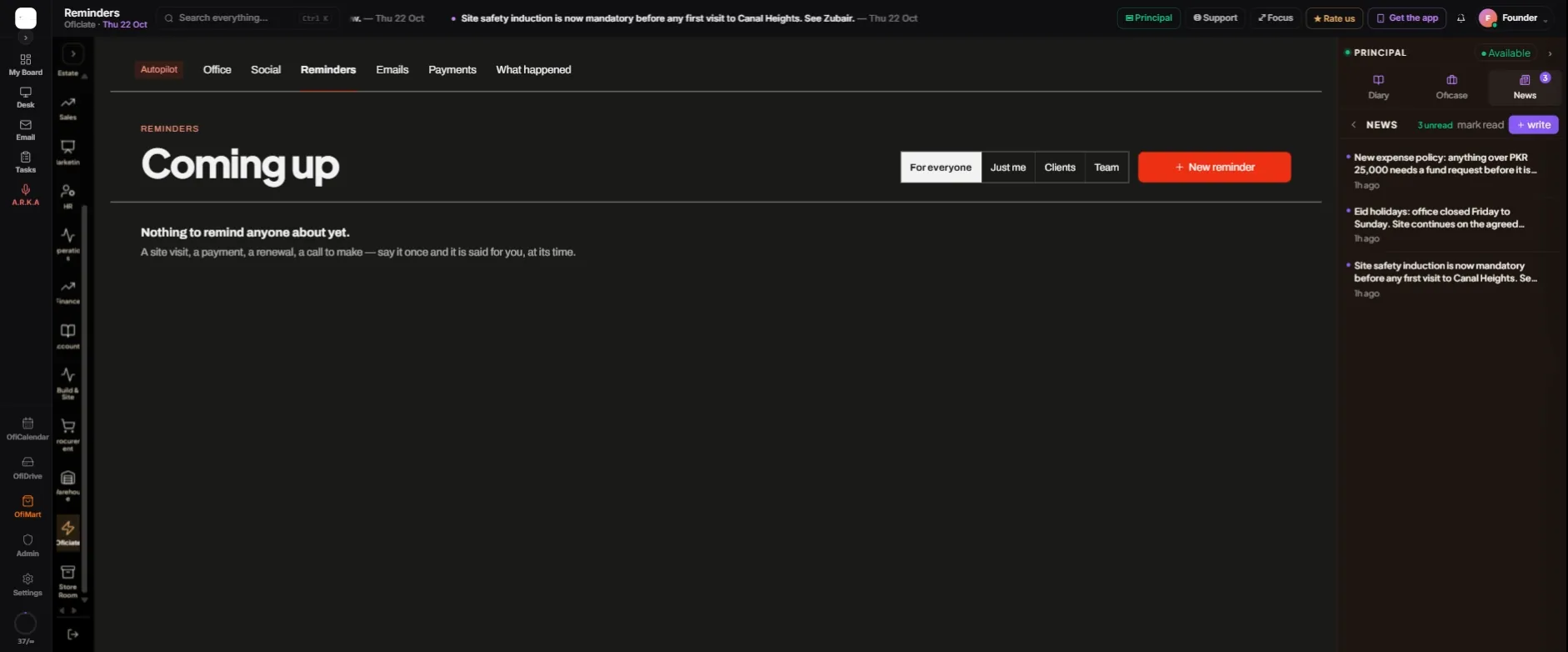
- Press "+ New reminder" — The form reads as a sentence: "Remind [who] about [what] [when] at [time]." Who is "Me", "Someone on the team" or "A client".
- Set the repeat — Choose "How often" and "Stop after". Tick "Remind again after 2 days, then tell me" for anything that must not be missed.
- Choose how it is sent — By email or in the Ofivio app. WhatsApp and text messages are not sent. "Send a test to me" shows you the result; "Save reminder →" keeps it.
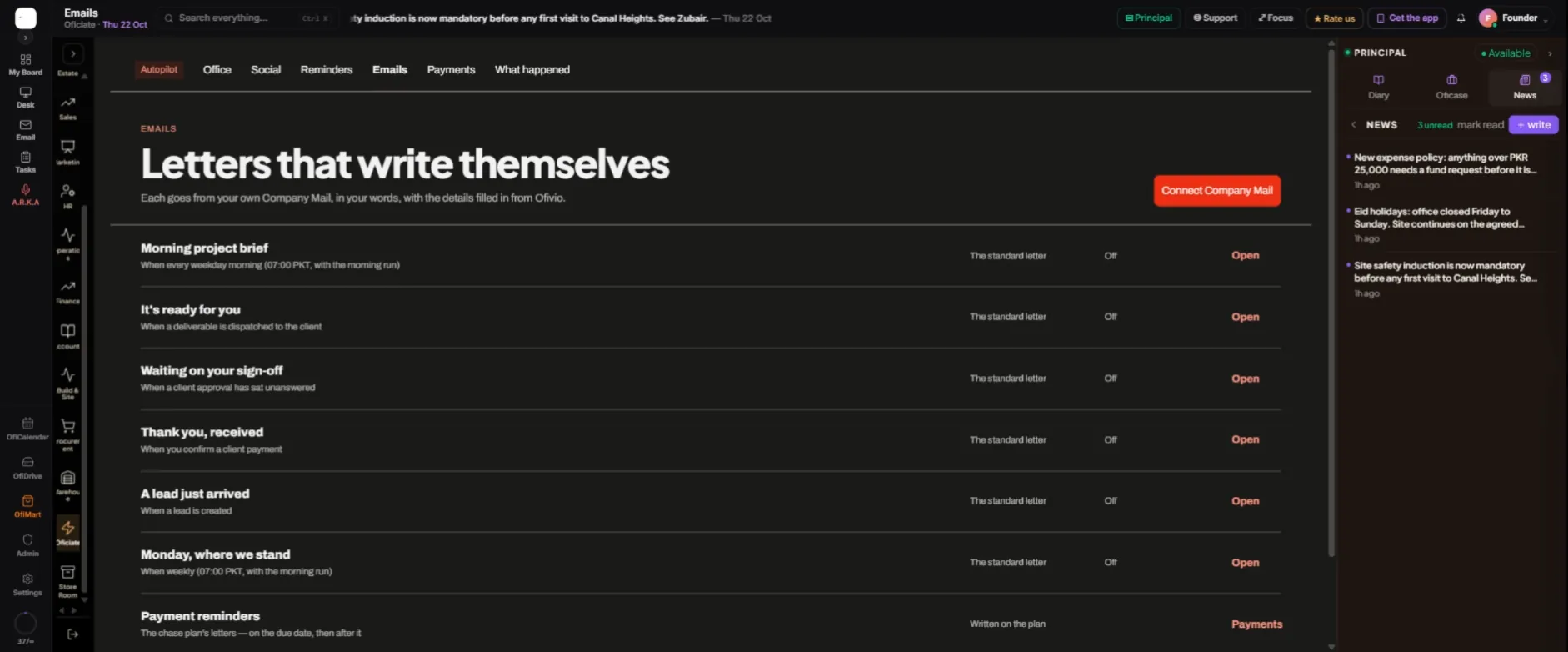
Emails and the payment chase
Every letter goes from your own business mailbox, in your words. Connect it first with "Connect Company Mail": nothing is sent until it is connected, and the email autopilots cannot be switched on. "Open" on a row lets you edit the subject and body of that standard letter and add details from the record; "Back to the standard letter" undoes your changes. Nothing waits for your approval once a letter is on.
Due date: "Friendly heads-up" → +3 days: "Gentle reminder" → +7 days: "Firm reminder" → +15 days: "Tell me to call"
The payment chase plan on the Payments tab is off until you switch it on. It follows unpaid milestones and sent invoices, emails the client on the due date, then 3 and 7 days after, and at 15 days gives you a task to call them. It stops the moment the payment is marked paid, when the client says it is paid and Finance is checking, or when you pause it for that client.
Social, and what happened
With the Business Development module, "Share finished projects" on the Social tab drafts a post when a project is marked Completed. The default is "Ask me first": the post waits under "WAITING FOR YOUR OK" with "Looks good — post now", "Post at 7 pm", "Edit" and "Skip". "That evening, 7 pm" and "Right away" post without asking.
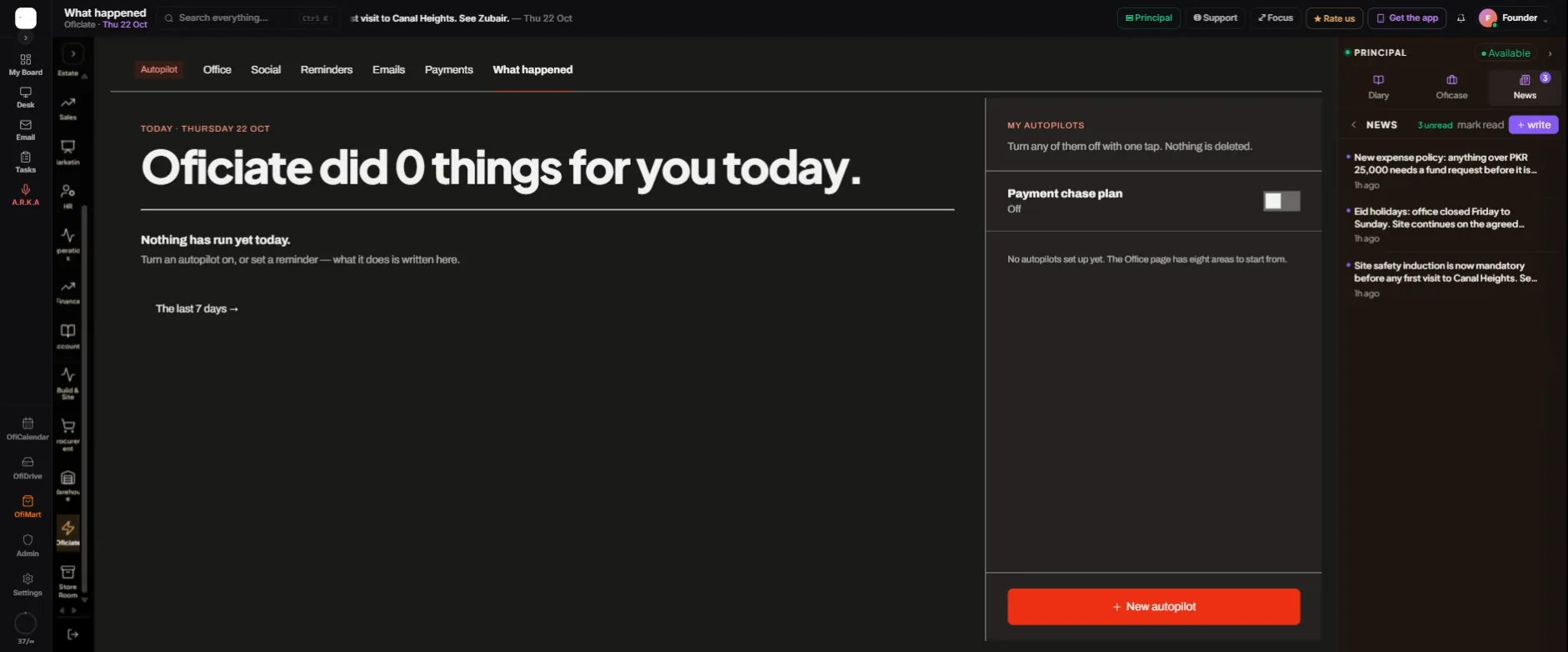
- Open "What happened" — "Oficiate did N things for you today." lists every send, follow-up and warning; "The last 7 days →" goes further back. A line that needs you carries its fix, such as "Connect Company Mail" or "Add the client's email".
- Switch autopilots off — "MY AUTOPILOTS" lists them: "Turn any of them off with one tap. Nothing is deleted." "+ New autopilot" adds one.
- Pause a whole day — "Pause today" on Office stops everything for the rest of the day.