Ofivio — from onboarding to final delivery · Part 12 · Running the practice · Chapter 49 of 56
The Manager desk
How the Manager Hub shows every project at once: tasks, client approvals, payment milestones, meetings, documents, letters, your wallet and the Operations Center.
The Manager desk
Studio and Build & Site look inside one project. The Manager Hub looks across all of them: the work in hand, client decisions, payments falling due, meetings and paperwork. You come here once projects are running, ideally every morning. It is the desk of the principal, or of whoever runs the office for them. Every Ofivio AEC account has it.
| Tab | What it holds |
|---|---|
| Overview | Five figures (warnings, approvals, letters, companies, projects), the Warnings inbox, Recent letters, Companies and the Live feed. |
| Projects | Every project's tasks counted Completed, In Progress, Pending and Total, its per cent complete, and "Archive". |
| Tasks | Internal and Project work. |
| Approvals | Client decisions, per project. |
| Milestones | Deliverables, payments and key stages, per project. |
| Meetings | Meetings and what was decided. |
| Documents | Templates and documents made from them. |
| Letters | Letterheads and letters. |
| Warnings | Discipline records issued by departments. |
| Wallet | Your own cash and advances. |
| Reports | Overview, Projects, Financial and Team reports, and "Generate Report". |
Tasks: the office's work and the projects' work
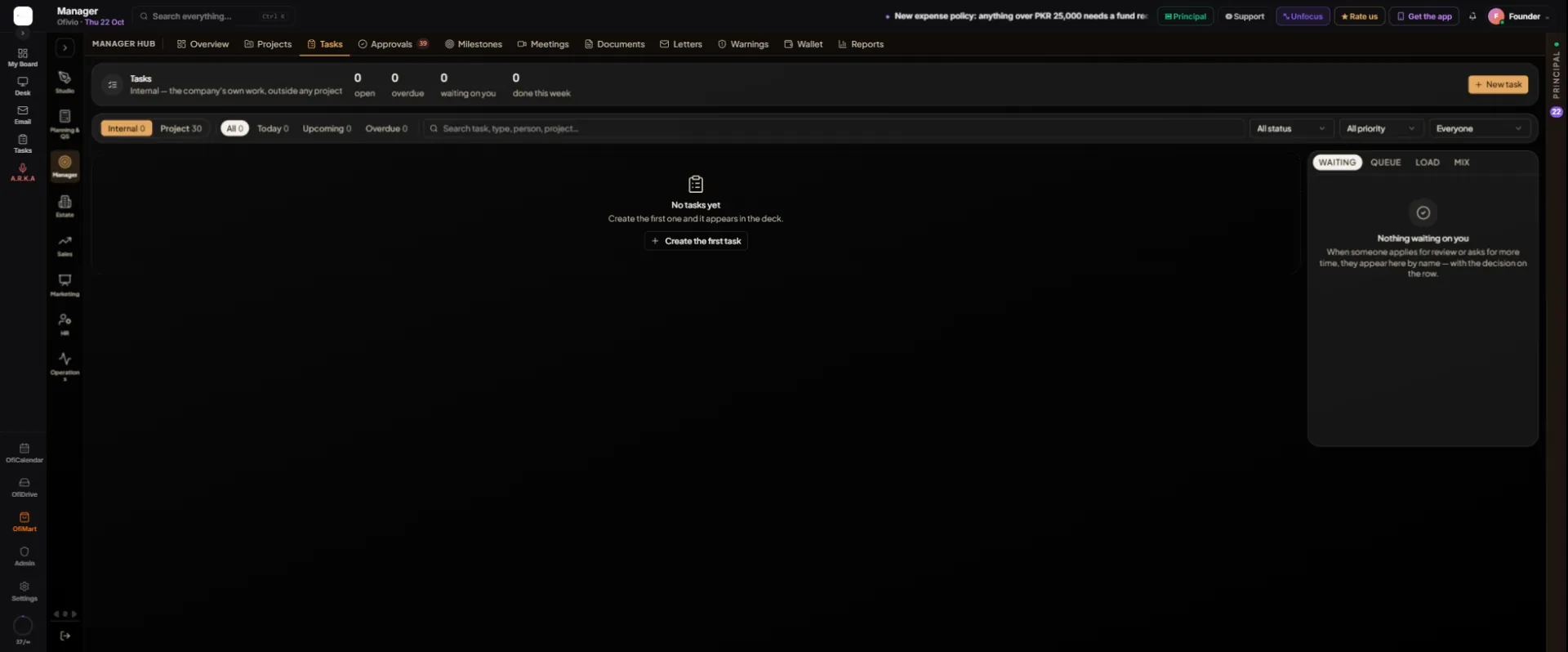
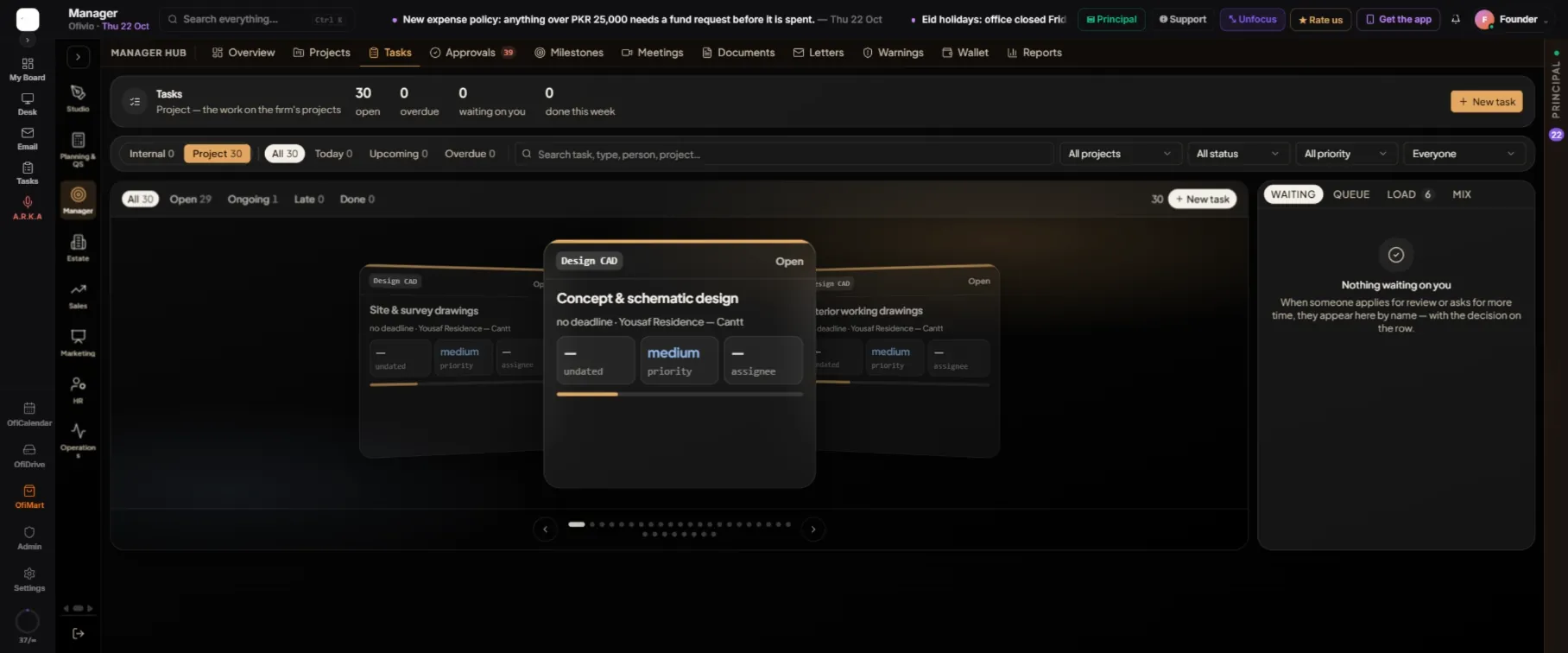
- Open "Tasks" — Two chips split the work: "Internal" is the company's own work, outside any project; "Project" is the work on projects.
- Press "New task" — Choose a "Project", or "No project — departmental task". Fill "Title", "Category", "Priority" and "Task Description", pick a person under "Assignment" (or "Or Assign to Team"), and set a "Due Date".
- Read the rail on the right — "WAITING" lists people asking for a review or more time, with "Grant — move deadline" or "Decline" on the row. "QUEUE" is what is moving now, "LOAD" each person's workload, "MIX" progress and priority.
Client approvals and payment milestones
Approvals and Milestones work one project at a time: choose it in the "Project" picker at the top.
- Ask the client to decide — On Approvals press "Send for approval". Each request becomes a card, counted as raised, waiting, approved or declined; the rail's "AGEING" panel lists what has waited longest.
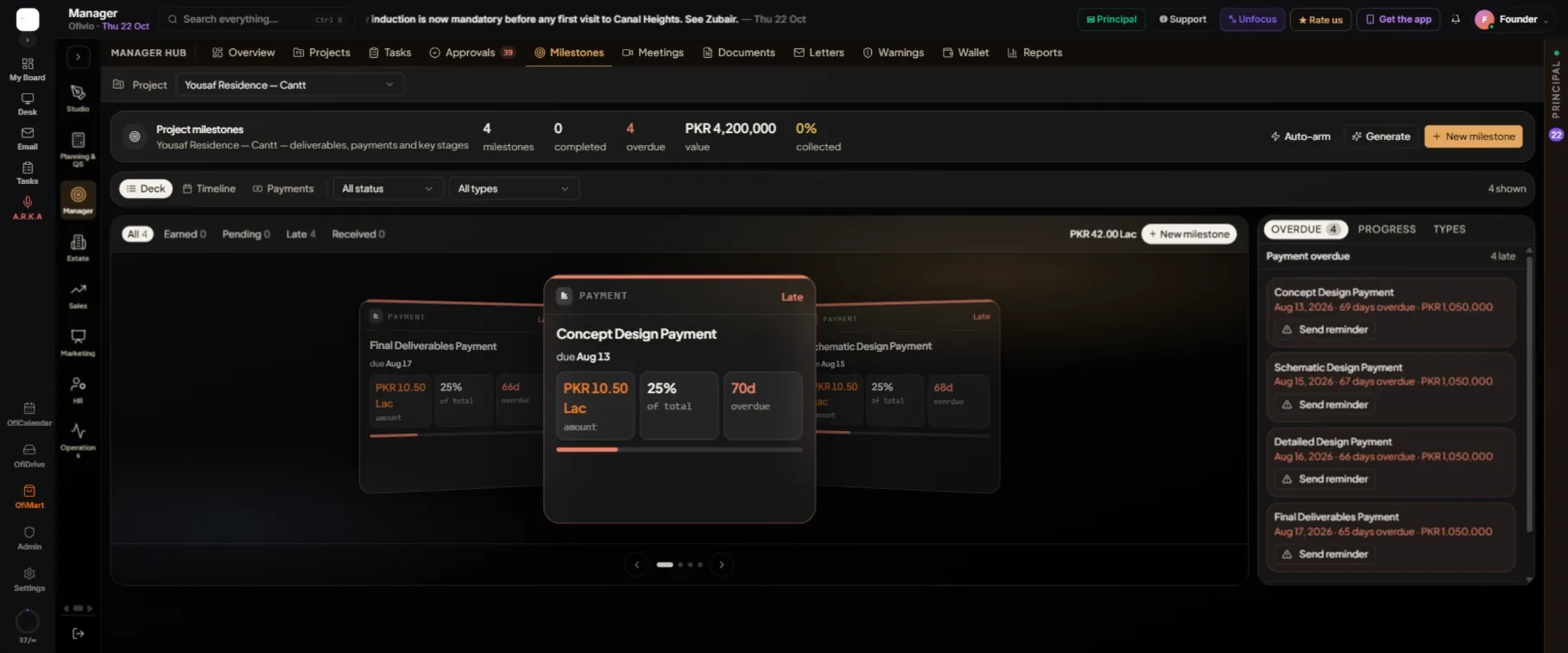
- Set the milestones — On Milestones press "New milestone" for a deliverable, payment or key stage. Or press "Generate": percentages of the project value, one milestone per cost-breakdown line (this needs a locked BOQ), or manual. "Auto-arm" then links each milestone to its activity in the programme.
- Chase what is late — Switch between "Deck", "Timeline" and "Payments". In the rail's "OVERDUE" panel, "Send reminder" sends the client a payment reminder in their portal.
Meetings, documents and letters
- Schedule a meeting — On Meetings press "Schedule meeting"; the attendees are told. The rail's "DECIDED" panel keeps what each meeting settled.
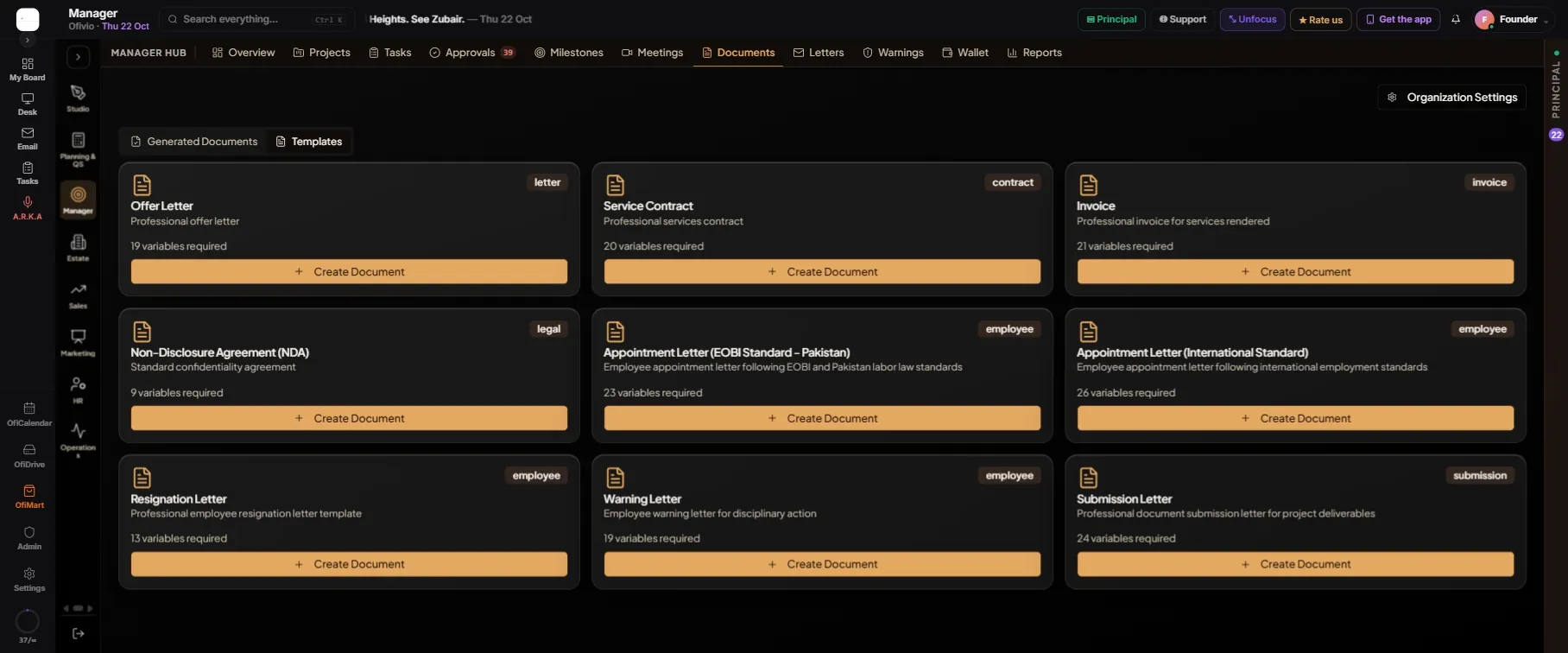
- Make a document from a template — On Documents open "Templates", press "Create Document", fill in the details and save. The result waits under "Generated Documents" with "Download PDF".
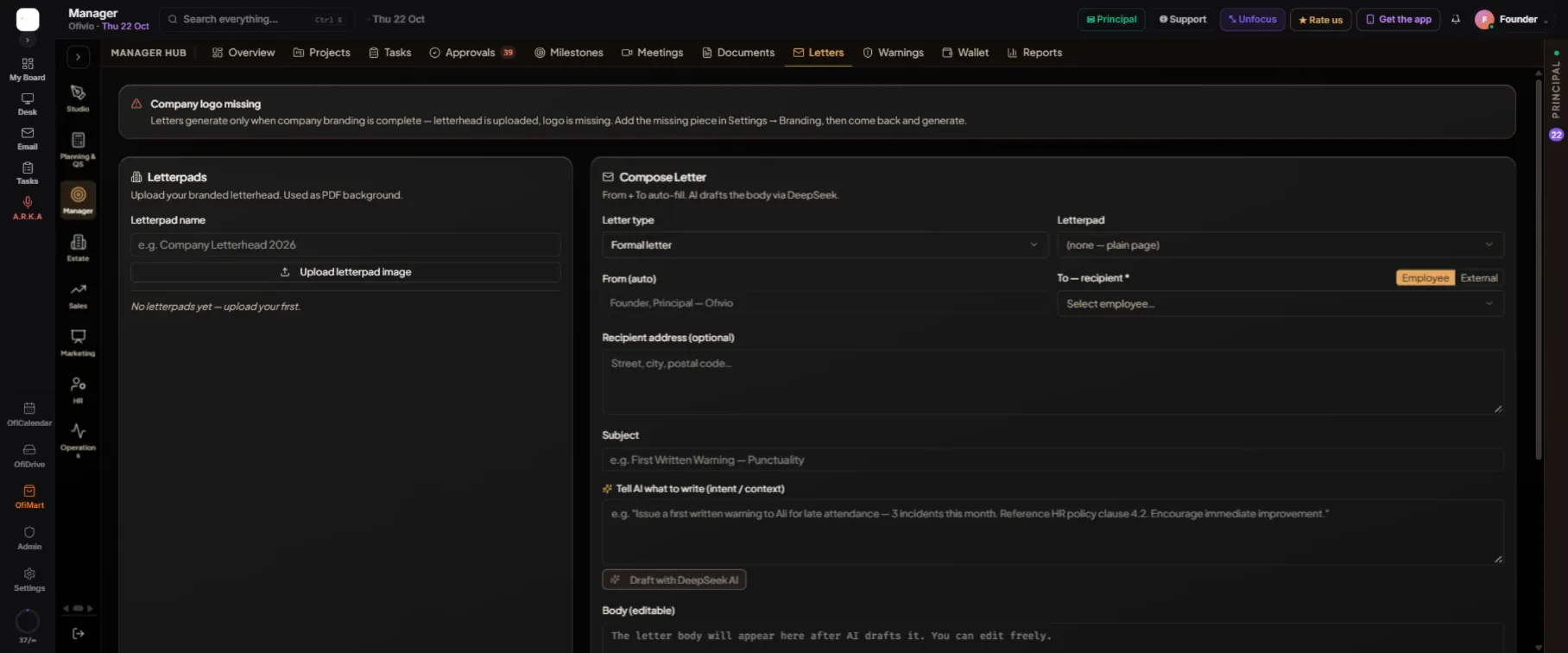
- Write a letter — On Letters, upload your letterhead with "Upload letterpad image". In "Compose Letter" choose the "Letter type", the "Letterpad", the recipient ("Employee" or "External") and a "Subject".
- Draft it, then generate it — Describe the letter under "Tell AI what to write (intent / context)" and press "Draft with DeepSeek AI". Edit the body, then press "Generate PDF", or "Generate & Send to Employee": the letter lands in their Personal › Letters & Warnings, marked "Awaiting signature" until they sign.
Your wallet
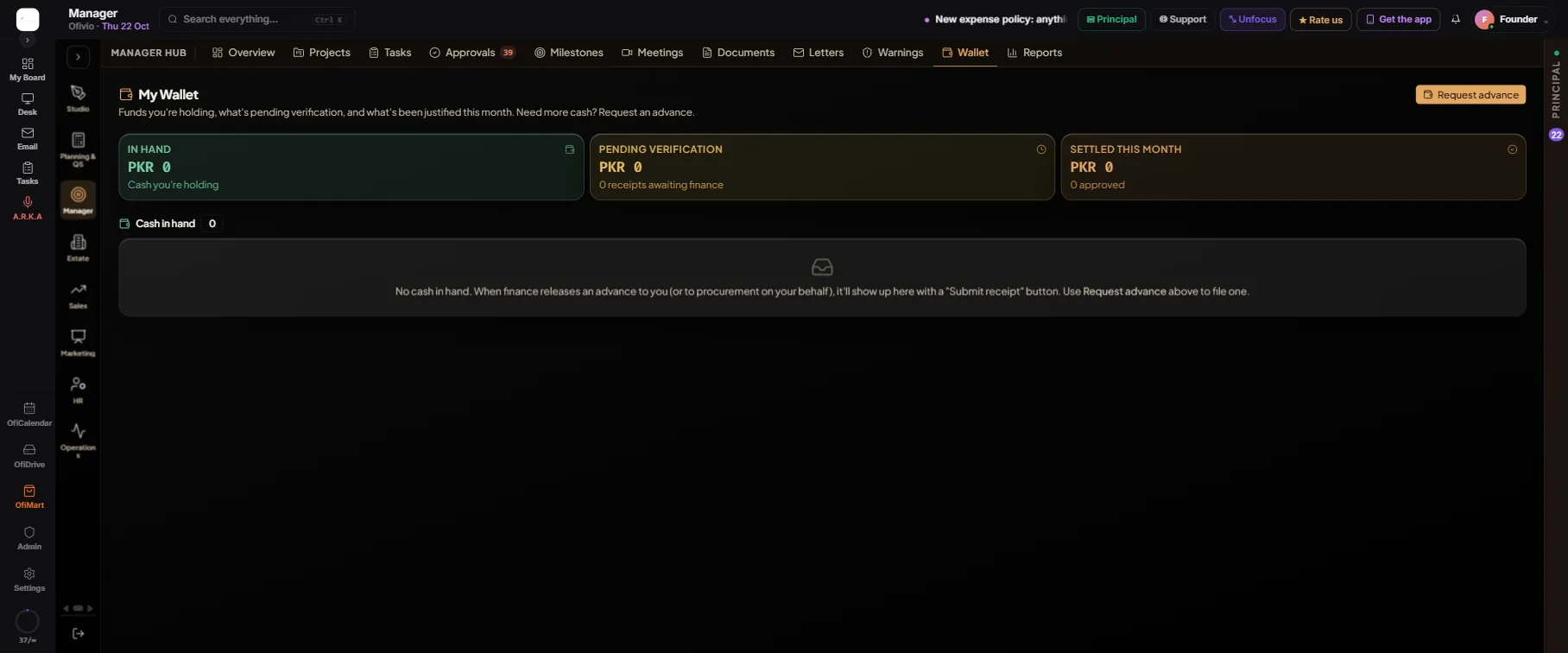
"My Wallet" shows what you hold, what waits for Finance and what is settled. Need cash for a site or a purchase? Press "Request advance". When Finance releases it, it appears under "Cash in hand" with "Submit receipt".
The Operations Center
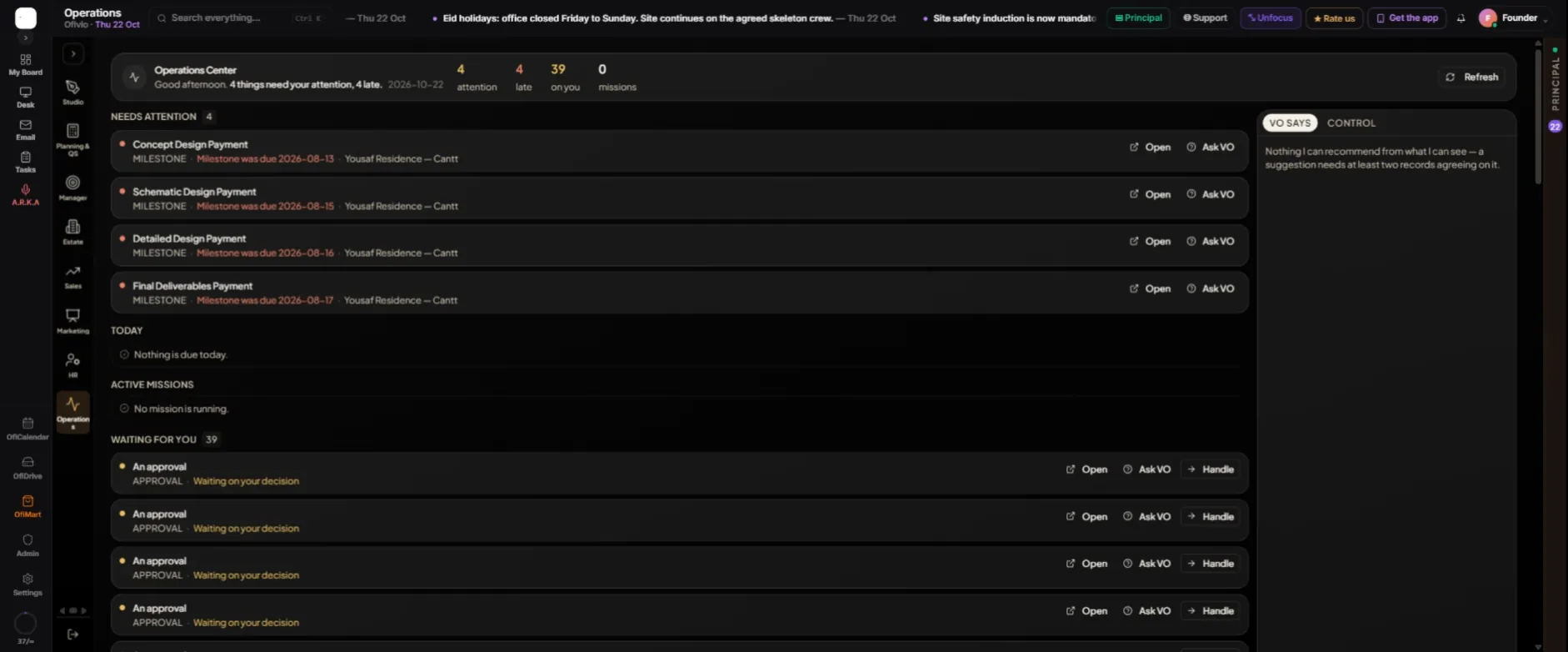
The Operations Center gathers what needs you from tasks, approvals, meetings, milestones and purchasing, under "NEEDS ATTENTION", "TODAY", "ACTIVE MISSIONS" and "WAITING FOR YOU". Every item says where it came from and why it is there. Roles that hold the reporting desk can open it.
- Act on an item — "Open" takes you to the record. "Ask VO" asks why it is on your list. "Handle" hands it to VO, which still asks before acting wherever your approval is needed.
- Work through it one by one — In the rail, "CONTROL" › "Take control" walks the list an item at a time, with "Next" and "Stop".