Ofivio — from onboarding to final delivery · Part 11 · Final delivery · Chapter 48 of 56
Closing the project: Summary and the Store Room
Read the finished project on one page, then archive it to the Store Room, restore it, or delete it for good.
Closing the project: Summary and the Store Room
Two last places finish a project. Summary is the project on one page: progress, money, schedule, team and activity, readable at any time and the page to read before you close. The Store Room is where finished work goes when it should leave every list without being lost. The principal archives a project there, restores it if it is needed again, and is the only one who can delete it for good.
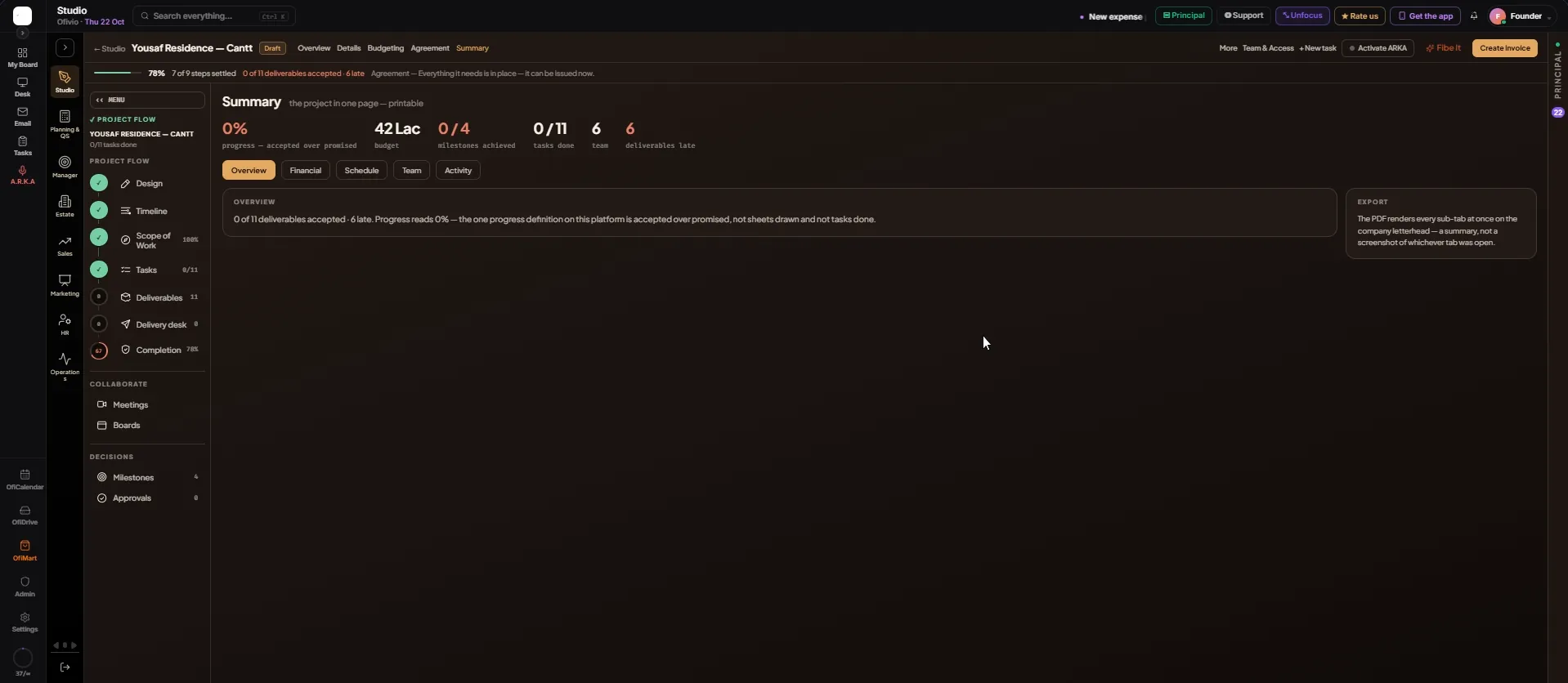
Summary: the project on one page
- Open Summary — Press "Summary" in the row of words beside the project's name.
- Read the six figures — Progress (deliverables accepted over those promised), budget, milestones achieved, tasks done, team, and deliverables late.
- Open each tab — "Overview" puts the progress in one sentence. "Financial" shows the contract, received, remaining and the share collected. "Schedule" lists every deliverable with its person and date, late ones marked. "Team" lists who is on the project. "Activity" shows the latest things that happened on it.
The Store Room: archive, restore, delete
- Archive the project — In Studio › Projects (or Build & Site › Sites), press the archive icon on the project's card ("Archive this project"). Press "Archive" in the question that follows. The project leaves the active lists and every department's dashboards, and waits in the Store Room.
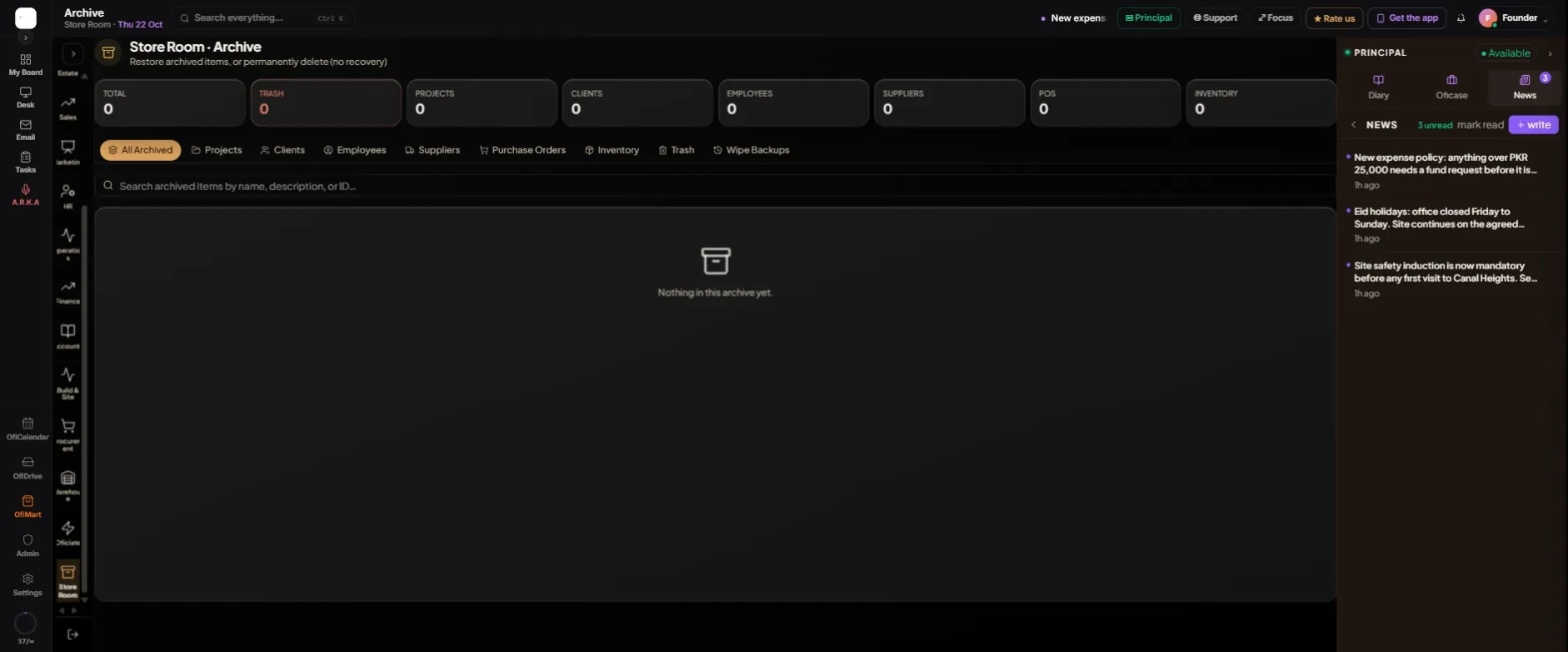
- Open the Store Room — Departments column › "Store Room". The page reads "Restore archived items, or permanently delete (no recovery)".
- Find it — The cards count TOTAL, TRASH, PROJECTS, CLIENTS, EMPLOYEES, SUPPLIERS, POS and INVENTORY. Use the tabs (All Archived, Projects, Clients, Employees, Suppliers, Purchase Orders, Inventory, Trash) or search by name, description or ID.
- Bring it back — Press "Restore" on its row. It returns to every list it left.
- Or delete it for good — Press "Delete forever", then "Yes, delete forever". There is no recovery.
| Badge on a row | How it got here |
|---|---|
| Manual | Somebody archived it. |
| Completed | Archived as finished work. |
| Trash | Moved to the Trash tab instead of being deleted. |
| Auto | Archived by Ofivio itself. |
Completion: closed → Summary read → Archived → Store Room → Restore when needed