Ofivio — from onboarding to final delivery · Part 2 · Winning the work · Chapter 12 of 56
Marketing the practice
Connect your own Facebook Page, Instagram, WhatsApp, X and LinkedIn, keep your pictures in one library, write posts with the assistant, and run campaigns whose leads you can count.
Marketing the practice
Marketing is how the practice is seen between projects: a finished house, a site milestone, a vacancy in a building you let. In Ofivio you write the post once, see how it will look on each platform, and publish it from your own accounts, now or on a date. Campaigns record what you spent and, through the leads tagged to them, what it brought. The principal or a marketing person does this. Marketing arrives with Sales as the Business Development module from OfiMart.
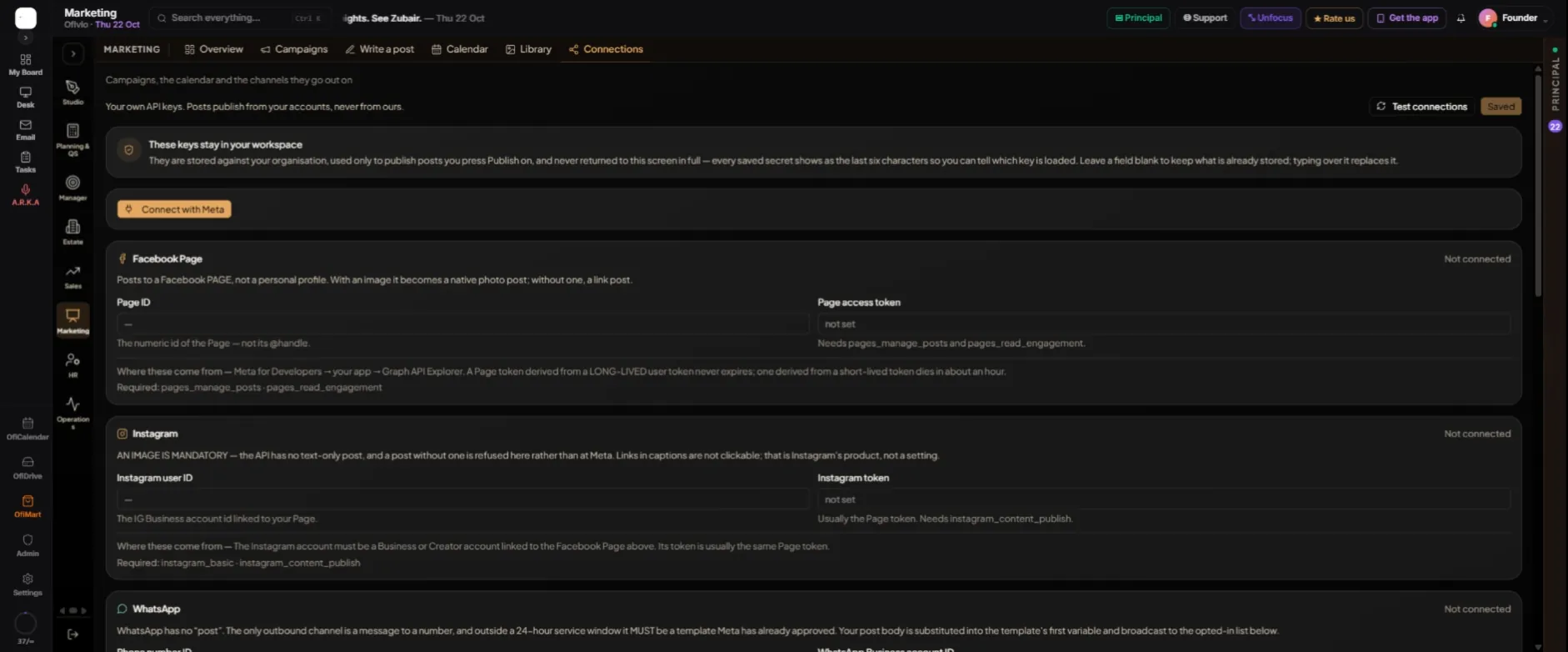
Start with Connections. Until an account is connected you can write and save posts, but nothing can publish, and Write a post and the Calendar both say so in an amber line with an "Open connections" button. The keys you paste stay in your workspace. A saved secret is never shown again in full, only its last six characters, so you can tell which key is loaded. Posts go out from your accounts, never from Ofivio's.
- Open the Connections tab and press "Connect with Meta" — This wires Facebook and Instagram together. The steps on screen send you to Meta's Graph API Explorer for a user token with the listed permissions.
- Paste the App ID, App Secret and the short-lived User access token — The secret is used once to swap your token for a long-lived one, and is never stored.
- Press "Discover my Pages" and pick your Page — Ofivio answers "Facebook and Instagram connected", or "Facebook connected" if no Instagram account is linked to that Page.
- Fill in the WhatsApp, X and LinkedIn cards you use — Each card names its fields and where they come from. Leave a field blank to keep what is stored.
- Save your changes, then press "Test connections" — The save button counts your changes, for example "Save 2 changes". The test prints each platform's answer on its card: Connected with the account name, or Not working with the reason.
- Add the WhatsApp broadcast list — Only numbers that have agreed to hear from you: type the number and press "Add".
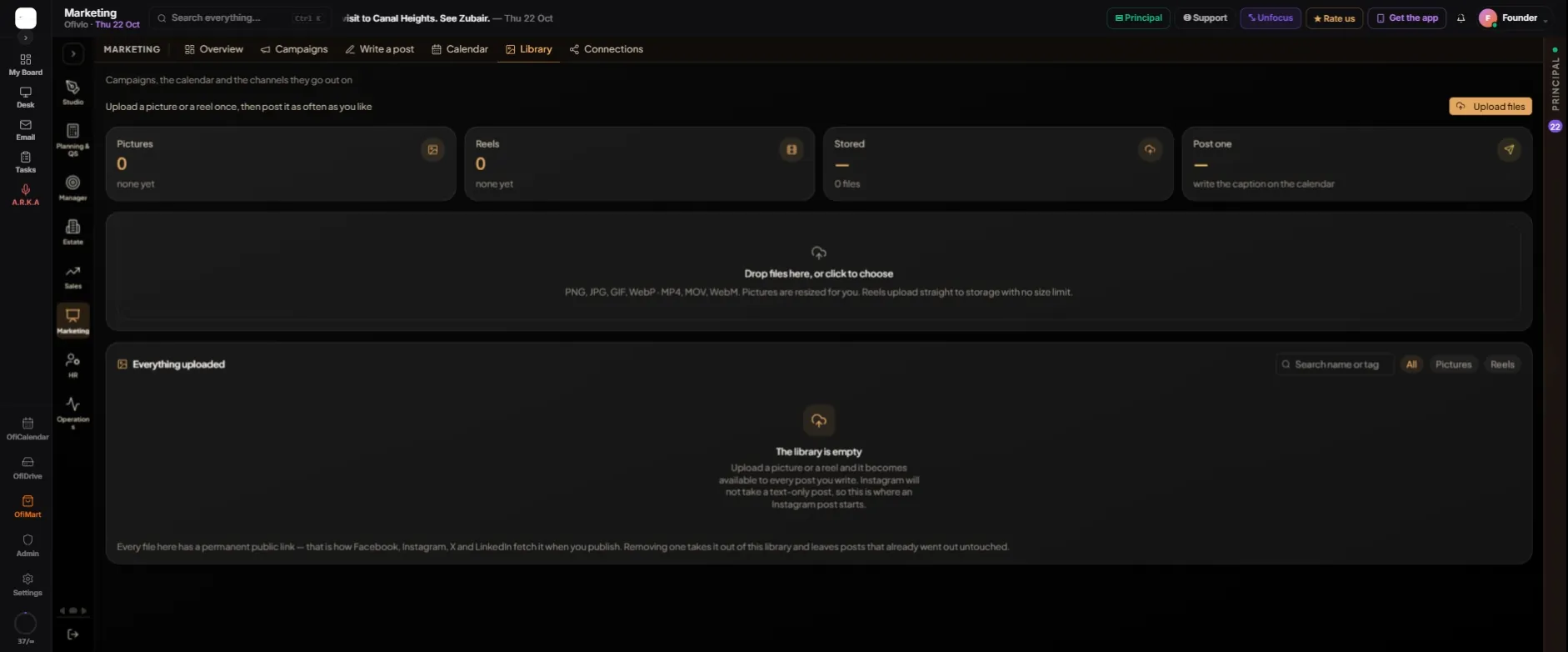
- Open the Library tab and press "Upload files" — Or drop files on the box. Pictures can be PNG, JPG, GIF or WebP and are resized for you; reels can be MP4, MOV or WebM.
- Press "Use in a post" under a file — Write a post opens with that picture or reel already attached.
- Rename or tag a file — The pencil opens "Rename or tag". Tags are comma separated, and the search box finds files by name or tag.
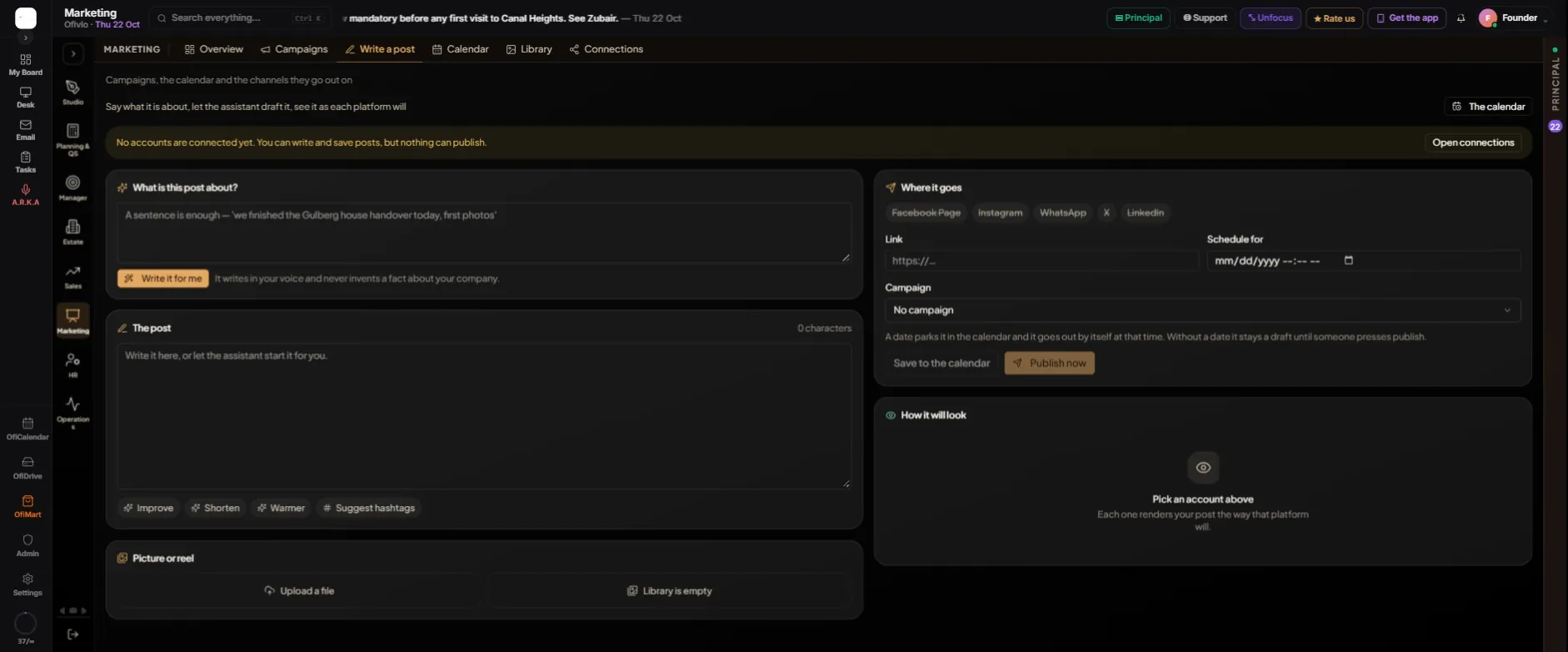
- Open Write a post and say what it is about — Under "What is this post about?" a sentence is enough, for example "we finished the Gulberg house handover today, first photos".
- Press "Write it for me" — The assistant drafts the post in your voice into "The post". It never invents a fact about your company: no prices, awards, client names or statistics.
- Refine it — "Improve", "Shorten" and "Warmer" rework what is written. "Suggest hashtags" offers tags; tap one to add it to the last line of the post.
- Attach a picture or reel — Under "Picture or reel", press "Upload a file" or choose from the Library.
- Choose "Where it goes" — Tap the platforms. One struck through is not connected yet. Under the post, each platform's character count turns red when the post is too long for it.
- Add a Link, a "Schedule for" date and a Campaign if you want them — A date parks the post in the calendar and it goes out by itself at that time. Without a date it stays a draft until someone presses publish.
- Press "Save to the calendar" or "Publish now" — "How it will look" shows the post as each chosen platform will cut it. After publishing, Ofivio tells you which platforms took it and which did not, and why.
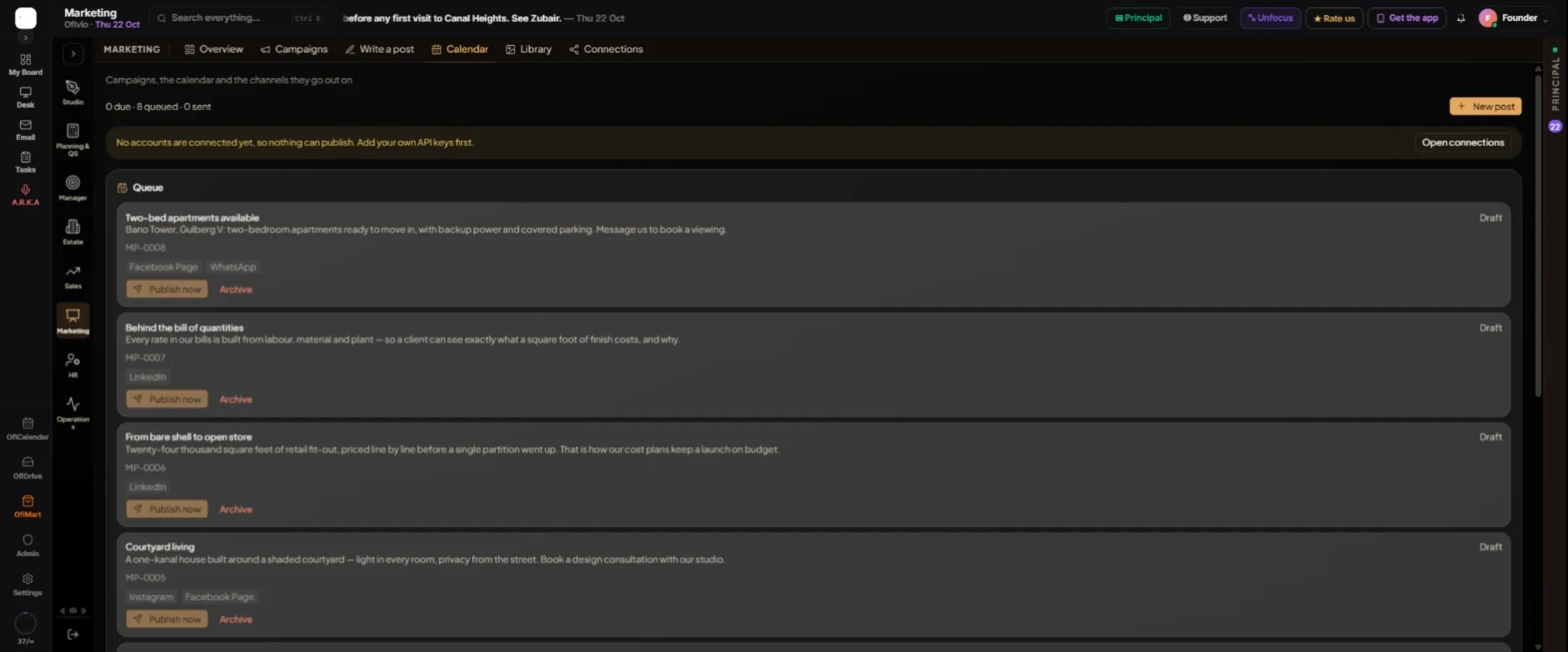
The Calendar tab is where posts wait. "Due to go out" holds posts whose time has come; they go out by themselves within minutes, or press "Publish now". "Queue" holds drafts and scheduled posts. "Sent" keeps what went out, with a link to each live post. One post can reach LinkedIn and fail on Instagram: the card shows each platform's result, and "Retry" sends to just the one that failed.
- Open Campaigns and press "New campaign" — Give it a Name, an Objective and a Status, the Budget and "Spent so far" (what has actually left the bank), Starts and Ends dates, and the Channels it runs on. Press "Create".
- Open the campaign from the list — Its card counts Spent, Leads, Deals won and Won value from the leads and deals tagged to it, and lists its posts.
- Plan a run of posts — Describe the campaign in a sentence, set "How many", "Every N days" and "Starting", pick the platforms and press "Plan it". Untick what you do not want and press "Add … to the calendar". They arrive as drafts; nothing publishes until someone presses publish or gives them a date.
The Overview tab puts it together: running campaigns, spend against budget, leads that carry a campaign, what is due to publish and which accounts are connected.