Ofivio — from onboarding to final delivery · Part 7 · Decisions and money · Chapter 28 of 56
Milestones and client approvals
How the payment schedule holds back the work of each stage, and how you and the client sign off what was done.
Milestones and client approvals
Once the fee is locked in Budgeting and the project's dates are laid on the Timeline, the project carries a payment schedule: its milestones. Each payment can hold back the drawings of its stage until it is paid. Beside it sits Approvals, where one person signs one thing: a delivery, a drawing, a scope line, a payment step. The principal runs both rooms inside the project. The client answers from their own portal, where they sign, send work back and pay.
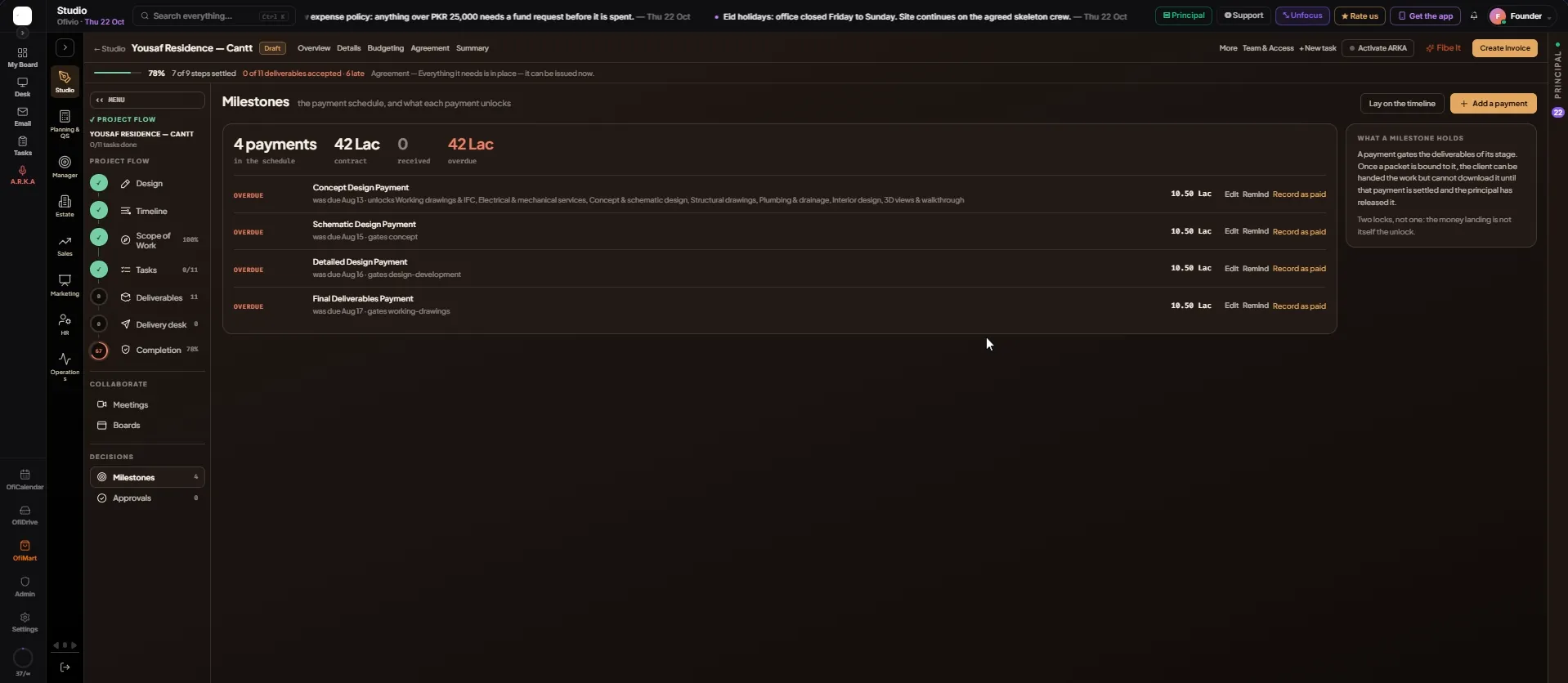
Milestones: the payment schedule
The room is titled "the payment schedule, and what each payment unlocks". The line at the top counts the payments, the contract, what was received and what is overdue. Each row carries a state word (PAID, PAYMENT DAY, DUE IN 2D, OVERDUE, DELIVERY BOUND when work waits on it, or UNPAID), the payment's name and date, what it unlocks or which stage it gates, and its amount. The buttons on the rows are the principal's.
- Open Milestones — In the Page rail, under DECISIONS, press "Milestones".
- Add or change a payment — "Add a payment" asks "What it is for", "Amount (PKR)", "Payment day" and the fee it belongs to ("Design fee" or "Supervision"); press "Add it". "Edit" on a row changes its name, day or amount ("Save"), or takes it off ("Remove"). The fee stays the same: the unpaid automatic payments absorb the difference.
- Follow the timeline again — If the project's dates moved, press "Lay on the timeline" to lay the unpaid automatic payments from the start to the deadline again.
- Chase or record — "Remind" sends the client a payment reminder. "Record as paid" is for cash or a transfer that reached you directly: the payment turns PAID and a paid invoice, signed by the company, is raised and sent to the client. A paid row shows "Invoice" to open it.
- Confirm what the client submitted — When the client pays from their portal, the row says "The client has submitted this payment" and shows "Refuse" and "Confirm paid". Confirm it once the money is in your account.
- Answer a request for more time — MORE TIME ASKED on a row shows the date and the reason the client gave. Press "Grant" or "Refuse".
Approvals: one signature on one thing
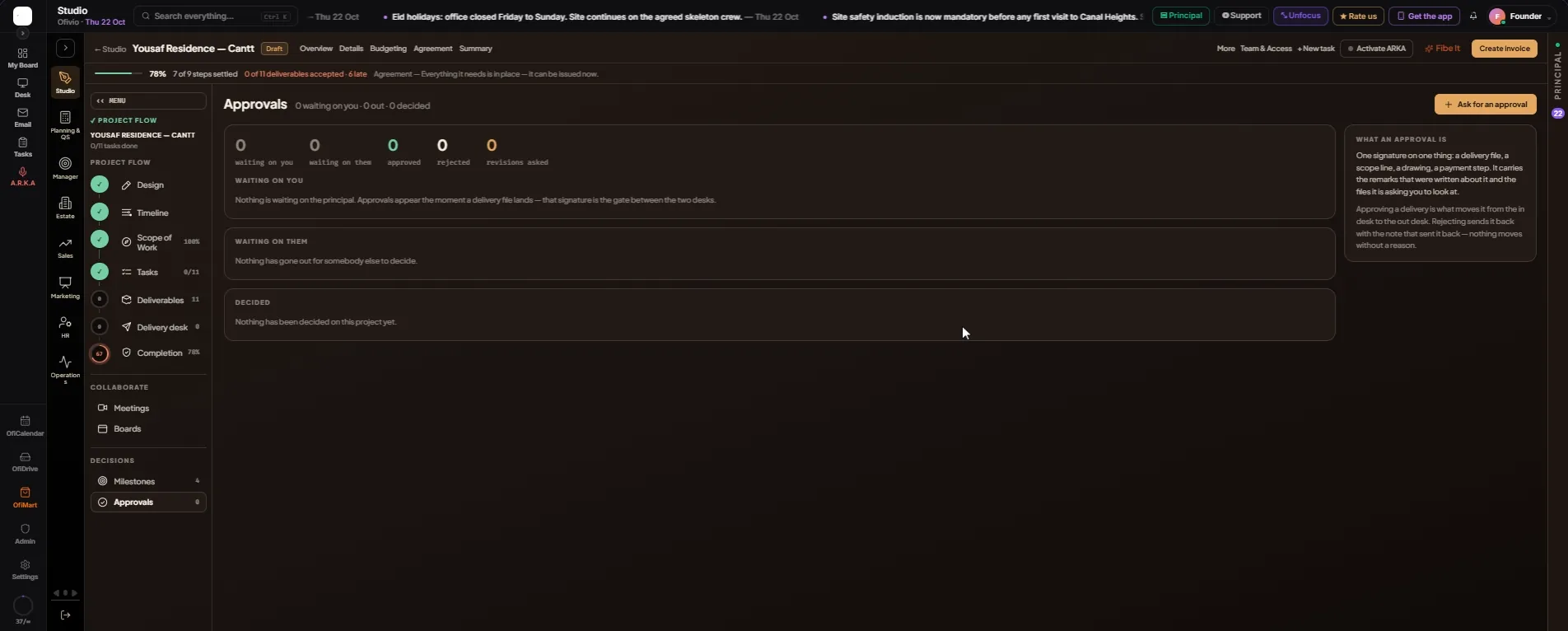
Approvals has three sections: WAITING ON YOU (every approval still pending, newest first), WAITING ON THEM (asked for a revision, or sent on to somebody else) and DECIDED (the record). When you send a delivery to the client, Ofivio opens the client's approval for you. You can also ask for one yourself.
- Ask for a sign-off — Press "Ask for an approval", pick "Which deliverable", choose "Who signs" ("The client" or "The principal"), write "A line to go with it" and press "Send for approval". The client's lands in their portal and only the client can decide it.
- Open one that waits on you — Press a row. The card shows what they asked, the FILES (with "Look" and "Download") and the REMARKS so far.
- Decide — Press "Approve", "Ask for a revision" or "Reject". Only approving goes without a note. "Just say something" adds a remark without deciding.
- Read a decision later — A decided card shows who decided, when and why. When the client signed it, "Signed certificate" opens the paper filed in the project's Approval Records.
What the client sees
The client signs in to a simple portal. Their Quick access bar reads My project, Approvals, Payments, Files, Agreement, Messages and Meetings.
- The client opens Approvals — Each waiting item is a card marked "Waiting on you", with who sent it and the payment it is tied to.
- They review a delivery — "Open the submission" shows every sheet. They can zoom, "Pin a comment" on a spot, and rate each sheet out of five.
- They approve or send back — "Approve" asks for their full name; "Sign and approve" files a signed certificate both sides can open. "Send back" needs a comment or a note.
- They pay — In Payments each payment is a card reading "Pay", "Checking" or "Paid". "Pay" offers "Bank transfer" (with the bank receipt, then "Submit payment") or "Cash" (then "Record cash payment"). Your team confirms it, and whatever that payment held opens.
An approved delivery counts as accepted and the header strip's "deliverables accepted" moves. When every deliverable of a stage is accepted, the payment that gates that stage is marked earned and the people who invoice are told. Work sent back returns to revision, with its task reopened and the client's note on it.
Fee locked → Payments on the schedule → Work delivered → Client signs or sends back → Client pays → Principal confirms