Ofivio — from onboarding to final delivery · Part 6 · Working together · Chapter 27 of 56
Email and OfiDrive
Connect your firm's mailbox so letters go out under your own address, then keep files in OfiDrive: the company's drive, and each project's own folder sorted into five shelves.
Email and OfiDrive
Two everyday tools sit on the Quick access bar. Company Mail is a mail client for the firm's own mailbox: it reads your inbox straight from your mail server and sends under your own address, never under Ofivio's. OfiDrive is where the bytes live: the company's drive, which the principal manages against the space the subscription carries, and inside it one folder per project, where the team files every drawing and document on the shelf that says what it is. The principal connects the mailbox and manages the drive; everyone writes mail and works in their projects' folders.
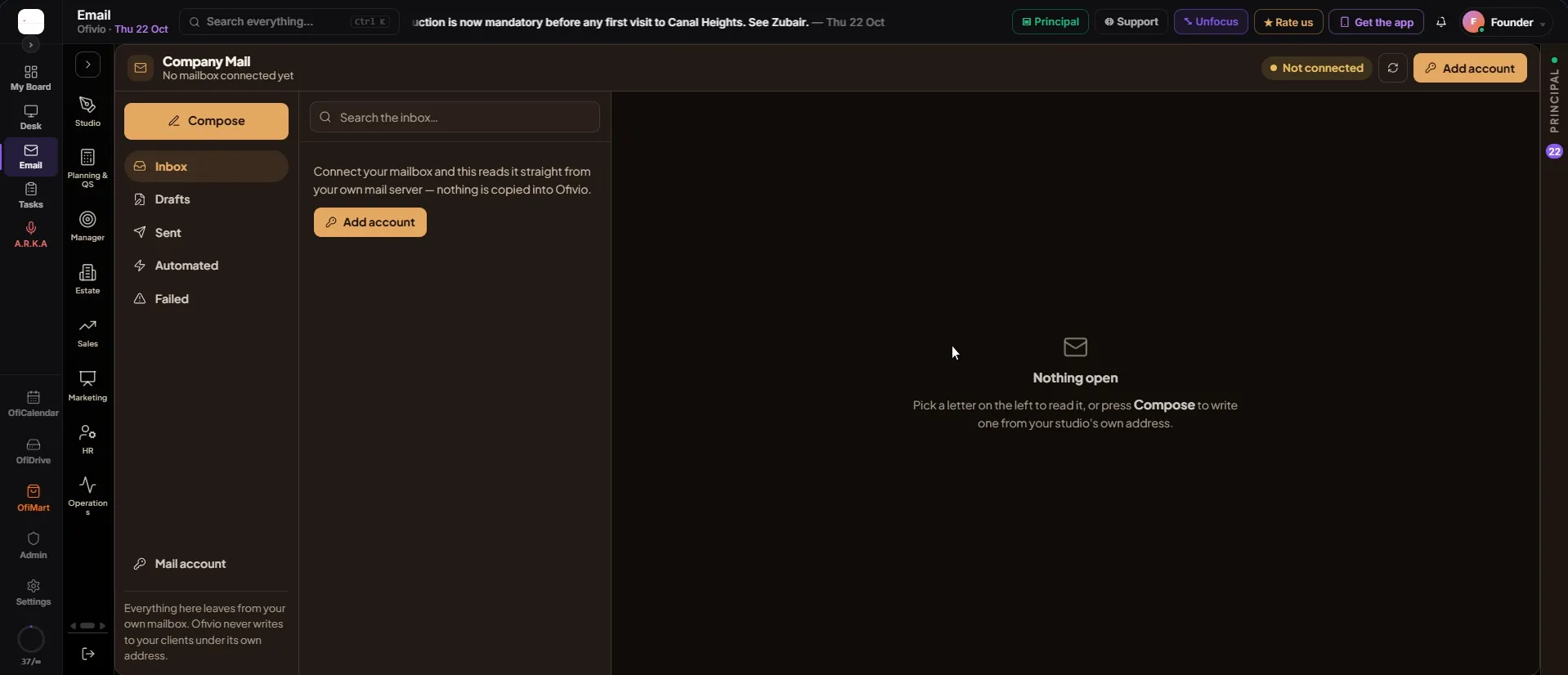
- Press "Add account" — On the toolbar of Company Mail. Until a mailbox is connected the inbox explains that it reads your own mail server and copies nothing into Ofivio.
- Fill in the sending side — Mail server, Port & encryption (SSL/TLS on port 465 or STARTTLS on port 587), Mailbox (username) and Password.
- Say how letters are signed — "Send as" is the name clients see; "Replies go to" is where their answers land.
- Fill in the incoming side — "Incoming server (IMAP)" and "IMAP port". 993 is the secure default, and almost always right.
- Press "Save", then "Send a test" — Type your own address in the test box first. Until a real test message has left, the mailbox is saved but nothing uses it, and the automations that email clients stay locked.
Once connected, the toolbar reads "Sending as your studio" in green. The folders down the left are Inbox, Drafts, Sent, Automated (letters a rule sent), Failed (letters that did not leave, with the reason and "Try again") and Mail account. The search box looks through the letters on screen; press "Search the whole mailbox" to look further, and "Show older mail" to read further back. Open a letter to read it, with "Reply", "Reply all" and "Forward".
- Press "Compose" — "From" shows your mailbox, or a list if the firm has more than one.
- Fill in To, Cc and Subject — Separate several addresses with commas. A letter needs a recipient and a subject before it will go.
- Write the message and press "Attach" for files — Up to ten files, 20 MB together.
- Press "Send" — Or Ctrl+Enter. "Save draft" keeps an unfinished letter in Drafts, where only you see it; the bin discards it.
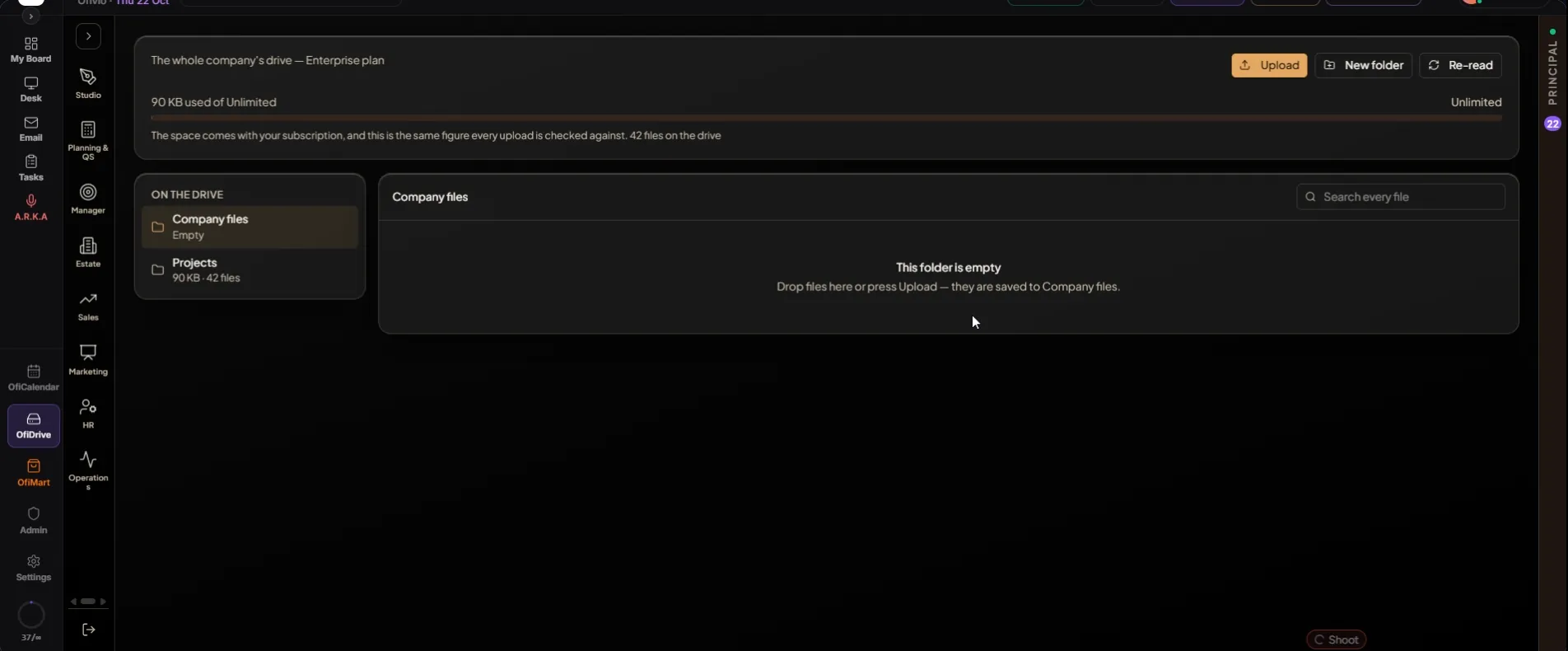
The company's OfiDrive opens with the space: how much is used of what your subscription carries, and how many files are on the drive. "On the drive" lists Company files first, then Projects and every other area of the app that holds files. "Upload" (or dropping files on the page) and "New folder" always work in Company files; a project's files are uploaded in that project's own folder. "Search every file" looks across the whole drive. Tick files to delete them; Ofivio asks first, says the space goes back to your plan, and keeps any file already issued to a client. "Re-read" refreshes the counts.
A project's folder is read by purpose, not by a folder tree. In the Studio's OfiDrive tab, pick the project from the row of names; "Open the project" takes you into it. The counts across the top are received, working, for review, delivery not issued, issued to client and reference, and a chip opens each shelf.
| Shelf | What goes on it |
|---|---|
| Received | What came in from the client, a consultant or an authority |
| Working | Drafts in progress that nobody has asked to see yet |
| For review | Files submitted for the principal to look at, the revision drop |
| Delivery | The final files, split into Not issued and Issued to the client |
| Reference | Surveys, bye-laws and photos: background that is never delivered |
- Open the shelf, then press "Upload to …" — The button names the shelf, for example "Upload to Working". A file uploaded again under the same name becomes a new version, never a second file.
- Open, download or attach a file — Each row has buttons to open it, download it, attach it to a task (as a Revision for the pre-check, or as Delivery) and, for whoever manages the folder, remove it.
- Give someone access by hand — Under "WHO CAN OPEN THIS FOLDER", pick a person, choose Can open, Can upload or Manages it, and press "Grant". "Revoke" takes it back. Without a grant, team members see the folders their own deliverables use.