Ofivio — from onboarding to final delivery · Part 6 · Working together · Chapter 26 of 56
OfiCalendar: every date in one place
Read the firm's whole register of dates by day, week, month, year, Gantt or Kanban, see who is carrying too much on which day, and add your own entries and reminders.
OfiCalendar: every date in one place
OfiCalendar is one calendar for the whole firm. It is a register of what is due rather than a day planner: task due dates, submission and pre-check dates from each project's Scope of Work, meetings, site visits, client payments, salaries, rent and bills, approved leave and public holidays. You never type most of these in; each arrives from the place it lives, and the calendar reads everything again every minute, which is why the top of the page says "Updates itself". The principal reads it to see who is carrying too much on which day. Everyone else reads their own week.
- Pick a view — Day, Week, Month, Year, Gantt or Kanban, at the top right. "‹", "Today" and "›" move through time.
- Choose what is shown — The chips under the toolbar switch kinds on and off: Submission, Revision, Company deadline, Meeting, Payment, Salaries, Rent & bills, Leave, Reminder, Company event, and more as they appear. Project and Work window start switched off.
- Look at one person — The "Everyone" list on the right narrows the calendar to one person's dates.
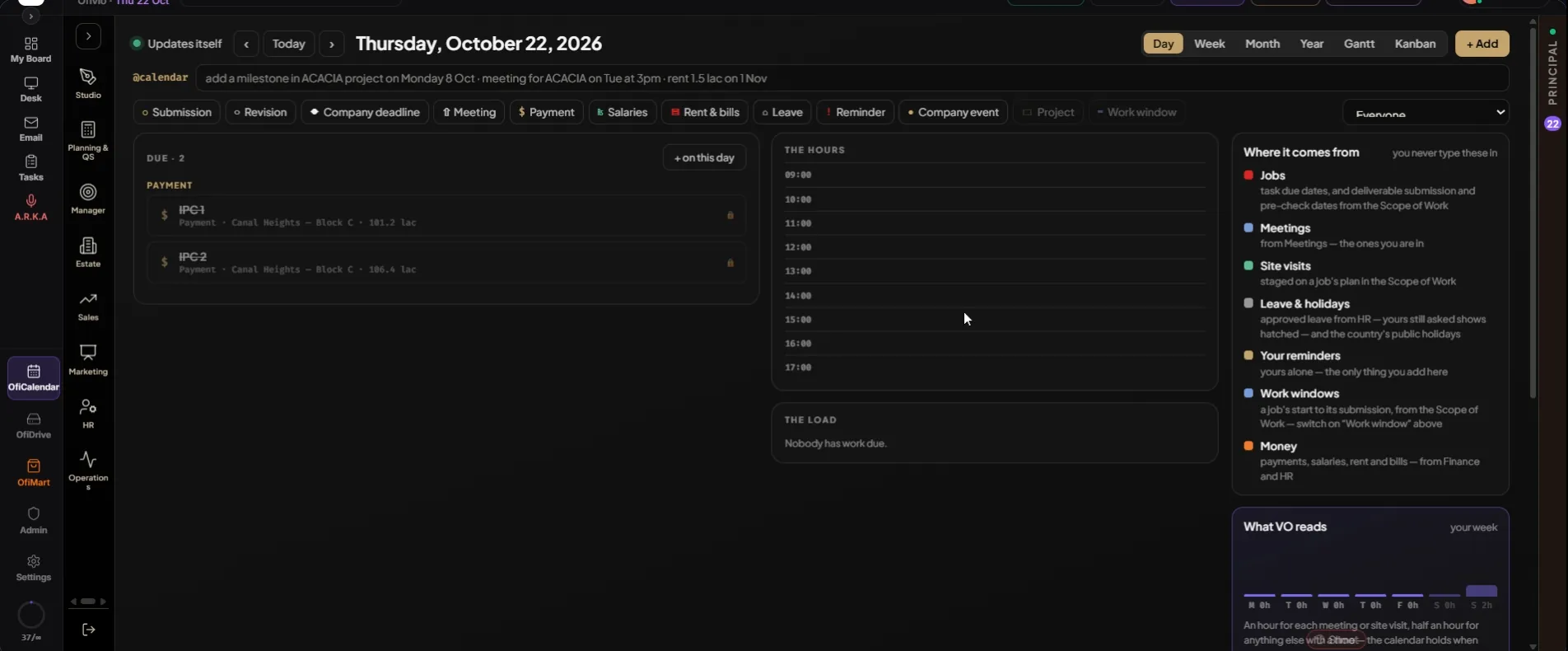
The Day view puts the day's due items on the left under "DUE", grouped by kind, with anything running across the day below them. On the right, "THE HOURS" places timed items on the firm's working hours, and "THE LOAD" shows how much work each person has due that day. Three or more due on one person turns their bar red. "+ on this day" adds an entry to that date.
The Week view is a grid of the seven days with an "all day" row for due items and the working hours below for meetings, site visits and timed reminders. Approved leave blocks the day; leave you have asked for and HR has not yet approved shows hatched as "Leave asked". The Month view shows up to three items per day and a count; a day where someone carries three or more due items is marked HEAVY. Point at a day to see everything on it, and press "Open" to go to that day. The small + on a date adds an entry there.
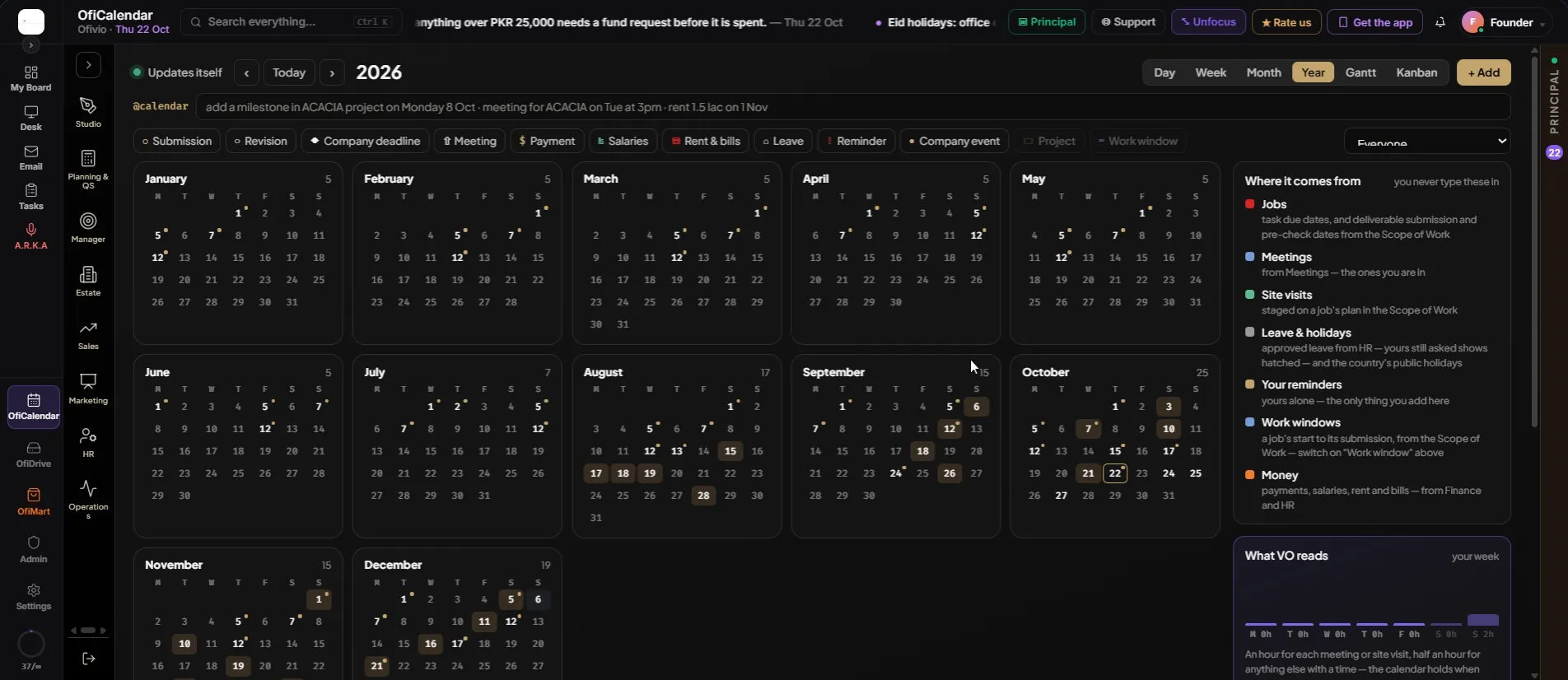
The Year view lays out all twelve months at once. The colour of a day comes from its heaviest load, a gold dot marks money due, and the number beside each month counts its items; click a month to open it. Gantt shows three months with one row per project, bars for anything with a start and an end, marks for single dates and a gold line for today. Kanban sorts everything by how soon it falls: Gone past, Today, Next 7 days, Next two weeks, Later, and Done for what was finished in the last month.
- Press "+ Add" — The card "On the calendar" opens.
- Choose what it is — Company event, Meeting, Task, Payment, Site visit, Holiday, Reminder, Rent & bills or Salaries.
- Name it and set the date — Add a time, or an Amount (PKR) for a payment, a bill or salaries.
- Pick the project — A payment, a meeting, a task or a site visit needs one. An event or a reminder can stay on "the whole firm".
- Press "Add" — The calendar moves to that date.
You can also write it in a sentence. Type in the "@calendar" line, for example "meeting for Yousaf Residence on Tue at 3pm" or "rent 1.5 lac on 1 Nov", and press Enter; the note beside it says what went on the calendar. The same works in any OfiRoom table.
Press any item to act on it. Your own entries open a card where you can "Tick it done", rename it, move its date or time, or "Remove" it. Everything the system set carries a lock: a job's dates, meetings, site visits and leave are changed where they live, so pressing one opens that place instead, a meeting opening Meetings and a task its tasks page. On the right, "What VO reads" shows your week as hours booked, your working hours and the "Next free for new work". When the principal generates a project's programme, VO reads this calendar, passes over anyone on leave in a package's dates, and gives the package to whoever has least on their calendar. "Yours to add" has "+ Reminder", which only you see.
| On the calendar | Where it comes from |
|---|---|
| Jobs | Task due dates, and deliverable submission and pre-check dates from the Scope of Work |
| Meetings | The project Meetings rooms, the ones you are in |
| Site visits | Staged on a job’s plan in the Scope of Work |
| Leave & holidays | Approved leave from HR, your own asked leave hatched, and public holidays |
| Money | Payments, salaries, rent and bills from Finance and HR |
| Work windows | A job’s start to its submission, from the Scope of Work |
| Your reminders | Yours alone, added here |