Ofivio — from onboarding to final delivery · Part 6 · Working together · Chapter 25 of 56
Boards: drawing it out together
Start a whiteboard on a project or at its OfiRoom table, draw and pin notes on it with your team and client, and export it when you are done.
Boards: drawing it out together
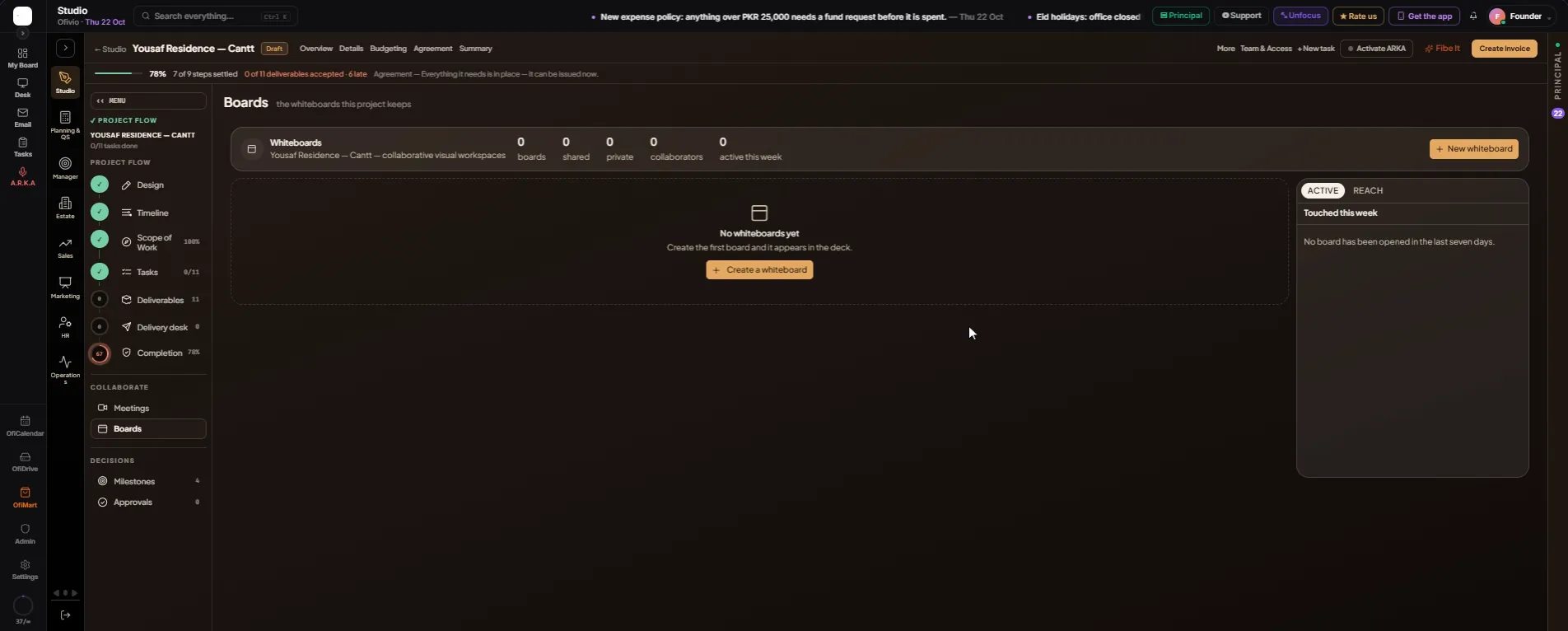
Some things are quicker drawn than written: a circulation idea, the order of site works, a list of client comments around a sketch. A board is a whiteboard the team and the client can work on together, with pens, shapes, arrows, sticky notes and images. Every project keeps its boards in its Boards room, and every OfiRoom table has a Boards tab of its own. A board started at a project's table belongs to the project as well, so it shows in both places. The principal or a team member on the project starts a board; a client never starts one but can be signed onto it.
- Open the project's Boards room — The strip counts boards, shared, private, collaborators and active this week. A project with none reads "No whiteboards yet".
- Press "New whiteboard" — Or "Create a whiteboard" in the empty deck. The panel "Create New Whiteboard" slides in.
- Give it a Whiteboard Name and a Description — For example "Ground floor circulation — options".
- Choose its Visibility — Private: only collaborators can open it. Public: anyone with the link can view it.
- Press "Create Whiteboard" — The board opens right there in the project. "All boards" takes you back to the list.
| Tool | What it does |
|---|---|
| Select | Pick, move and resize what is on the board. |
| Pen | Draw freehand. |
| Rectangle, Circle, Line, Arrow | Shapes and connectors for a diagram. |
| Text | Type a label anywhere. |
| Image | Place a picture, for example a site photo or a plan. |
| Sticky Note | A note to pin a comment or an idea. |
| Eraser | Rub out what you drew. |
- Draw with the tools — Undo and Redo sit at the top of the board.
- Start from a template if it helps — "Templates" offers ready layouts to begin from.
- Press "Save Changes" — The board also saves itself as you work; the button reads "Saved" when nothing is waiting.
- Export it — "Export" saves the board as a PNG, a PDF, an SVG or a JSON file, for a report or a meeting pack.
At an OfiRoom table, open the Boards tab. A project table lists the job's boards; General and other tables list their own. Press "Start a board for this job" (or "Start a board for this table") and the board opens inside the room, over the conversation, with its tools folded into a panel. Everyone seated at the table can open it. Press "Sign people" to sign team members and clients onto it by name, and "Back to the room" to return to the conversation. An existing board opens with "Open in the room". A file you put on a board at a table goes through the table, so it also lands in the table's Files.