Ofivio — from onboarding to final delivery · Part 6 · Working together · Chapter 24 of 56
Meetings and the Board Room
Schedule a project meeting with its attendees, agenda and decisions, then run the day-to-day conversation at the project's own OfiRoom table, where tasks, files, decisions and minutes are kept.
Meetings and the Board Room
A project is talked through long before it is drawn. Ofivio gives the talking two places. A project's Meetings room holds the formal meetings: a date, the people invited, the agenda, the minutes and the decisions with an owner each. OfiRoom, your firm's own virtual boardroom, holds the running conversation: one table per project, opened the moment the project is created, plus a General table for the whole firm. The principal and the leads a principal allows call meetings; everyone else answers invitations and takes their seat. Clients sit at their own project's table as guests.
- Open the project's Meetings room — The strip at the top counts meetings, upcoming, held, attendees, decisions and this week. A new project shows "No meetings yet".
- Press "Schedule meeting" — Or "Schedule the first meeting" in the empty deck. The form "Schedule New Meeting" opens.
- Give it a Meeting Title and a Date & Time — Both are required, for example "Design review — concept & schematic".
- Choose the Location Type and add Location Details — The office, "On-site" or "Virtual/Online". For a virtual meeting, paste the meeting link into Location Details.
- Tick the Attendees — Your staff list is offered, with each person's designation.
- Name the Approving Body / Authority if there is one — For example the client. "Lock" fixes it so it cannot be changed by accident.
- Link an OfiRoom table and a whiteboard if you want them — Use "Link to OfiRoom" and "Link Whiteboard". Under Meeting Features, switch on Screen Share, Recording, Live Chat or Whiteboard.
- Write the agenda — "Meeting Minutes / Agenda" holds the agenda before the meeting and the minutes after it.
- Add decisions and attachments — "Add Decision" takes a Description, an Owner, a Due Date and a Status.
- Press "Schedule Meeting" — Ofivio says "Meeting scheduled successfully". Every attendee is told, and the meeting appears on their OfiCalendar.
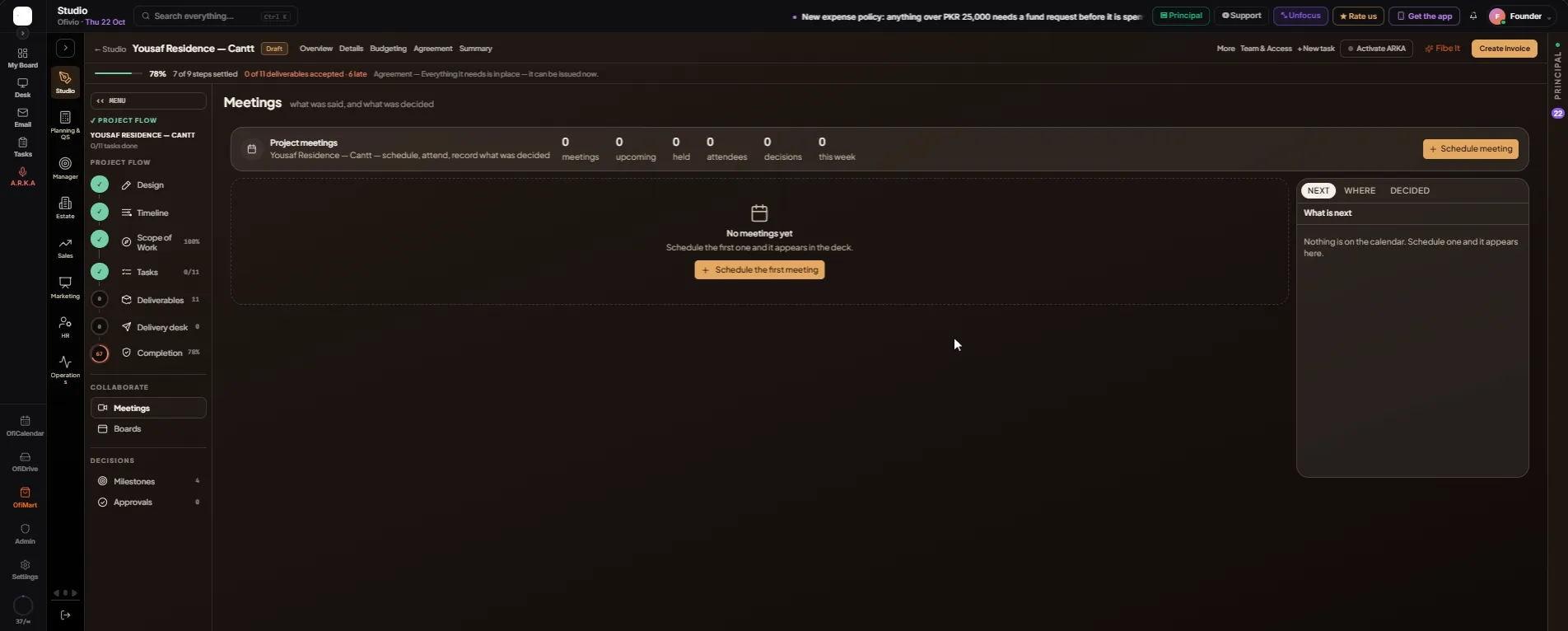
Meetings sit in the deck as cards, filtered All, Today, Upcoming or Held; open one to "View", "Edit" or "Delete" it. Changes go through the meeting's own form, so attendees are told when a time moves. After the meeting, press "Edit", write the minutes, add each decision with its owner and press "Update Meeting". Someone who does not call meetings sees their invitations instead: they answer "Attending" or "Can't make it" with a reason, and "Join now" opens five minutes before the start.
OfiRoom opens on "Pull up a chair": every table you may see, each drawn with its chairs, its clearance level stamped in the corner and what is "ON THE TABLE". Filter with ALL, MY SEATS or NOISY. The button under a table says what you can do: "Take your seat" where you are seated, "Sit down" at a table open to staff, "Knock" where the door is shut to you. A table above your clearance shows its chairs but not its business. A project's own table starts at clearance level 2 with its door set to Seated only. If the project's client already has a portal login when the project is created, they are seated there from the start; otherwise the principal seats them from the "Seating chart", where every person stands against every table.
- Press "Set a table" — The "Create Channel" form opens. If your plan carries no more tables, the button is greyed with a sentence saying why.
- Choose the Channel Type — General, Department, Cross-Department, Team, Project, Client or Announcement. A Client room, private between the principal and one client, is the principal's alone.
- For a Project room, pick the project — Its client is added automatically when they have a portal login, and the form says so.
- Name it, describe it and add members — Search and tick the people who should sit there. You are added automatically. Tick "Private (invite only)" to keep it to them.
- Press "Create Channel" — Ofivio says "Room Created" and the new table joins the others.
Inside a table, the tabs are Minutes, Tasks, Files, Decisions and Boards. Minutes is the conversation, with a time against each line. Type under "Say it to the room…" and press "Send". Above the box choose "Everyone" or "Staff only": a staff-only line is hidden from every client at the table. "Ask for sign-off" puts what you typed in front of the room for "Approve" or "Ask a question". Beside the box you can attach a file, record a voice note (transcribed into the minutes) or dictate. On any line, "Decision" pins it to the Decisions tab. When clients are seated, "VIEWING AS" CLIENT shows the conversation exactly as they receive it.
- Open the Tasks tab — "What's still owed" shows the table's task cards in To do, Doing, Blocked and Done. Group them by Status or by Clearance.
- Press "+ Add to TO DO" — Or the add line under any column.
- Tap a card to turn it over — The back is the edit form: what is owed, Owner, Due, Status, Clearance, Visible to and a line of context.
- Press "Save it" — It writes to the room and posts a line in the minutes. "Never mind" turns the card back untouched; "Bin" removes it.
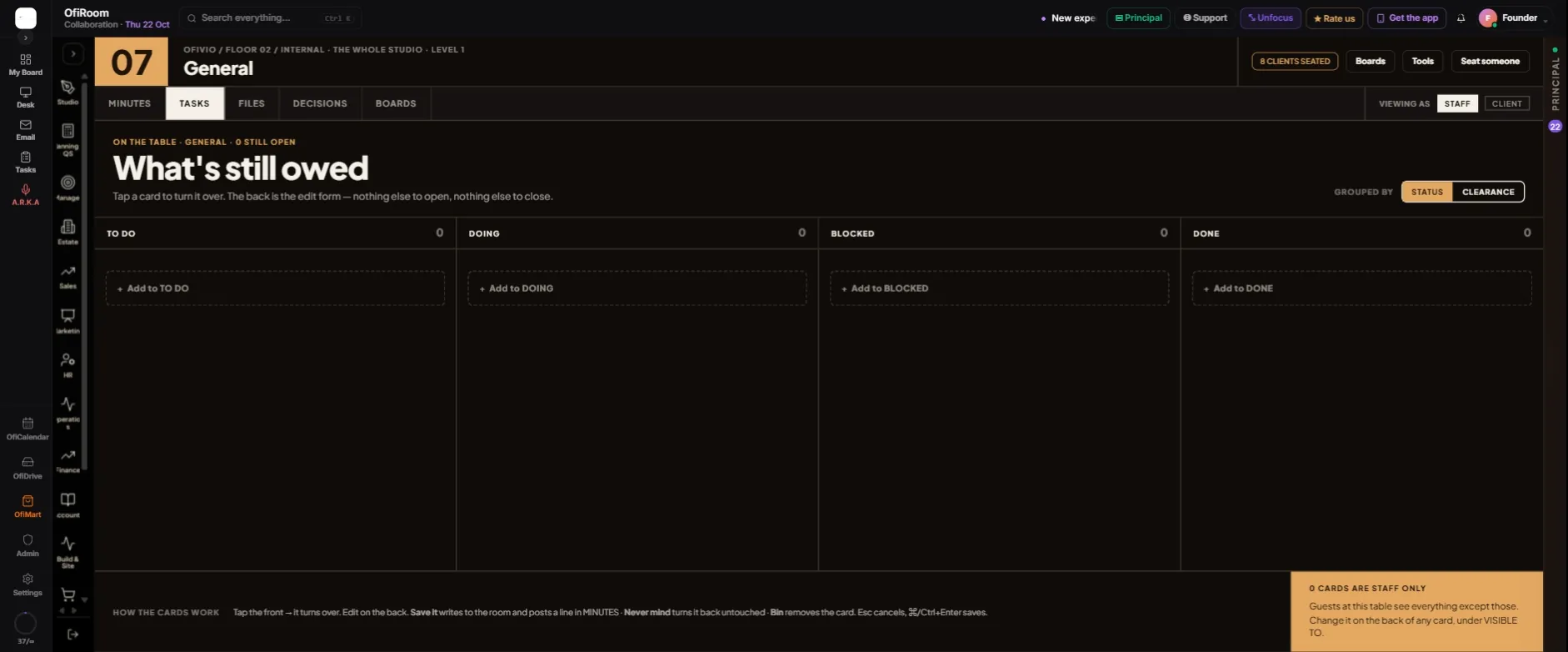
Files lists everything put on the table; a file opens beside the conversation. Decisions lists the pinned decisions and the minutes on file. The ROOM SHEET on the right carries "Draw up minutes": it reads the table's last day of conversation and writes a short summary with the decisions, open issues and action items. Anyone at the table, clients included, can download the minutes as a PDF on your letterhead. Along the top, staff have "Seat someone", "Tools" and "Boards" (or "Project board" at a project table).
| Clearance | Who it is for |
|---|---|
| Level 1 | The whole firm. |
| Level 2 | Client work you are on. |
| Level 3 | Money and contracts. The principal holds level 3 and can open every table. |