Ofivio — from onboarding to final delivery · Part 5 · Fee, scope and agreement · Chapter 23 of 56
Tasking the team
Task each line of the scope to a person and a date, let VO do it for you, send the tasks live from the project's Tasks room, and use the firm-wide Tasks page.
Tasking the team
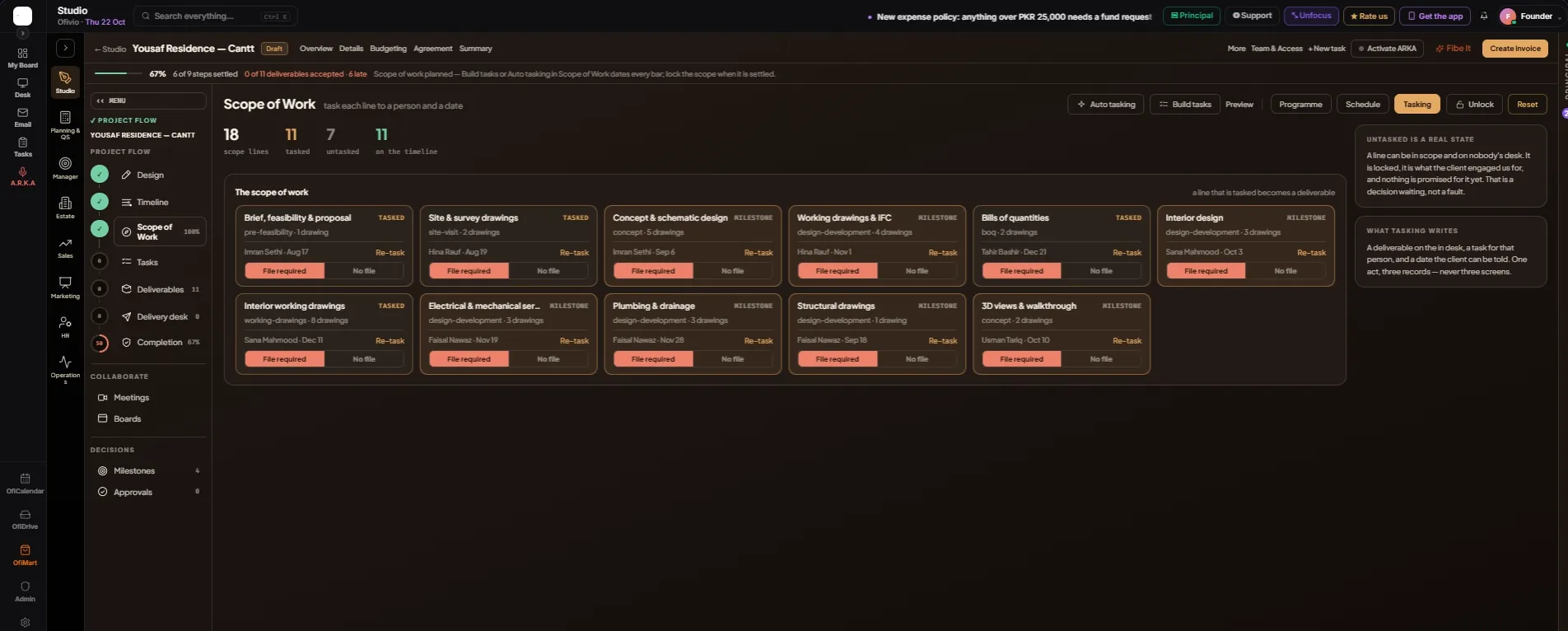
Tasking puts a name and a date on each line of the scope. In Ofivio's words, tasking writes "A deliverable on the in desk, a task for that person, and a date the client can be told." You task in the Scope of Work's "Tasking" view, then send the work live from the project's Tasks room. Work outside any project lives on the firm-wide Tasks page.
- Open "Tasking" — In Scope of Work press "Tasking" — "task each line to a person and a date". The figures count scope lines, tasked, untasked and on the timeline.
- Read a card — Each line of the scope is a card: its name and a word — "TASKED", "MILESTONE", "UNTASKED" or "DELIVERED" — its stage and drawings, then its person and date.
- Press "Task it" or "Re-task" — Pick "Who", set the "Submission date" and answer "Does this task require a file?", then press "Task it". The line needs its bar first; if it has none, Ofivio tells you to lay the bars in the Timeline.
- Choose "File required" or "No file" — The switch sits on every card. With "File required" the task cannot be closed until a file is uploaded — the proof of work — and its card says so in red.
- Or let VO task it — "Auto tasking" plans and tasks every line at once, each with its person and date. "Build tasks" dates every line and leaves the people to you, keeping anyone already on a bar. In the Tasking view, "Preview" shows VO's plan first under "Planned by VO", with "Discard" or "Accept the programme". Dates and owners are proposed, never imposed.
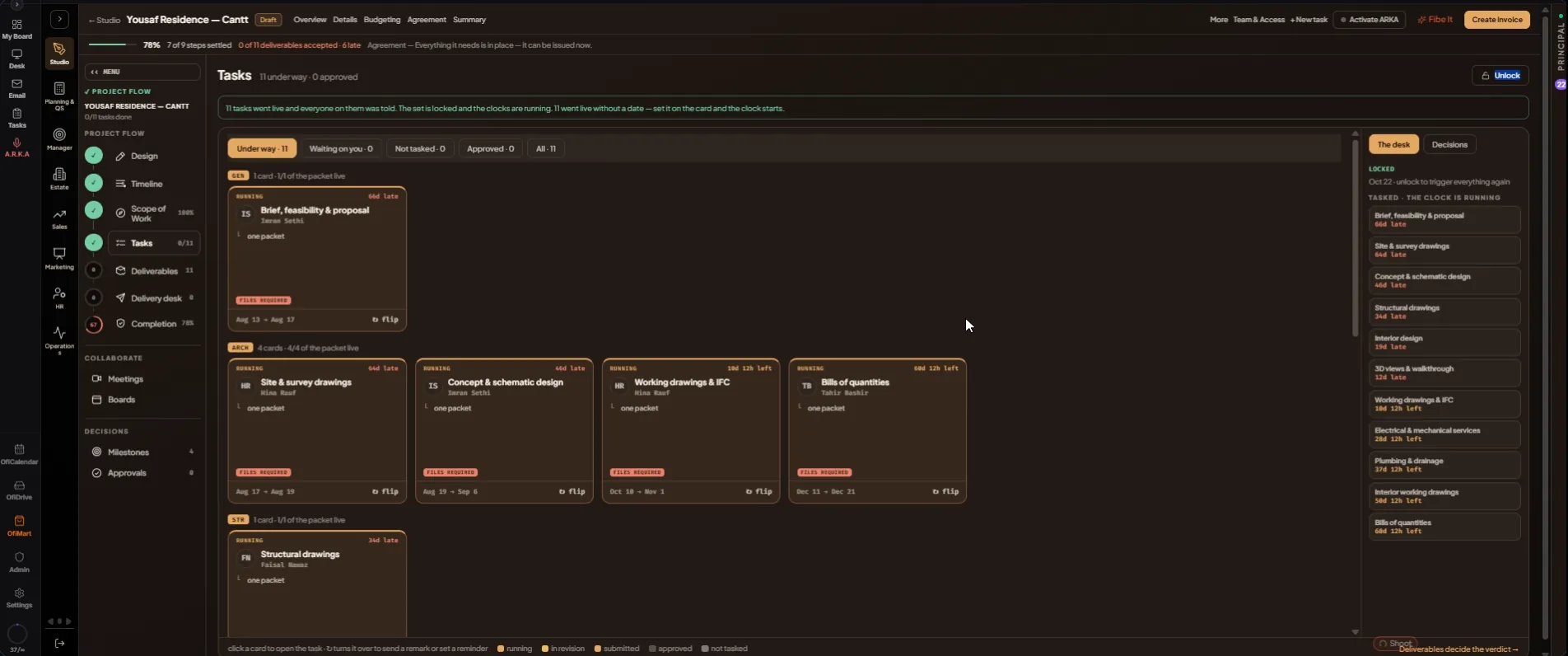
- Open Tasks — Page rail › "Tasks". Until the scope is locked it says so, with "Open the Scope of Work →". Once it is locked, every line is a card under its packet.
- Press "Trigger tasks & lock" — Every line with a person goes live: each person is told, the set is locked and the clocks start. Lines with nobody on them are skipped and named, so you can task them and trigger again. To change things later, press "Unlock", then trigger again.
- Filter the deck — "Under way", "Waiting on you", "Not tasked", "Approved", "All". A card's colour says where it stands: running, in revision, submitted, approved or not tasked.
- Work a card — Click a card to open the task. Press "↻ flip" to turn it over and write a "✎ Remark" onto the task, or a "⏰ Reminder" that stands on OfiCalendar with its date.
- Use the side bar — "The desk" lists every running clock, the lines not tasked yet and your reminders. "Decisions" holds requests for more time — "Grant" or "Keep the date" — and the latest task updates. "Deliverables decide the verdict →" at the foot leads on to the Deliverables.
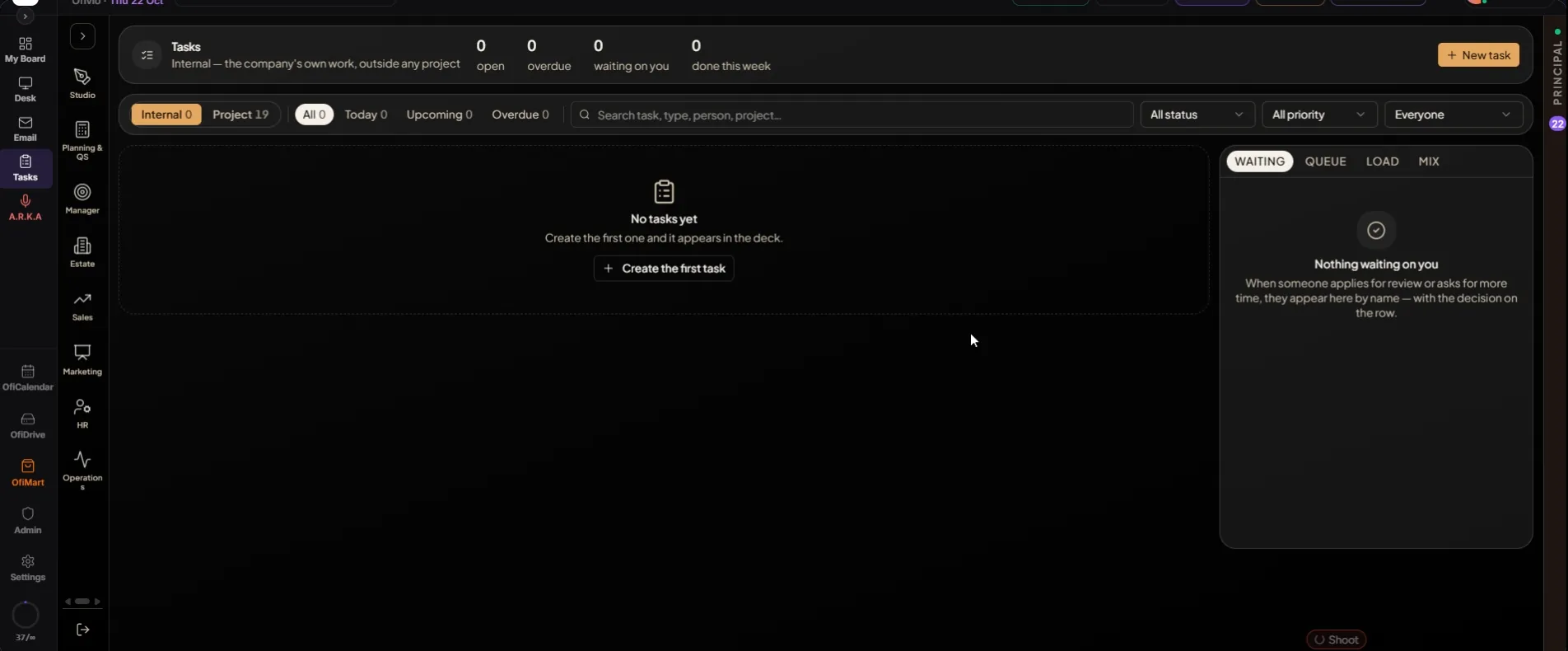
Not every task belongs to a project. The firm-wide Tasks page holds both kinds.
- Open the Tasks page — Quick access bar › "Tasks". Choose "Internal" — the company's own work, outside any project — or "Project", the work on the firm's projects. The figures across the top: open, overdue, waiting on you, done this week.
- Narrow it down — "All", "Today", "Upcoming" and "Overdue", the search box, and the "All status", "All priority" and "Everyone" filters.
- Use the right rail — "WAITING" shows whoever has applied for review or asked for more time, with the decision on the row. "QUEUE" is what is happening right now, "LOAD" is each person's workload, and "MIX" is progress and priorities.
- Press "New task" — It adds a task. Inside a project, "+ New task" in the project's header does the same for that project.