Ofivio — from onboarding to final delivery · Part 5 · Fee, scope and agreement · Chapter 22 of 56
The agreement and the fee
What the agreement is built from, how to clear what blocks it, issue it to the client and have it accepted — for one project or across the practice.
The agreement and the fee
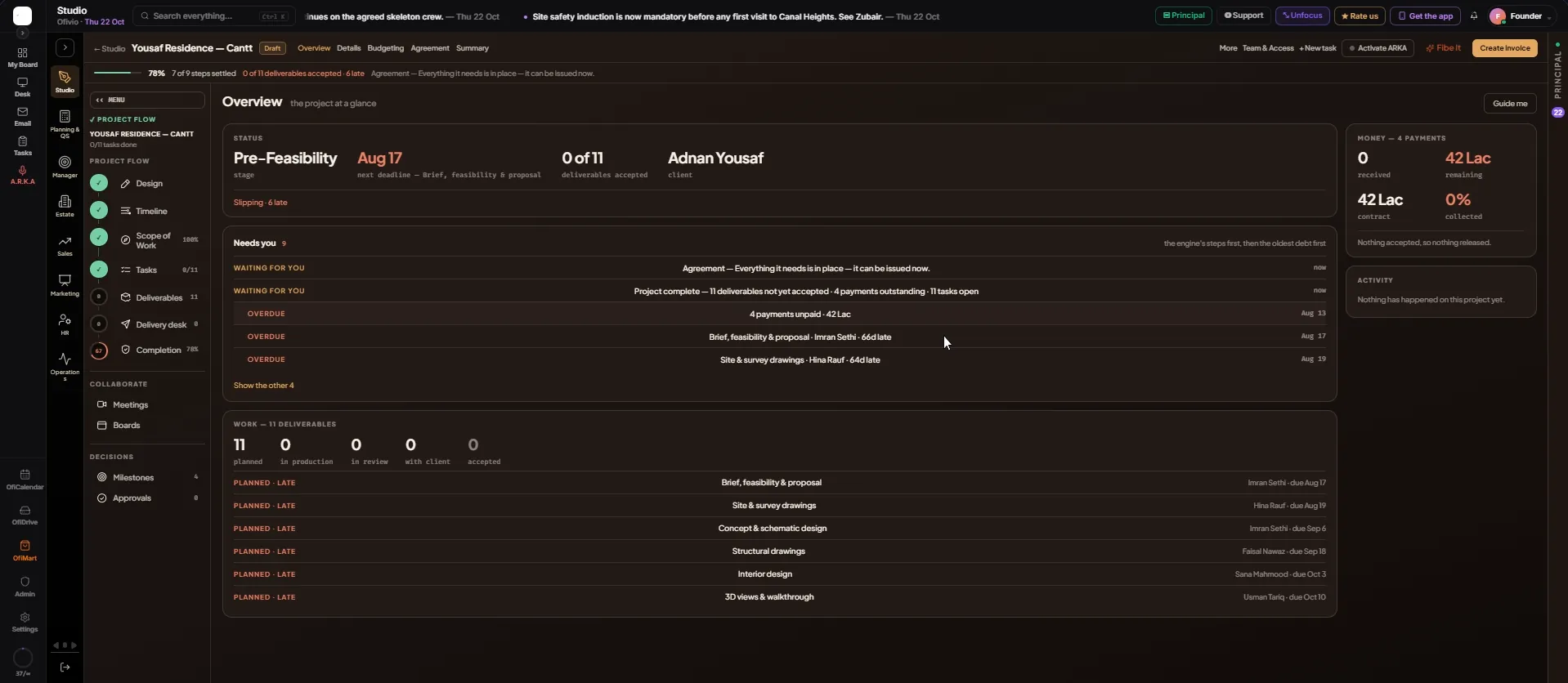
The agreement is the document the rest of the project hangs off. Ofivio builds it from what the project already holds — the client, the locked Scope of Work as Annex A, and the payment schedule written when the fee was locked — and issues it on your letterhead. The client accepts it from their client portal, and that acceptance is what turns the project from "Draft" to "Active". Issuing is the principal's act. In practice it is the last of the setup steps: it becomes ready once the design, the budget and the scope of work are locked.
The fee itself is set and locked on Budgeting, at the start of this part. The agreement carries it: "THE SCHEDULE IT CARRIES" lists every payment the budget lock wrote.
- Open the Agreement tab — The banner says where it stands: "NOT READY" with the number of blockers in the way, "READY" — "Everything it needs is in place — it can be issued now." — "ISSUED" or "ACCEPTED".
- Clear what is in the way — "WHAT THE AGREEMENT NEEDS" lists the agreement's own gates: a client linked to the project, the Scope of Work locked, a payment schedule, and a letterhead in Settings › Branding. When every check passes, it says so.
- Check the steps the project is counted on — "THE NINE STEPS THIS PROJECT IS COUNTED ON" lists each step with its mark — ✓ DONE, 🔒 LOCKED, ○ READY, WAITING or BLOCKED — and one line on why. Click a step to open the room that settles it. The count under the list is the percentage in the progress strip.
- Read the side column — "ANNEX A" is the locked Scope of Work: its version, how many deliverables, and their dates. "THE SCHEDULE IT CARRIES" lists the payment milestones and their amounts.
- Press "Issue to the client" — It sits in the banner; "Issue to client" at the top right does the same. The agreement is recorded as a version and goes to the client. The banner turns to "ISSUED": "It sits with the client — the project does not kick off until they accept it."
- The client accepts — In their client portal the client reads the agreement, types their full name and presses "Accept agreement". Only the client can accept it. The banner turns to "ACCEPTED" with their name and the date, and the project's badge changes from "Draft" to "Active".
| Step | Settled when |
|---|---|
| Client linked | A client record is on the project. |
| Design schedule finalised | The design is locked in the Design room. |
| Deliverables locked | The Scope of Work is locked. |
| Scope of work planned | "Build tasks" or "Auto tasking" has dated every bar. |
| Scope of Work locked | A Scope of Work version is stamped as Annex A — the same press of "Lock" as the step above. |
| Budget locked | The fee is frozen on Budgeting. |
| Payment schedule | The budget lock has written the payment milestones. |
| Agreement | The client has accepted it. |
| Project complete | The project is closed on Completion. |
The Studio's "Agreements" tab lists every project and where its agreement stands. Use it to bring projects that are already running under an agreement, one at a time.
- Read the four tiles — "Projects", "No agreement", "Awaiting client" and "Accepted". Click a tile to filter the list to it.
- Read a row — The project and its agreement's title, the client, the engagement, and the agreement's state: a version awaiting acceptance, or accepted with the date.
- Press "Issue" or "Open" — "Issue" on a project with no agreement, "Open" on one that has one. Both open that project's Agreement tab. "Refresh" reads the list again.