Ofivio — from onboarding to final delivery · Part 5 · Fee, scope and agreement · Chapter 21 of 56

Scope of Work: programme, schedule and lock

Read the scope of work as bars on a programme and as a stage-by-set matrix, open a bar to set its dates and people, and lock the scope as Annex A.

Scope of Work: programme, schedule and lock

The Scope of Work is everything the client engaged you for, line by line, laid out in time. Every set made in the Design room arrives here as a bar — a deliverable with its stage, its dates and its person. Here you check the bars, task them, and lock the scope. The lock stamps a version of the Scope of Work as Annex A of the agreement and opens the Deliverables and the Delivery desk. The room opens once the design and the budget are locked, and its bars are first laid on the Timeline (see The timeline).

Along the top: "Auto tasking", "Build tasks" and "Preview" (see Tasking the team), the three view chips, "Lock" and "Reset".

  1. Open Scope of Work — It opens on "Programme" — "the project's timeline — every bar is a deliverable; click one to open it". The figures above count the bars, those with a company deadline, those tasked, and the payments.
  2. Read the programme — "PACKETS" on the left: each service of the design, with its sub-packets beneath; the arrow folds a packet. Each bar carries a two-letter stage code (PF Pre-Feasibility, CO Concept, DD Design Development, BQ BOQ and so on), its person and a word: "TASKED", "MILESTONE" when a payment is tied to it, "UNTASKED" or "DELIVERED". The "
    quot; marks on a packet's row are its payments; "TODAY" marks the day; a diamond marks the project deadline.
  3. Open a bar — Click a bar to open its card: "Start", "Revision", "○ Submission" and "◆ Project deadline · the client's date"; the "Tasked employee", "Sub task employees" and "Person to report to". Place a Task, Meeting, Payment, Site visit or Approval on the bar. "Save" writes the dates and the person; "Finalise" turns the placed cards into real site visits, meetings and tasks.
  4. Move a bar by hand — Drag a bar to move it, or drag one of its edges to stretch it.
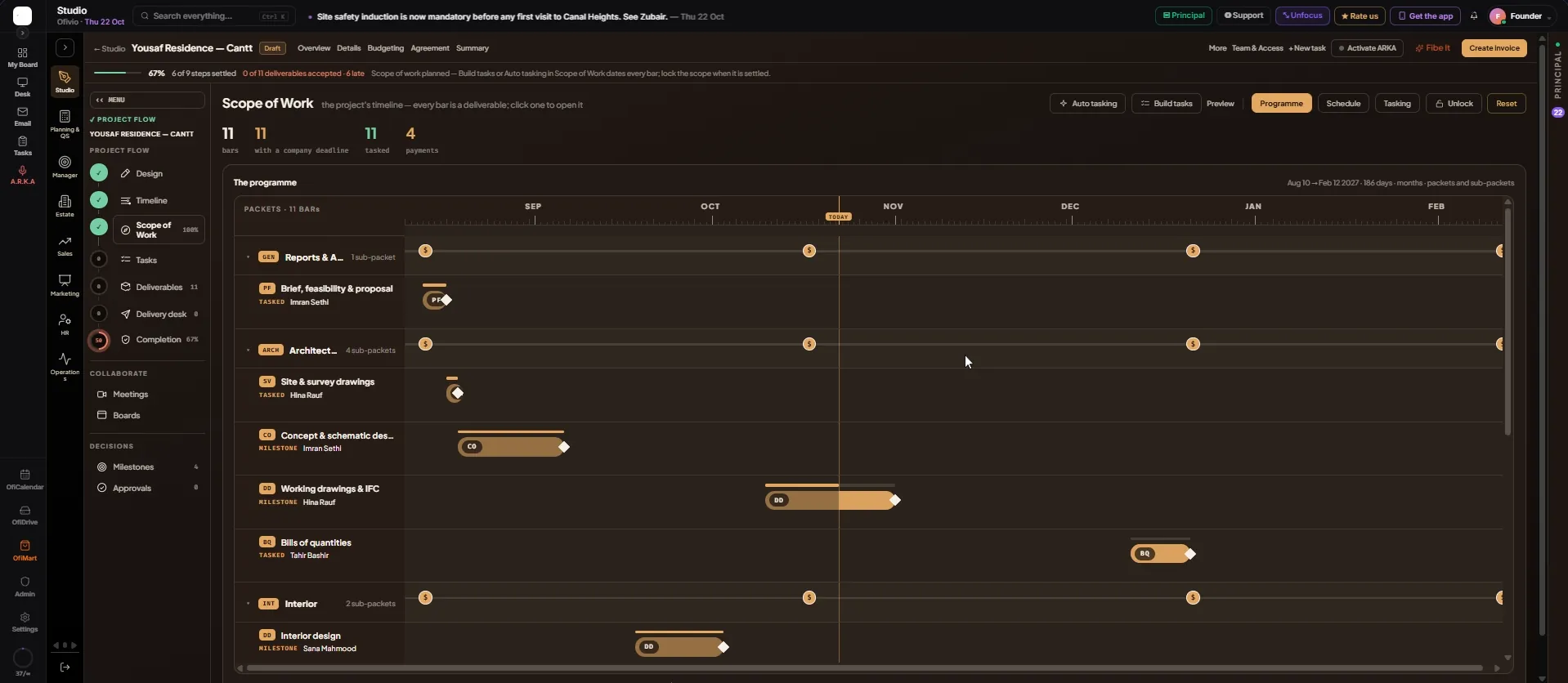
The programme of Yousaf Residence — Cantt. Look at a packet row such as Architecture with its sub-packets below it, the "<div id=
quot; payment marks on the packet rows, the TASKED and MILESTONE words under each name, and the TODAY line." loading="lazy" />
The programme of Yousaf Residence — Cantt. Look at a packet row such as Architecture with its sub-packets below it, the "
quot; payment marks on the packet rows, the TASKED and MILESTONE words under each name, and the TODAY line.

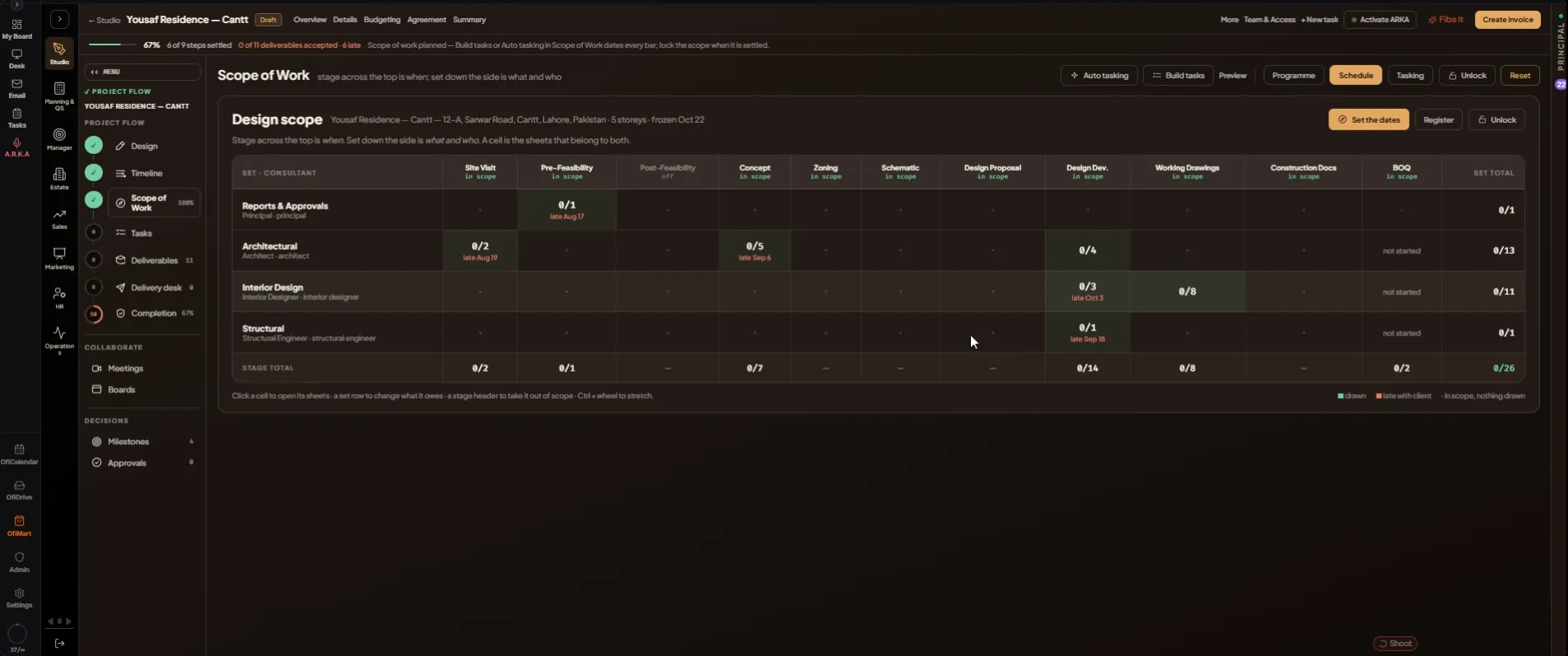
The "Schedule" view reads the same scope as a matrix called "Design scope". Stage across the top is when; set down the side is what and who; a cell is the sheets that belong to both.

  1. Switch to "Schedule" — Each row is a service with its consultant. Each column is a stage, marked "in scope" or "off". A cell shows sheets drawn over sheets promised, with "late" and a date in red when work is late with the client. "SET TOTAL" and "STAGE TOTAL" add them up.
  2. Change what is in scope — While the scope is unlocked, click a stage header to take that stage in or out of scope. Click a cell to open its sheets, or a row to open its packet, in the Design room. Hold Ctrl and turn the wheel to stretch the matrix sideways.
  3. Use the three buttons — "Set the dates" goes to the Programme, "Register" opens the Design room, and "Lock the scope" locks the scope from here.
The "Design scope" matrix. Look at the stage headers marked "in scope", the cells with drawn over promised and their red "late" dates, and the buttons at the top right: "Set the dates", "Register" and "Unlock" — this scope is already locked.
  1. Press "Lock" — Ofivio checks that the design is locked and that there are deliverables, then freezes them: "… deliverables locked — Scope of Work version 1 stamped as Annex A." The Deliverables and the Delivery desk open, and the Tasks room can send the work live.
  2. Unlock when the scope changes — The button now reads "Unlock", and only the principal can use it. Locking again stamps the next version; an agreement already issued keeps the version it was signed against.

← Back to Ofivio — from onboarding to final delivery