Ofivio — from onboarding to final delivery · Part 5 · Fee, scope and agreement · Chapter 20 of 56
The timeline
Set the project's start, company deadline and project deadline, lay the design's sets as bars, keep the payments on the window, and lock it.
The timeline
The Timeline sets the project's window — when it starts, the practice's own deadline, and the date the client is told — and dates the sets the Design room made. It comes right after Budgeting: locking the budget brings you here. It also comes before the Scope of Work, because the bars the scope shows are laid here. The payment milestones sit on the same window and move when its dates move. The principal sets the dates.
- Set the three dates — "Start", "Company deadline" (the practice's own) and "Project deadline" (the date the client is told). A date the project already holds shows "from intake"; a missing one may be offered with a "?". Type a date and press "Set", or drag the "START", "COMPANY" and "PROJECT" marks on the band. They keep their order: the company deadline cannot come before the start, nor the project deadline before the company deadline.
- Watch the ring — The ring at the left fills as you go: start, company deadline, project deadline, the bars, and the lock. "next · …" names what is missing; "READY FOR SCOPE" shows when it is done.
- Check the payments — "PAYMENT MILESTONES" lists the payments laid on the window — "AUTO" for the ones the budget lock wrote, "SET BY YOU" for your own, "PAID" when paid — each with "Edit". Moving the dates moves the unpaid automatic payments with them. "Lay on the timeline" spreads them again; "Add a payment" adds one; "Milestones →" opens the full list.
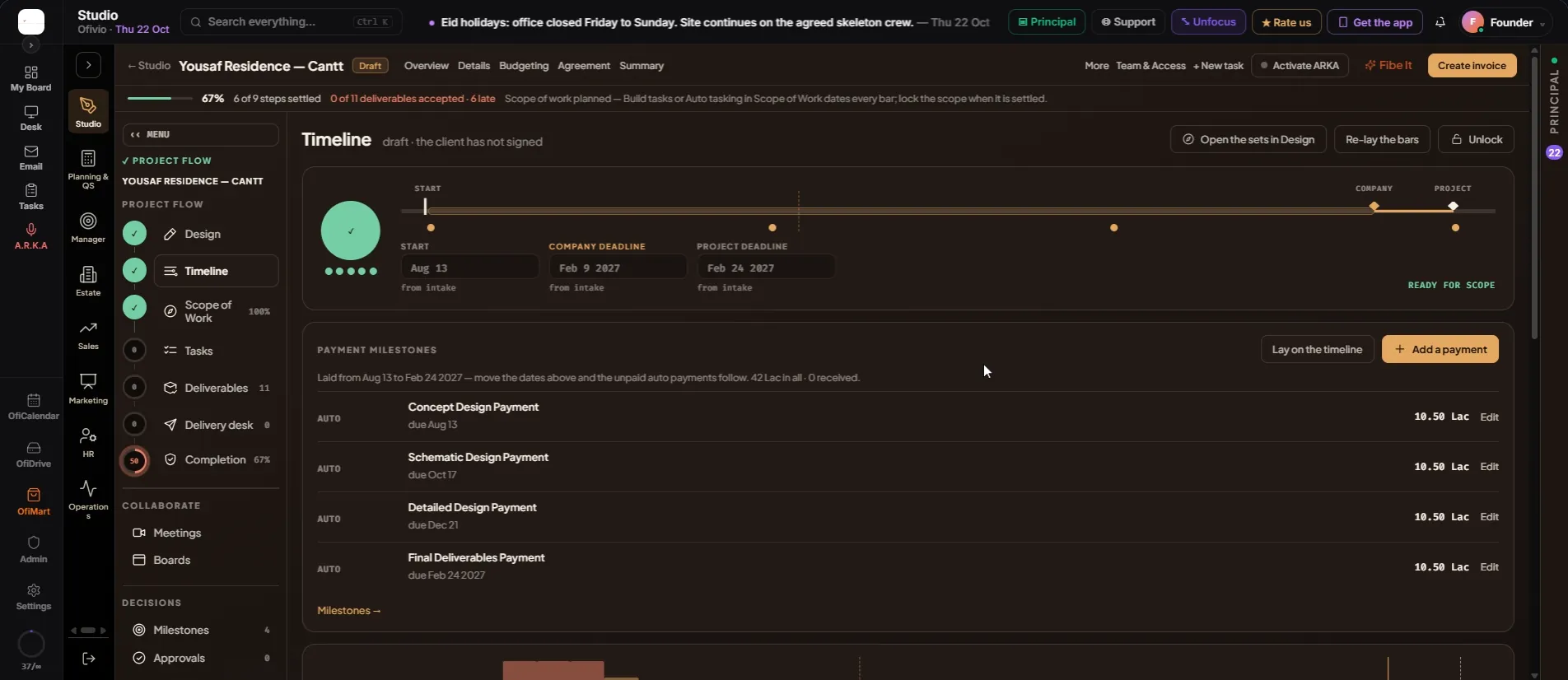
- Press "Lay the bars" — Every set from the Design room gets its start, revision and submission, laid from the start date. If the work would run past the company deadline, Ofivio says how far; only a principal can commit past it, and is told. The note ends "Next: Scope of Work — realign, check, lock." with "Open it".
- Read the board — One row per service: its code and name, its sub-services, works and days, how many are on bars, and the people. The bars sit on a month ruler with the company deadline, the project deadline and today marked. A "+n" on a bar means n more lines joined in that set; the small dot is the revision. The strips above the ruler show how many works run each week, red when four or more overlap.
- Re-date one bar — Click a bar to open its dates — "Start", "Revision", "Submission" — and press "Save the dates". The person and the cards are set in the Scope of Work.
- Press "Lock the window" — "Window locked. The bars can still be re-laid inside it." The Timeline reads 100% on the page rail. "Unlock" opens it again.
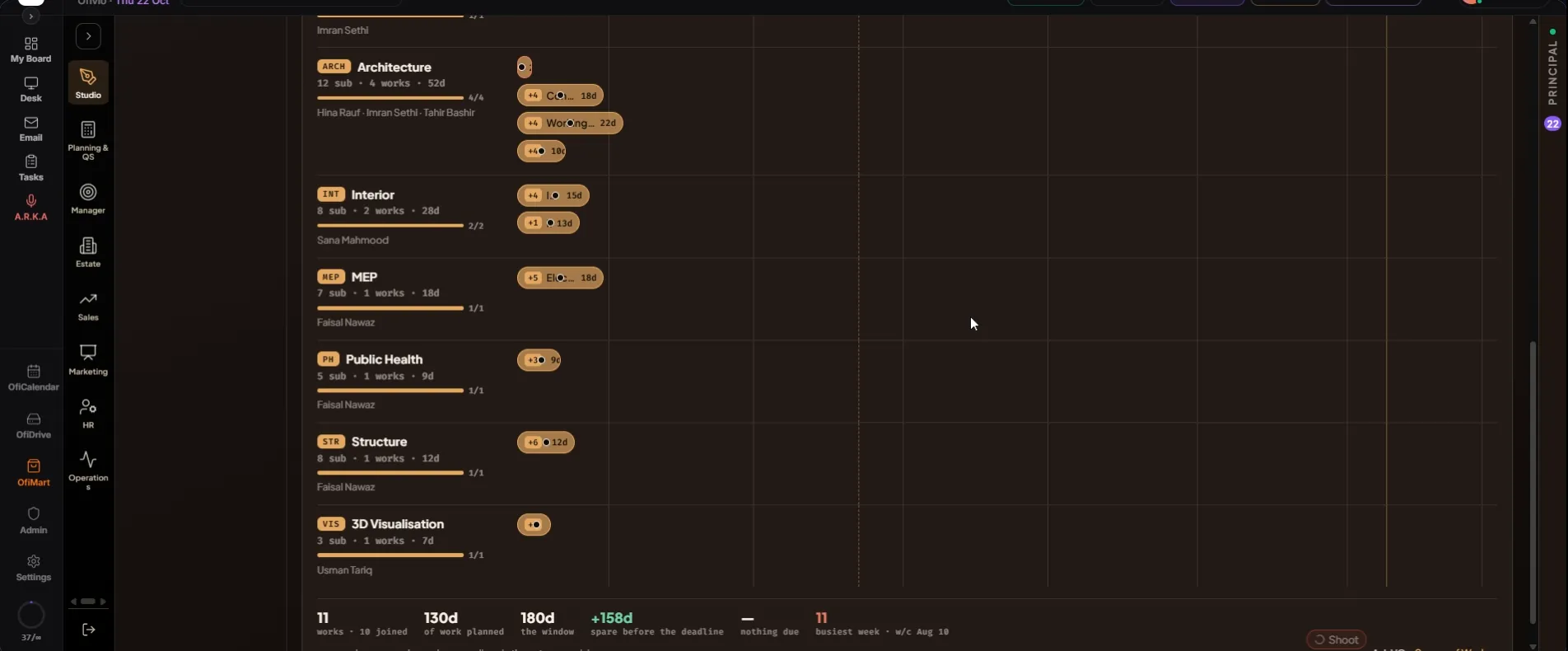
Under the board: the works and how many are joined sets, the days of work planned, the length of the window, the days to spare before the company deadline (or past it, in red), the next submission, and the busiest week.