Ofivio — from onboarding to final delivery · Part 3 · Starting a project · Chapter 15 of 56
The project overview
Read a project's cockpit: the header and its actions, the progress strip, the project flow on the page rail, and the Overview's "Needs you".
The project overview
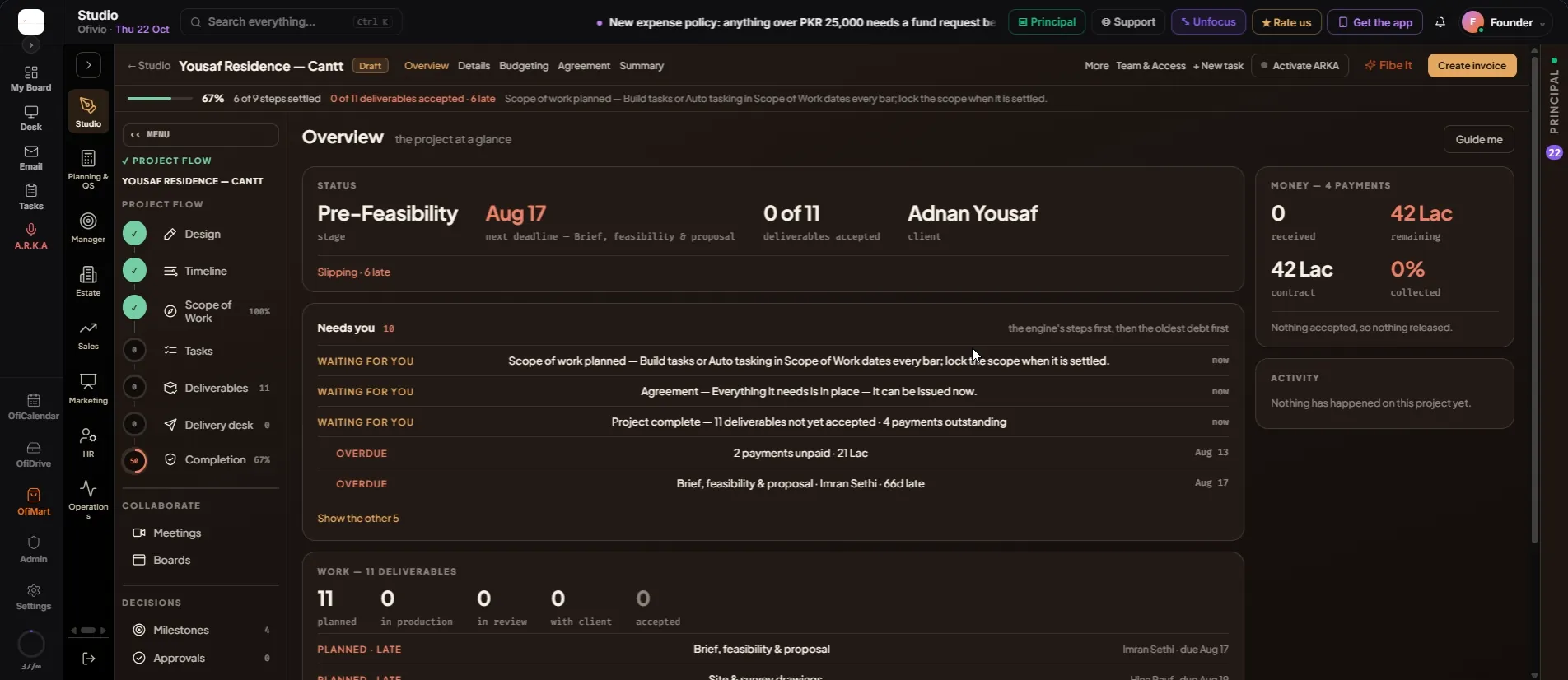
Every Studio project opens in the same cockpit: a header bar with the project's tabs and actions, a progress strip under it, the project's own page rail on the left, and the room you are in on the right. It opens on the Overview — where the project stands, and one list of what needs you. Anyone on the project can open it; what each person sees depends on their access to that project.
- Read the header bar — The project's name and its badge: "Draft" until the client accepts the agreement, then "Active". The tabs "Overview", "Details", "Budgeting", "Agreement" and "Summary" open those rooms. "Details" points you to "More", which opens the project's full form.
- Know the actions on the right — "More" opens the project's form to edit it. "Team & Access" assigns people to the project and ticks what each may do. "+ New task" adds a task to this project. "Activate ARKA" lets ARKA work the project with you by voice. "Fibe It" turns the project into a card for your public Ofibe page, for you to check before it goes up. "Create invoice" opens billing for this project. Each appears only to the people allowed to use it.
- Read the progress strip — The bar and percentage count the steps settled out of the ones this project is counted on — "6 of 9 steps settled". Beside it: deliverables accepted over promised, in red when any are late, and one sentence naming the next thing to do.
- Use the page rail — PROJECT FLOW runs top to bottom: "Design", "Timeline", "Scope of Work", "Tasks", "Deliverables", "Delivery desk", "Completion". Each has a ring with its own percentage and a tick when done. Completion is the average of the others and glows red until every deliverable has gone to the client. Below sit COLLABORATE ("Meetings", "Boards") and DECISIONS ("Milestones", "Approvals"). "‹‹ MENU" folds the rail to icons.
- Read STATUS — The stage the open work is in, the next deadline and what it is for, the deliverables accepted, and the client. A red "Slipping" line counts what is late.
- Work through "Needs you" — The steps the project still waits on come first, marked "WAITING FOR YOU" or "BLOCKED". Then everything "OVERDUE", oldest first: late deliverables, unpaid payments, late tasks. Click a row and the room that fixes it opens. "Show the other …" shows the rest.
- Read WORK, MONEY and ACTIVITY — WORK counts the deliverables planned, in production, in review, with the client and accepted, and lists the first six with their owner and due date. MONEY reads the payment schedule: received, remaining, contract and collected — "Nothing accepted, so nothing released." until the first payment is in. ACTIVITY lists what has happened on the project.
- Press "Guide me" — It opens the Agreement tab, where the steps this project is counted on are listed one under another, each with what it is waiting for.
The rooms open in order. Locking one is what opens the next:
Design — lock it → Budgeting — lock the fee → Timeline — lay the bars → Scope of Work — lock it → Agreement — issue it → Tasks — trigger them