Ofivio — from onboarding to final delivery · Part 4 · Design · Chapter 16 of 56
The Design room: Building and Services
Start the Design room: describe the building from a template, then build the family tree of services and pick each service's cards.
The Design room: Building and Services
The Design room is where you say what the practice will draw. Six steps run left to right — "Building", "Services", "Planner", "Drawings", "Sets", "Lock" — and together they make one plan. The building's facts decide how many sheets each line of work makes; the services decide who draws what; the lock turns every set into a deliverable. It is the first room of the project flow, and the budget, the timeline and the scope of work all wait for its lock. This chapter covers the first two steps.
Along the top of the room sits the tally — levels, services, sub-services, and drawings written over planned — with "↶ Undo", "↷ Redo" (Ctrl+Z and Ctrl+Y work too) and "Start over". Every change saves on its own.
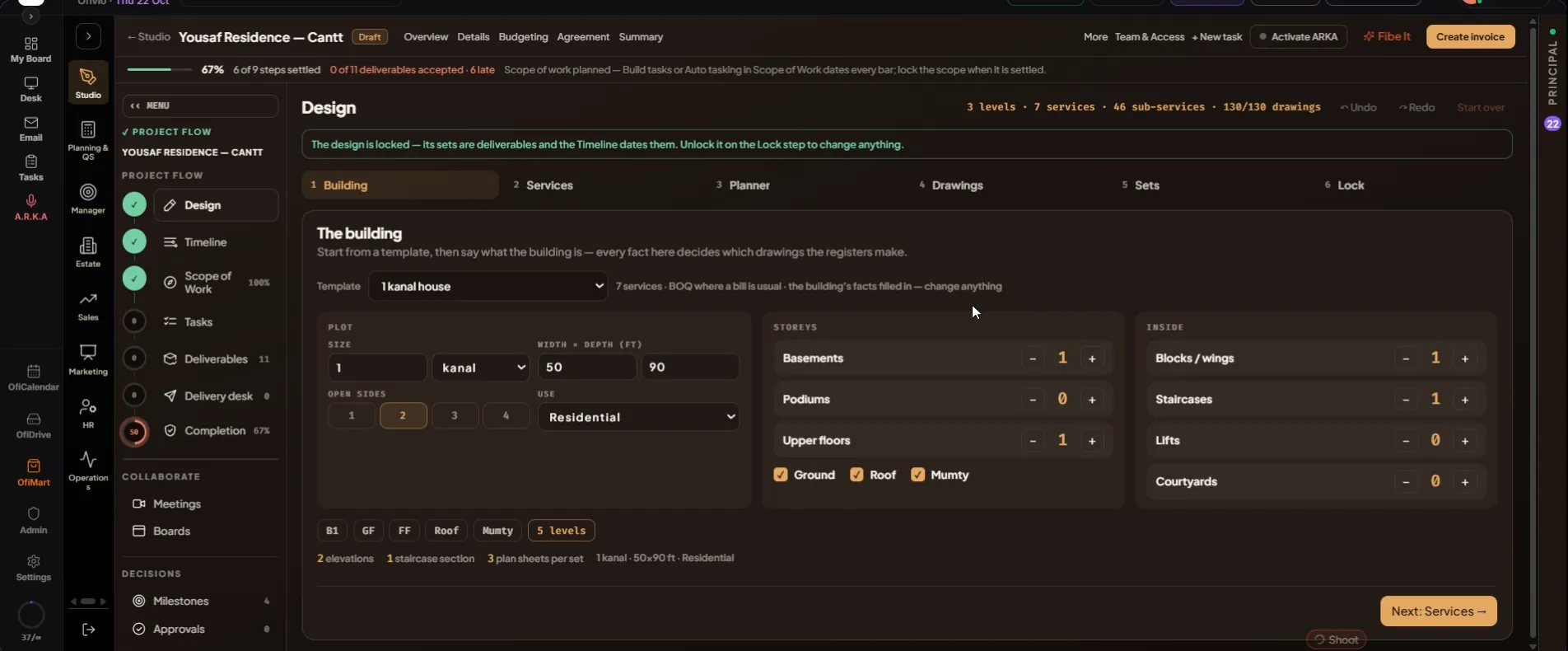
- Pick a template — Step 1, "The building": "Start from a template, then say what the building is — every fact here decides which drawings the registers make." Choose a "Template": houses from 5 marla to a 4 kanal farmhouse, a Gulf villa, apartment and office buildings, a plaza, a mall, a hotel, a school, a hospital, a clinic, a mosque, a warehouse, a factory, interiors only, a renovation and more. It places the services, puts a BOQ where a bill is usual, and fills in the building's facts. Change anything after.
- Describe the plot — Under "Plot": "Size" in marla, kanal, sq ft or sq m; "Width × depth (ft)"; "Open sides" from 1 to 4, one elevation each; and "Use" — Residential, Commercial, Mixed use, Institutional, Industrial, Hospitality or Religious.
- Count the storeys — Under "Storeys": "Basements", "Podiums" and "Upper floors" with − and +, and the "Ground", "Roof" and "Mumty" switches.
- Count what is inside — Under "Inside": "Blocks / wings", "Staircases", "Lifts" and "Courtyards".
- Read what the facts make — The level chips (B1 · GF · FF · Roof · Mumty …) and a line that adds it up: elevations, staircase sections, lift shafts, courtyard elevations and plan sheets per set. Press "Next: Services →".
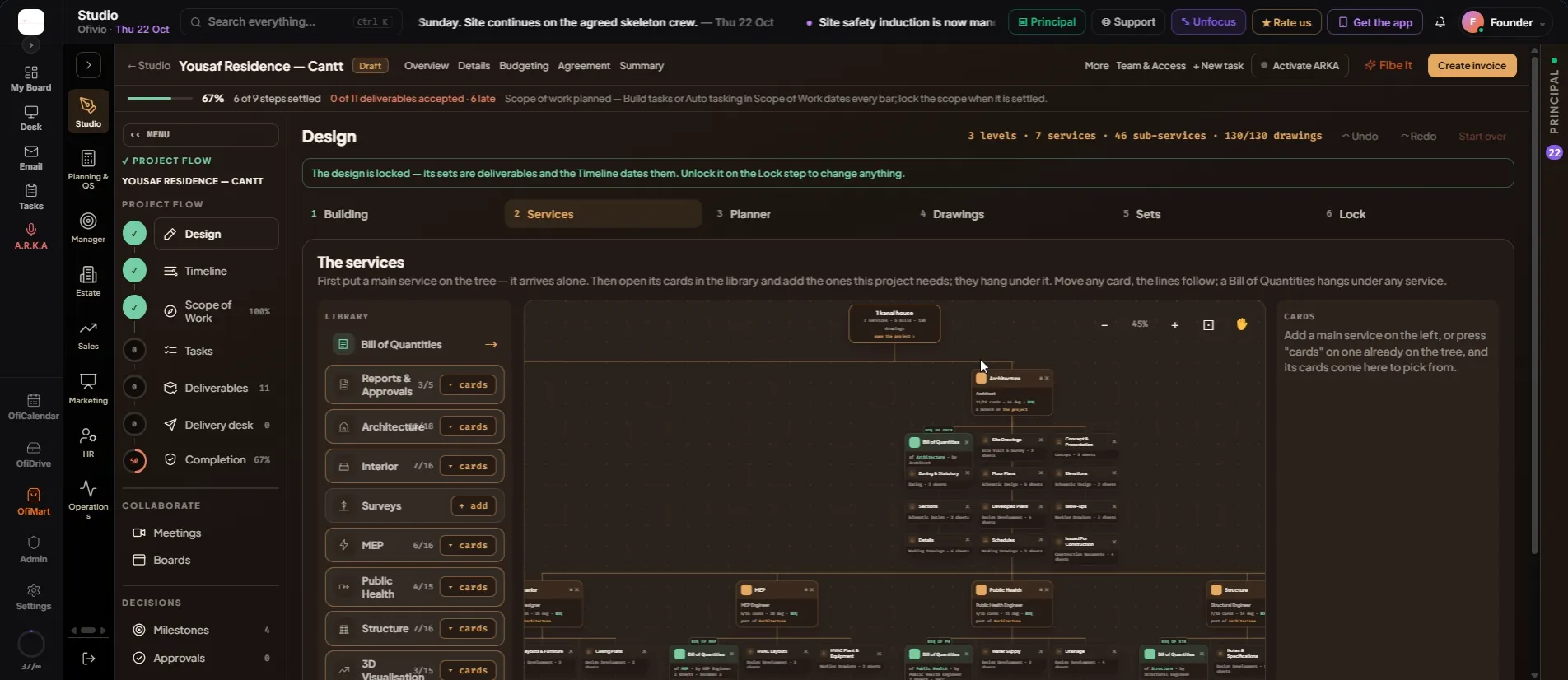
Step 2, "The services", is a family tree: the project at the top, each main service hanging from it, and each service's cards under that.
- Put a main service on the tree — In the "Library" on the left press "+ add" beside a service — "Reports & Approvals", "Architecture", "Interior", "Surveys", "MEP", "Public Health", "Structure" or "3D Visualisation" — or drag it onto the canvas, or onto a card to hang it there. It arrives alone.
- Pick its cards — Press "▾ cards" on a placed service and its cards appear on the right under "Cards of …". Press a card to add or remove it; "all", "the usual" and "none" set them in one go. Each shows how many sheets it makes, and the usual ones are marked "usual".
- Add a bill — Drag "Bill of Quantities" from the top of the library onto any service except Reports & Approvals. The bill hangs under it and becomes a deliverable at the lock; ✕ takes it off.
- Arrange the tree — Drag a service and its family moves with it; drop it on another card to link it under that one. Type over the consultant's name on a card to change it. ✕ on a service sends it back to the library. "Your own", at the foot of the library, adds a service of your own with its consultant.
- Move around the canvas — Turn the wheel to zoom. Drag with the middle button, hold Space, or press ✋ to move around; "−", "+" and "⊡" in the corner zoom out, zoom in and fit. Click the project card at the top for the building's facts, with "Change the building".
- Press "Next: Planner →" — "Clear all" takes every service off the tree; "← Back" returns to the building.