Ofivio — from onboarding to final delivery · Part 4 · Design · Chapter 17 of 56
Planner and Drawings
Plan the lines each service provides, add the approvals your country asks for, choose how deep each set goes, and write the sheets into the register.
Planner and Drawings
Steps 3 and 4 decide what each service provides and write the drawings. The Planner picks the lines of work and the approvals your country asks for. Drawings chooses how deep each set goes — Intern, Intermediate or Professional — and writes the sheets into the register. A line that is planned but never written does not reach the lock.
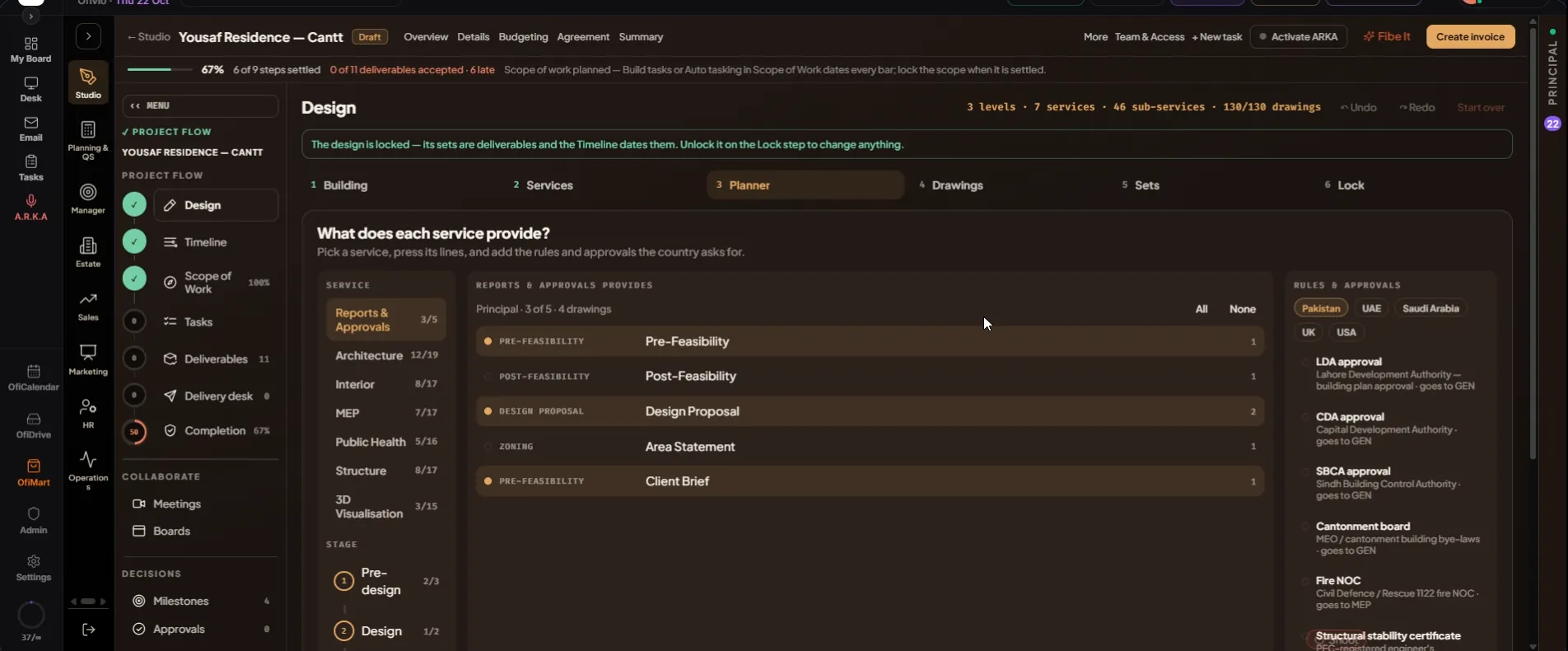
- Pick a service — Step 3: "What does each service provide?" On the left, "Service" lists every service on the tree with its lines planned over available.
- Filter by stage — Under "Stage": "Pre-design", "Design" and "Documentation", each with its count. Press one to show only its lines; press it again to show them all.
- Press the lines — The middle column, "… provides", lists every line with its stage and sheet count — for Reports & Approvals: Pre-Feasibility, Post-Feasibility, Design Proposal, Area Statement and Client Brief. Press a line to plan it or take it off; "All" and "None" do the whole service. A line marked "bill" is switched on the Services tree, not here.
- Add the rules and approvals — On the right, "Rules & approvals": choose "Pakistan", "UAE", "Saudi Arabia", "UK" or "USA". Each rule names the service it goes to. For Pakistan they include LDA approval, CDA approval, SBCA approval, Cantonment board, Fire NOC, Structural stability certificate, Environmental NOC, WASA connection and LESCO / K-Electric load. Press one and it becomes a line of that service, with a submission and an approval letter; if that service is not on the tree yet, it is placed. Then press "Next: Drawings →".
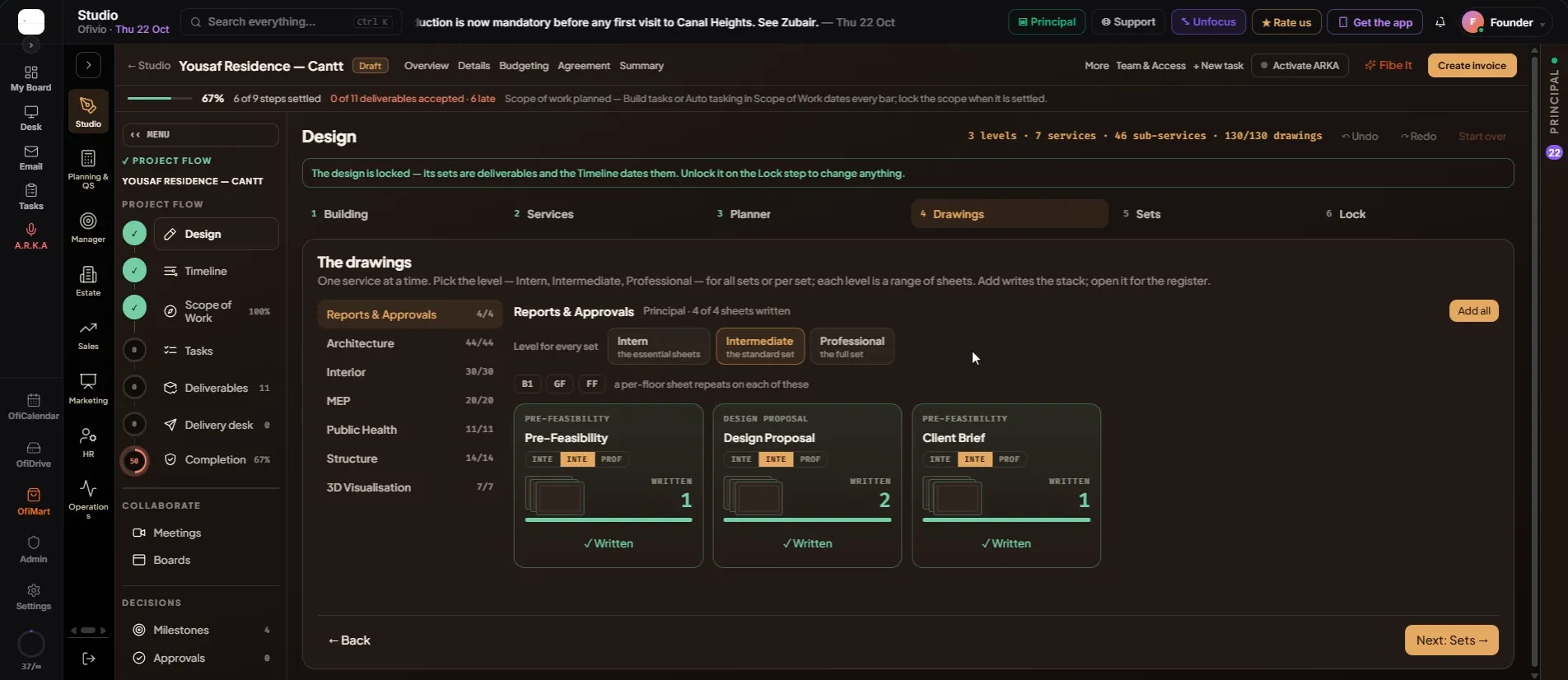
- Pick a service — Step 4: "The drawings". The list on the left shows each service with its sheets written over planned. The head of the page names the consultant and the sheets written so far.
- Choose the level — "Level for every set": "Intern" (the essential sheets), "Intermediate" (the standard set) or "Professional" (the full set). Each tile also has three small buttons to give that one line a level of its own.
- See where per-floor sheets repeat — The floor chips (B1 · GF · FF …) are the floors a per-floor sheet repeats on — "a per-floor sheet repeats on each of these". They come from the Building step.
- Write the sheets — Each tile shows the line's stage, its name and a stack marked "PLANNED" or "WRITTEN" with its sheet count. Press "Add … sheets" to write it; it turns to "✓ Written". "Add all" writes every line of the service.
- Open the register — Click a tile to open its drawing register, drawn like a sheet: a title block (project, discipline, set, stage, level and drawn by) and a table of "No.", "Drawing title", "Level", "Size" and "Scale". ✕ strikes a drawing and ↶ puts it back. Under "Add a drawing" type a title, pick its level, size (A1, A2, A3, A0) and scale (1:100 to NTS), and press "+ Add to the set". "Write … sheets" writes the line; "Close" leaves it.
- Press "Next: Sets →" — When every service you need is written.