Ofivio — from onboarding to final delivery · Part 8 · Quantities and cost · Chapter 34 of 56
Calculator, materials and rate build-ups
Work out what a piece of work takes, build rates from your own resources, price a bill from them and read what to order.
Calculator, materials and rate build-ups
A bill is only as good as its quantities and its rates. Three tabs in Planning & QS do that work. The Calculator works out what one piece of construction takes, with the arithmetic beside every number. Rate build-ups are your recipes: what one unit of work is made of, so every rate can be defended component by component. Materials runs a whole bill back through those recipes and tells you what to order. The QS does this once the lines are in and before the bill is issued.
Work out a quantity.
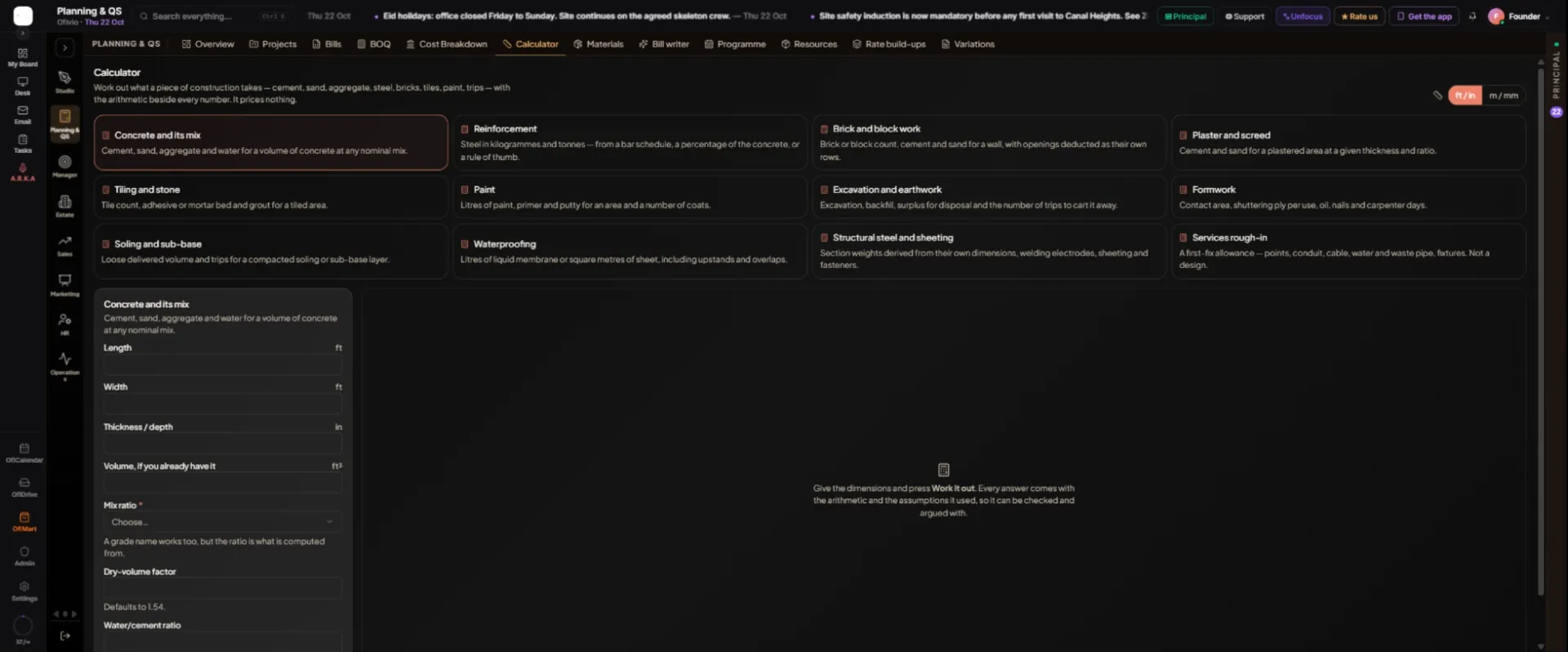
- Pick the work — Open "Calculator" and pick a card: "Concrete and its mix", "Reinforcement", "Brick and block work", "Plaster and screed", "Formwork" and the rest. The Calculator measures; it prices nothing.
- Choose your units — At the top right choose "ft / in" or "m / mm".
- Fill the boxes — Each calculator asks for its own inputs. For concrete: "Length", "Width", "Thickness / depth" (or "Volume, if you already have it") and the "Mix ratio".
- Work it out — Press "Work it out". You get what you need, what to order and the net figure plus wastage, then "How it was worked out" and "What was assumed".
- Keep the answer — "Save as a build-up" stores it as a draft recipe per one unit. Under "Put it in a bill", choose "Project" or "Bill", pick one and press "Add to" it. The line lands marked CALCULATED, with its working stored against it and its rate blank.
Build a rate.
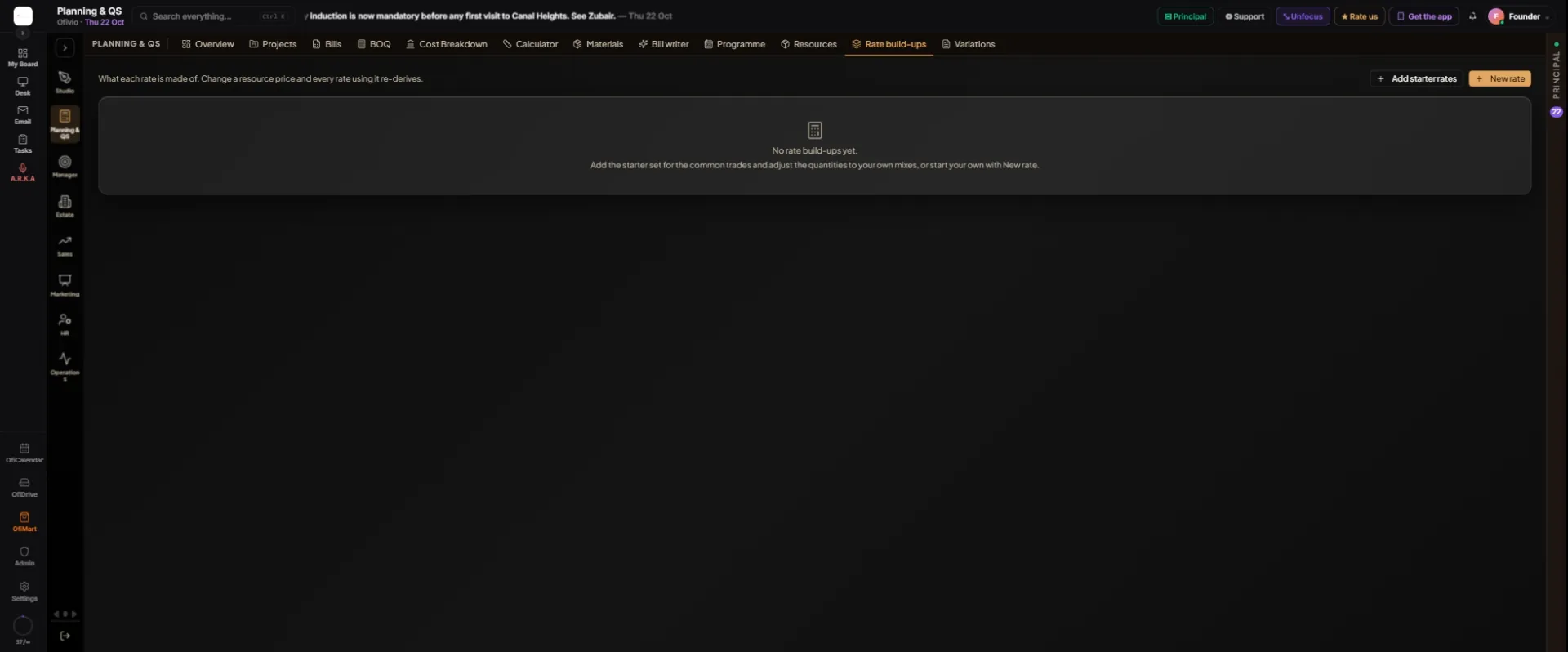
- Start the book — Open "Rate build-ups". On a new account press "Add starter rates" for the common trades, or "New rate" to write your own.
- Describe the rate — For a new rate fill "What the rate is for" (for example 1:2:4 concrete in columns), "Per (unit)", "Division" and, if you use one, "Library code". Press "Start the rate".
- Add its components — Under "Add a component" choose a "Resource", its quantity per unit and its "Waste %", and press "Add". Repeat for each material, labour and plant item.
- Add your margin — Set "Overhead" and "Profit" as percentages. The table adds the direct cost, the overhead and the profit, and shows the "Rate per" unit at the foot. Starter rates arrive with no margin, so set your own.
- Finish it — If the page says "This rate is not finished", a component is missing or has no price. Price it under Resources (next chapter). An unfinished rate cannot be applied to a bill.
- Print or go back — "Print" gives the build-up on your letterhead. "All rates" returns to the list.
Price a bill from your rates.
- In a stand-alone bill — Tick the lines and press "Price 2 lines" (the button counts the lines you ticked). The window "Price 2 lines from the rate library" lists your build-ups with their rates; press a finished one. Rates marked "not finished" are greyed.
- In a project BOQ — Use "Bring in" › "Price from the rate library". Choose the build-up; the lines with no rate yet are ticked for you. Press "Price" and the count of lines.
- Know what was copied — The rate is copied onto each line. It does not move if a price changes later; a bill you have issued must not re-price itself. If a build-up is re-costed, the bill lists the lines "priced before the rate changed" so you can re-apply them one by one.
Turn the bill into an order list.
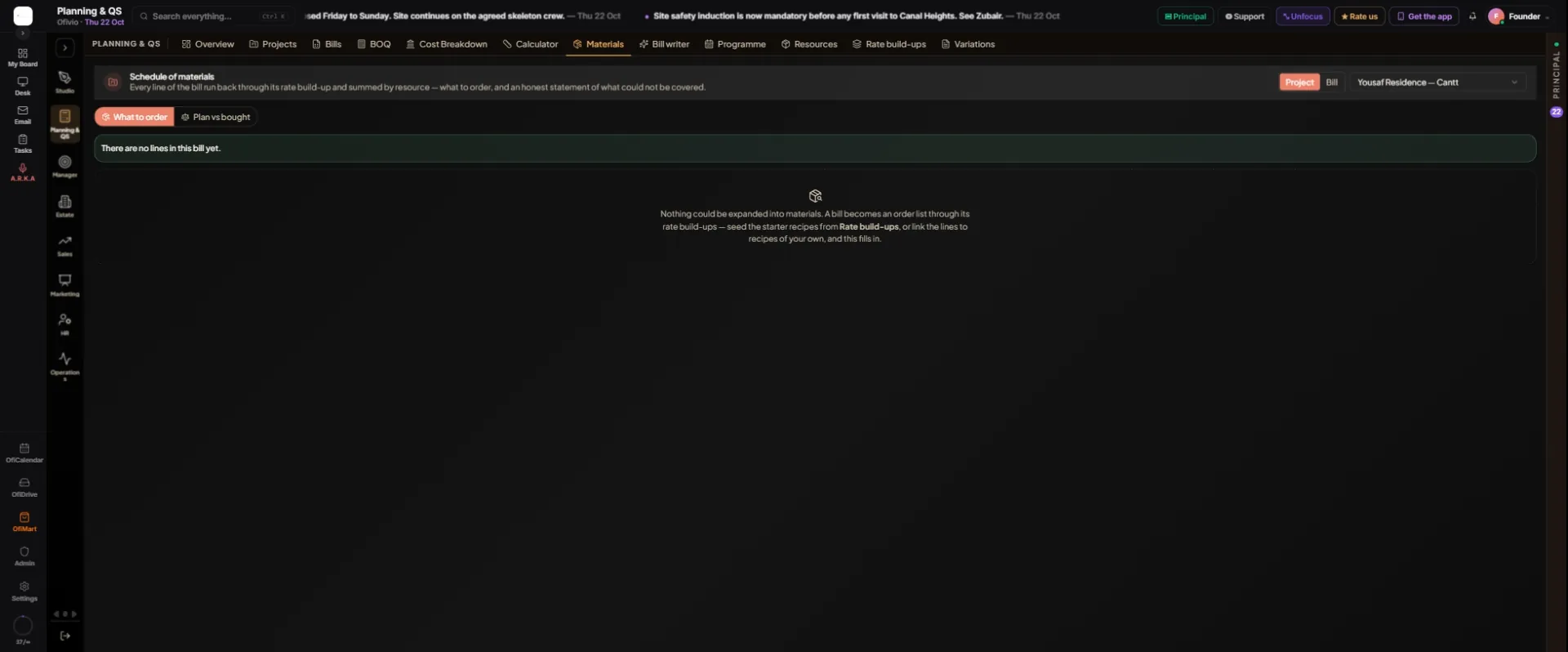
- Choose the bill — Open "Materials". Choose "Project" or "Bill" at the top right and pick it from the list.
- Read what to order — "What to order" runs every line through its rate build-up and sums it by resource, under Materials, Labour, Plant, Haulage and Sublet packages. Read the coverage line first: if some lines could not be expanded, the list is not the whole job, and those lines are named at the foot of the page.
- Compare with what was bought — "Plan vs bought" sets a project’s schedule against its purchase orders. A stand-alone bill has no purchase orders, so it has "What to order" only.