Ofivio — from onboarding to final delivery · Part 8 · Quantities and cost · Chapter 35 of 56
Programme and resources
Price the resources every rate is built from, then time a measured bill into a programme with its critical path, S-curve and manpower.
Programme and resources
Two more tabs finish the QS desk. Resources is your price book: every material, labour rate, item of plant, transport cost and subcontract package your rates are built from, at your own prices. Change a price once and every rate build-up that uses it re-derives. Programme takes a measured bill and times it from output rates, sequenced by trade, so the time and the money come from the same set of numbers. The QS or the planner uses them once the bill is measured, before the tender goes out.
Keep the price book.
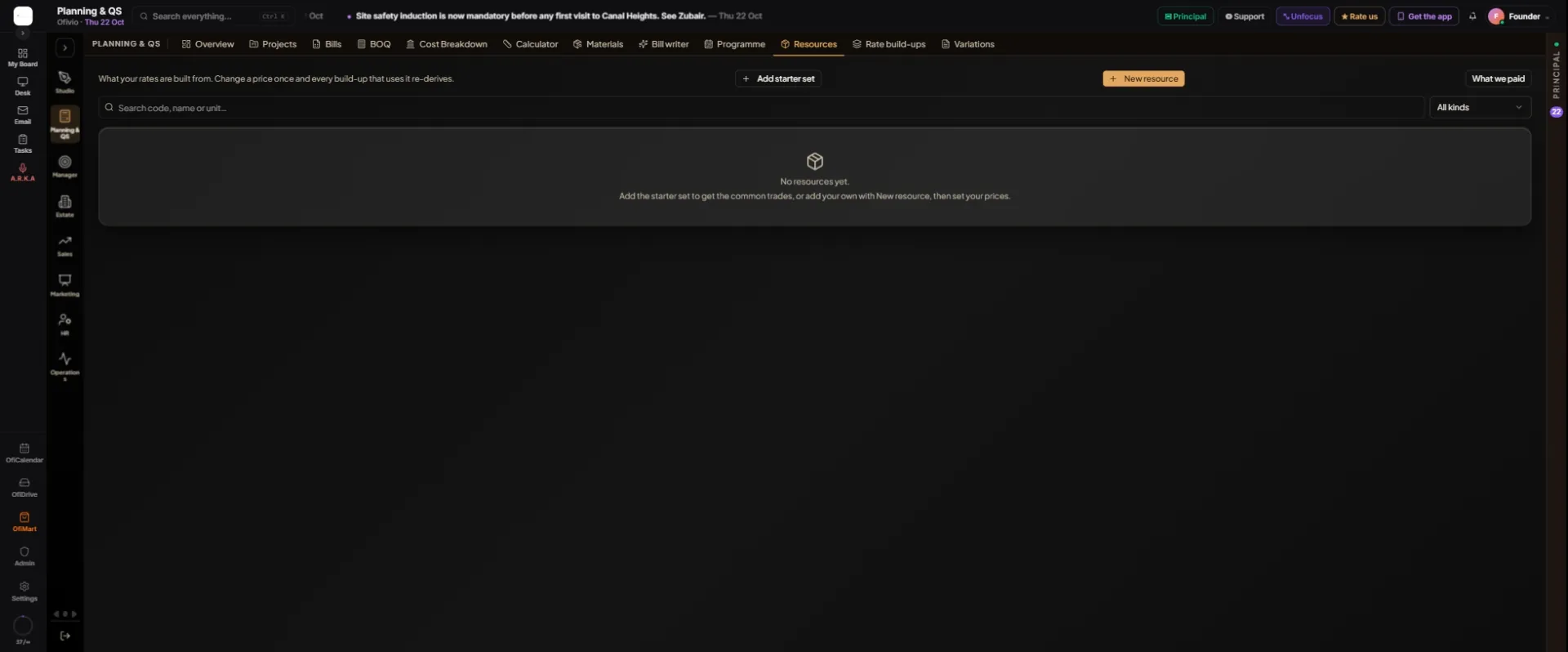
- Start the book — Open "Resources". On a new account press "Add starter set" for the common trades, or "New resource" for your own.
- Add a resource — In "New resource" fill "Code" (optional), "Name", "Kind" (Material, Labour, Plant, Transport or Subcontract), "Unit" and "Price, PKR". Leave the price blank to add it unpriced. Press "Add resource".
- Price a row — Type in the row’s "Price" box. An unpriced row reads "not priced". Press "Save" or Enter; Esc puts the box back as it was.
- Check what you paid — Press "What we paid" to see what your purchase orders actually paid for each resource. Click a suggestion to put it in the box, then save it.
- Find and tidy — Use the search box and the "All kinds" filter. A resource used by a rate build-up cannot be deleted; Ofivio says which build-up holds it.
Time the bill.
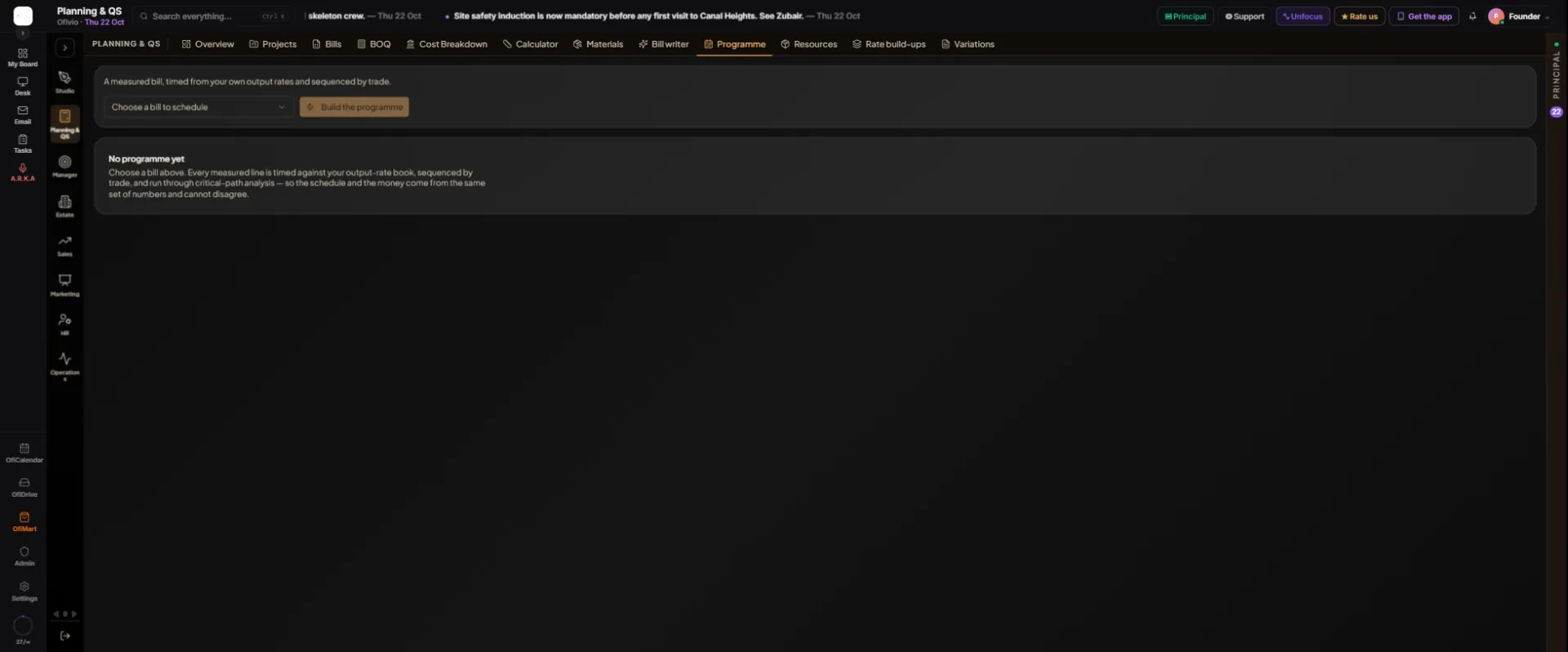
- Choose a bill — Open "Programme". In "Choose a bill to schedule", pick a bill from your Bills tab.
- Install output rates if asked — If the page says "Your output-rate book is empty.", press "Install starter rates". Nothing can be timed without output rates.
- Build it — Press "Build the programme". Every measured line is timed from your output rates, sequenced by trade and run through critical-path analysis.
- Read the headlines — "Duration" in working and calendar days, "Critical path" (activities with zero float), "Peak manpower" (men at the busiest week) and "Programme value".
- Read the charts — "The programme" shows each activity as a bar. "Planned value — the S-curve" shows the money over time. "Manpower" shows the crew week by week.
- Check what was not timed — If lines "could not be timed", each gives its reason: no output rate for that work, a rate quoted in a different unit, or no quantity. They stay in the bill and in the value.
- Take it away — Press "CSV" to carry the programme into the planning tool you already use.