Ofivio — from onboarding to final delivery · Part 9 · On site · Chapter 39 of 56
Work breakdown and the site programme
Generate scopes and activities from the locked BOQ, date them finish to start, give each an owner, and put the programme on desks.
Work breakdown and the site programme
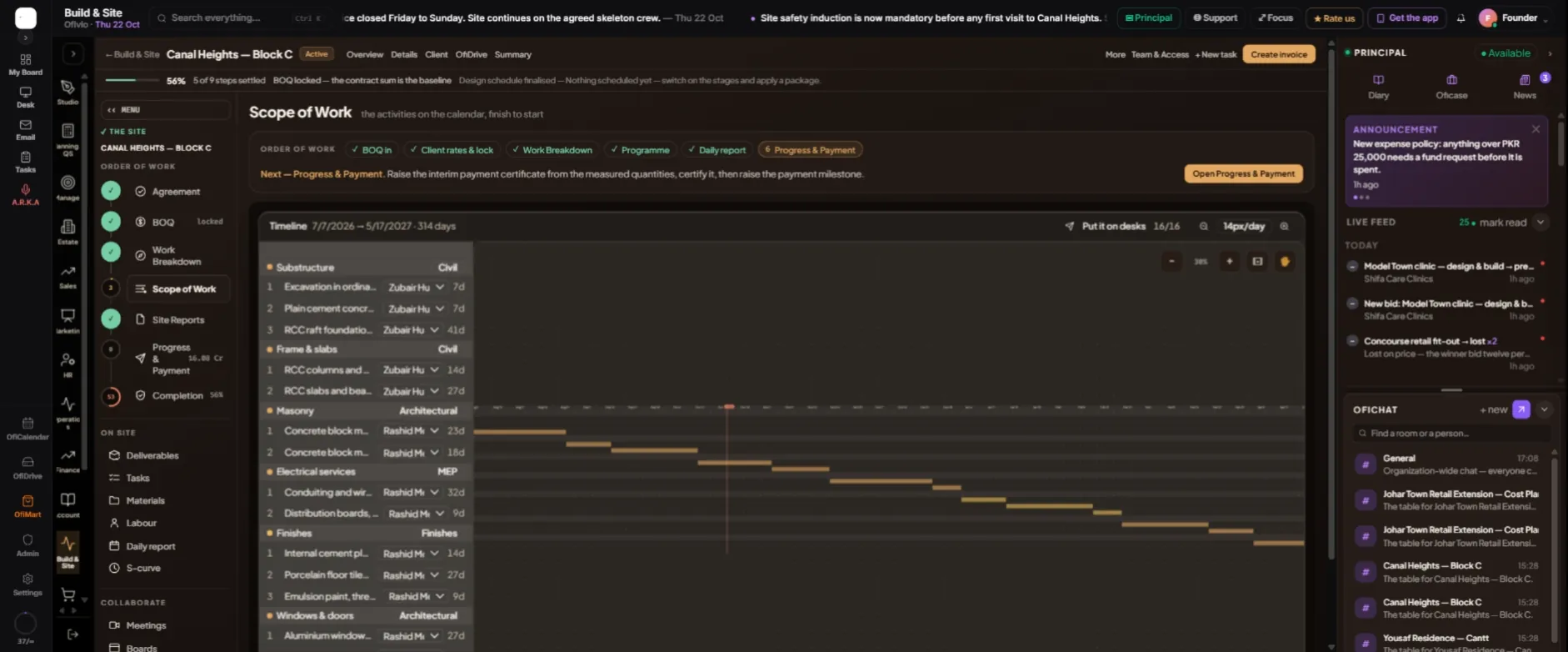
A locked bill says what you will be paid for. It does not yet say what the site does on Monday. The Work Breakdown turns each division of the bill into a scope of work with its activities, in the order the building goes up. The programme — the "Scope of Work" room on the site's rail — lays those activities on a calendar, finish to start, gives each one an owner, and sends them to people's desks as tasks.
You do this once the BOQ is locked, before work starts on site. The planning engineer, the project manager or the principal does it: a principal, manager, finance or Build & Site seat can generate and change the programme; every other seat can read it.
- Open the Work Breakdown — Page rail › "Work Breakdown". Under "Plan work from the BOQ", each division of the locked bill is one row.
- Set the start — "Start from" is the date the first activity begins — usually mobilisation.
- Check how each division is planned — A division whose name names a trade (Substructure, Masonry, Electrical services…) is planned from the matching template; any other is planned from its own BOQ lines. Use "Choose template…" on a row to change it.
- Tick the divisions — Press "Tick every division not yet planned". The footer now shows how many divisions, activities, days and how much budget you are about to plan.
- Generate — Press "Generate work breakdown". The scopes and their activities appear below under "Work breakdown".
Each scope in the result shows its trade (Civil, Architectural, MEP, Finishes), its construction stage — pick one from the list, or leave it "Unstaged" — its dates and its cost. Under it, each activity shows how many BOQ lines it carries, its duration and its cost. The costs come from the Engineer Estimate of each division, so the whole programme adds up to your cost budget: the budget at completion you will meet again in earned value. A BOQ line can be moved to another activity in the same division, or set to "Unassigned".
- Open the programme — Press "Open programme", or Page rail › "Scope of Work". Every activity sits on a timeline, grouped by scope, with a red line for today.
- Give each activity an owner — Use the list beside each activity — it reads "Nobody" until you choose. The crew plan says which trade does the work; the owner is the person who answers for it.
- Move dates where needed — Click an activity’s name. In "Move the dates" set "Starts" and "Days", then "Save dates". Every activity after it moves on if it would now start before this one ends, and its task’s due date moves with it.
- Put it on desks — Press "Put it on desks" (the count beside it shows how many activities have an owner). "Put the programme on desks" lists what will be sent, re-dated or left alone. Press "Send" and each owned, dated activity becomes a task on its owner’s desk.