Ofivio — from onboarding to final delivery · Part 9 · On site · Chapter 38 of 56
The site contract and its BOQ
Check and price the bill of quantities, lock it as the contract sum, then issue the contract to the client and get it accepted.
The site contract and its BOQ
Everything on a site starts with the bill. The BOQ you were given — by the client, a government department or the main contractor — is the list of work you are paid for. Once you have priced it and locked it, its total is the contract sum, the budget the programme is measured against, and Annex A of your contract. The contract itself is called "Agreement" on the site's rail: the document you issue to the client and the client accepts.
You do this right after the site is created, before any work is planned. The QS or the principal works on the bill; only the principal issues the contract.
The BOQ room holds two bills of the same lines. The "Engineer Estimate" (amber, tagged "internal · hidden from client") is your own cost: it never reaches the client, and it is the budget your programme and earned value are measured against. The "General BOQ" (green, "client-facing") is what the client is billed, made from the estimate by your margin. "Document" reads either one laid out as a bill; "Editor" changes lines.
- Open the BOQ — Page rail › "BOQ". If you gave the bill when you created the site, its lines are already here, grouped by division.
- Bring in what is missing — "Bring in" › "Import Excel" or "Import PDF", in any layout. The same menu offers "Read a drawing", "Seed from a template" and "Draft from a brief", and under Pricing, "Price from the rate library" and "Price with AI".
- Check the Engineer Estimate — Stay on "Engineer Estimate" and read it in "Document"; switch to "Editor" to change a line. A yellow "unmeasured" button appears when some quantities came from a template and were never measured.
- Set the client rates — Switch to "General BOQ". Drag the "Profit margin" slider or type the percentage, then "Save". Every row tagged auto is rewritten from the estimate at that margin. If the client gave you a priced bill, the margin is 0%.
- Lock it — Press "Lock BOQ", read the "Lock the BOQ?" note, and press "Lock BOQ" again. The button now reads "Locked".
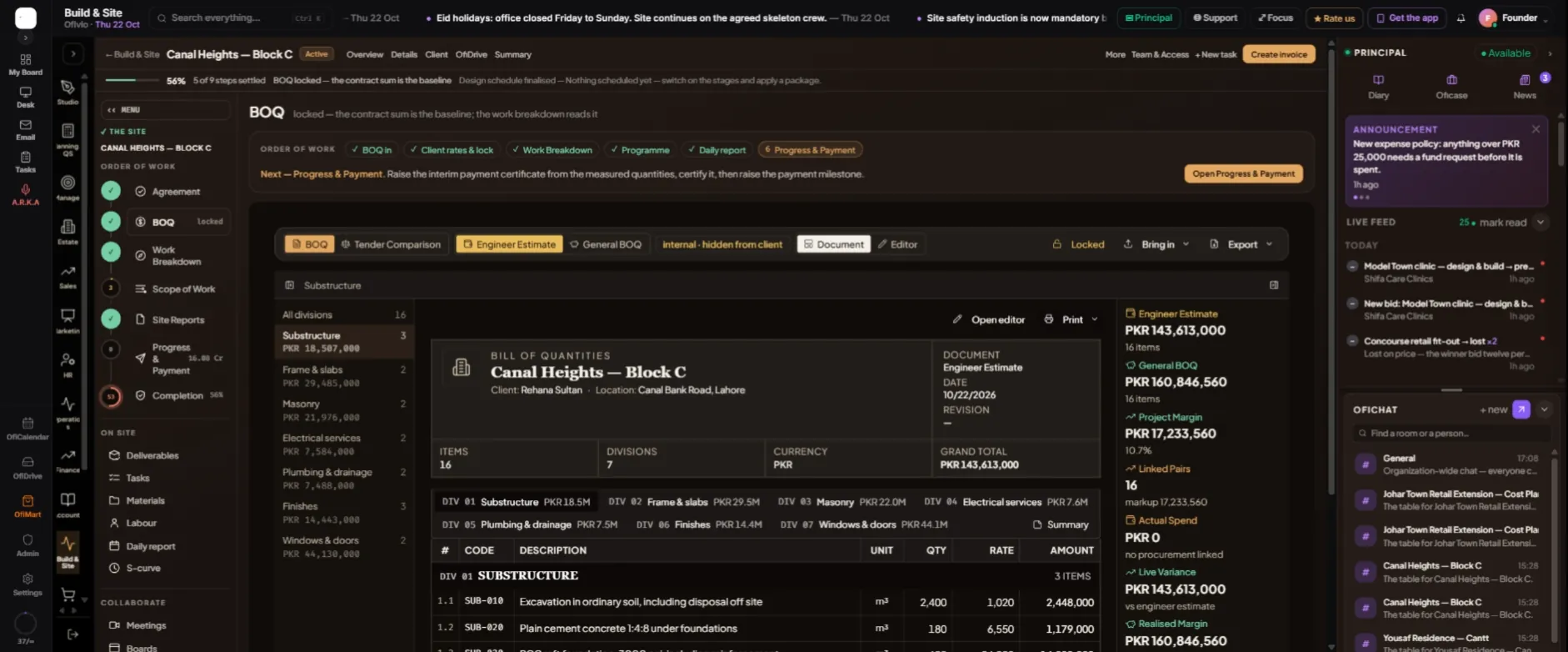
Locking does several things at once. Existing lines can no longer be edited or deleted, and anything added afterwards is flagged as a post-lock addition. Any line still without a client rate gets one at the bill's margin. The totals are kept as a snapshot, and a numbered copy of the bill is kept for the client — that copy is Annex A of the contract. Only a principal can unlock the BOQ. The Order of Work strip on the site now ticks "BOQ in" and "Client rates & lock".
| What the contract needs | Where you settle it |
|---|---|
| A client linked | Build & Site › Sites › the site’s card › "Assign client" |
| The BOQ locked (Annex A) | Page rail › BOQ › "Lock BOQ" |
| A payment schedule | Page rail › Milestones › "Add a payment" |
| Your letterhead | Settings › Branding — the contract is issued on it |
- Link the client — On the site’s card in Build & Site › Sites, press "Assign client" and choose them.
- Set the payments — Page rail › "Milestones" › "Add a payment", once for each payment the contract provides for — for example a mobilisation advance, the interim payments and a final bill. They form part of the contract.
- Open the Agreement — Page rail › "Agreement". The panel "WHAT THE AGREEMENT NEEDS" lists anything still in the way; each item tells you where to fix it.
- Issue it — When every check passes the banner reads READY. Press "Issue to client". The banner turns to ISSUED: "Issued. It sits with the client — the project does not kick off until they accept it."
- The client accepts — In their client portal the client reads the whole contract and types their name to accept it. Your banner turns to ACCEPTED — "Accepted by … The project has kicked off." — and the site’s badge changes from Draft to Active.
Below the banner, the Agreement room lists the steps this site is counted on, each a door to the room that settles it; the percentage in the masthead under the site's name is how many are settled. "THE SCHEDULE IT CARRIES" shows the payments the contract holds.