Ofivio — from onboarding to final delivery · Part 9 · On site · Chapter 37 of 56
Build & Site: the contractor’s front
The front door of every job you build: what each tab holds, how a site opens, and how to start a new site from the bill of quantities.
Build & Site: the contractor’s front
Build & Site is the contractor's product inside Ofivio AEC. A contractor's account opens with it; an architect's account can add it as a module in OfiMart. Where the Studio follows a design from brief to drawings, Build & Site follows a job you have won to build: the bill of quantities you were given, the contract, the programme, what happened on site each day, what you are owed, and when you are finished.
This chapter is the front door: the page that lists every site and opens each one. You come here the day a contract is won, and every day after to see where the money and the work stand. The principal opens new sites; everyone with a seat on a site works inside it.
| Tab | What it holds |
|---|---|
| Today | Five figures across all your sites — "Active sites", "Contract value" (quoted across all sites), "Received to date" (payment milestones marked paid), "Outstanding" (quoted less received) and "Spent on site" (procurement plus labour) — then the list of sites with their status, whether the quantities are locked, contract value and money received. |
| Sites | A card per site: revenue, collected, outstanding, milestones paid, estimated margin. Its icons assign the team, open the complete summary, reset, archive or delete it. |
| Clients | The clients of your sites. |
| Contracts | Every site and where its contract stands. Only the principal sees this tab. |
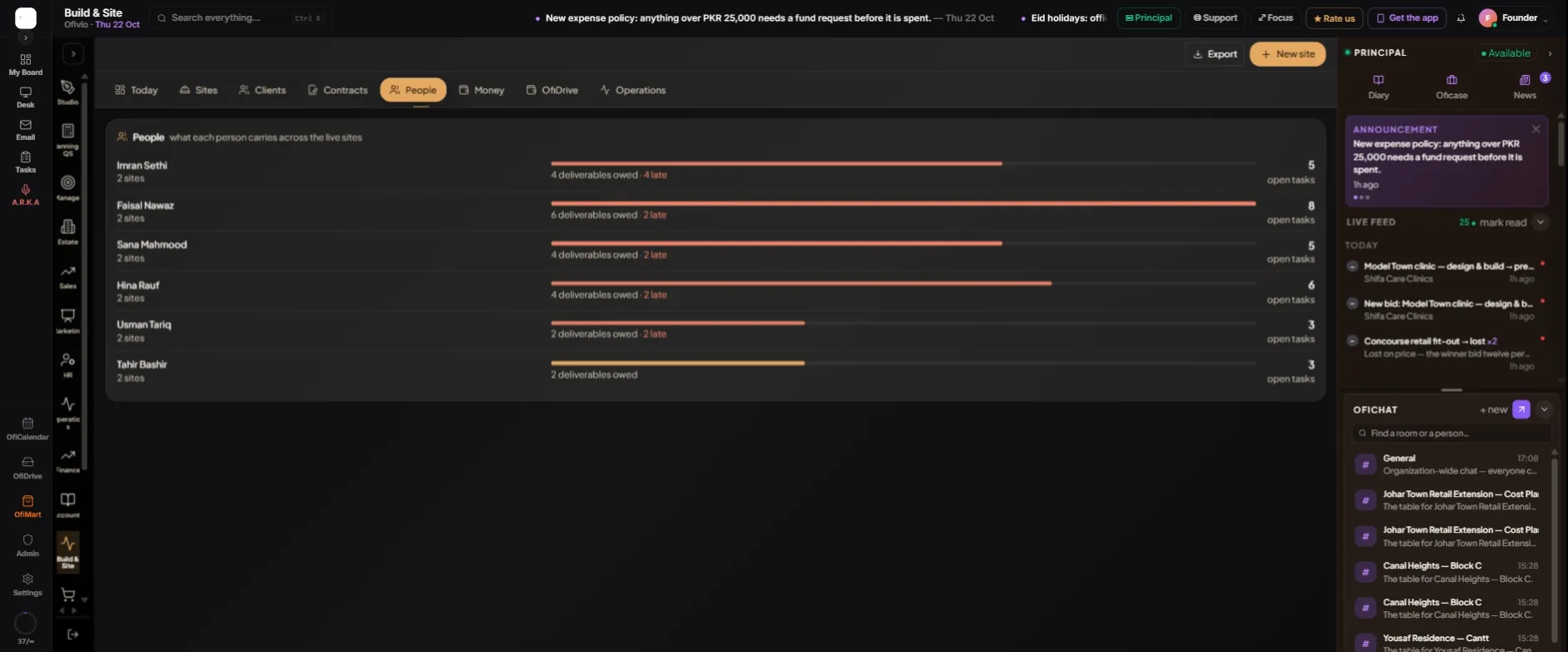
| People | What each person carries across the live sites. |
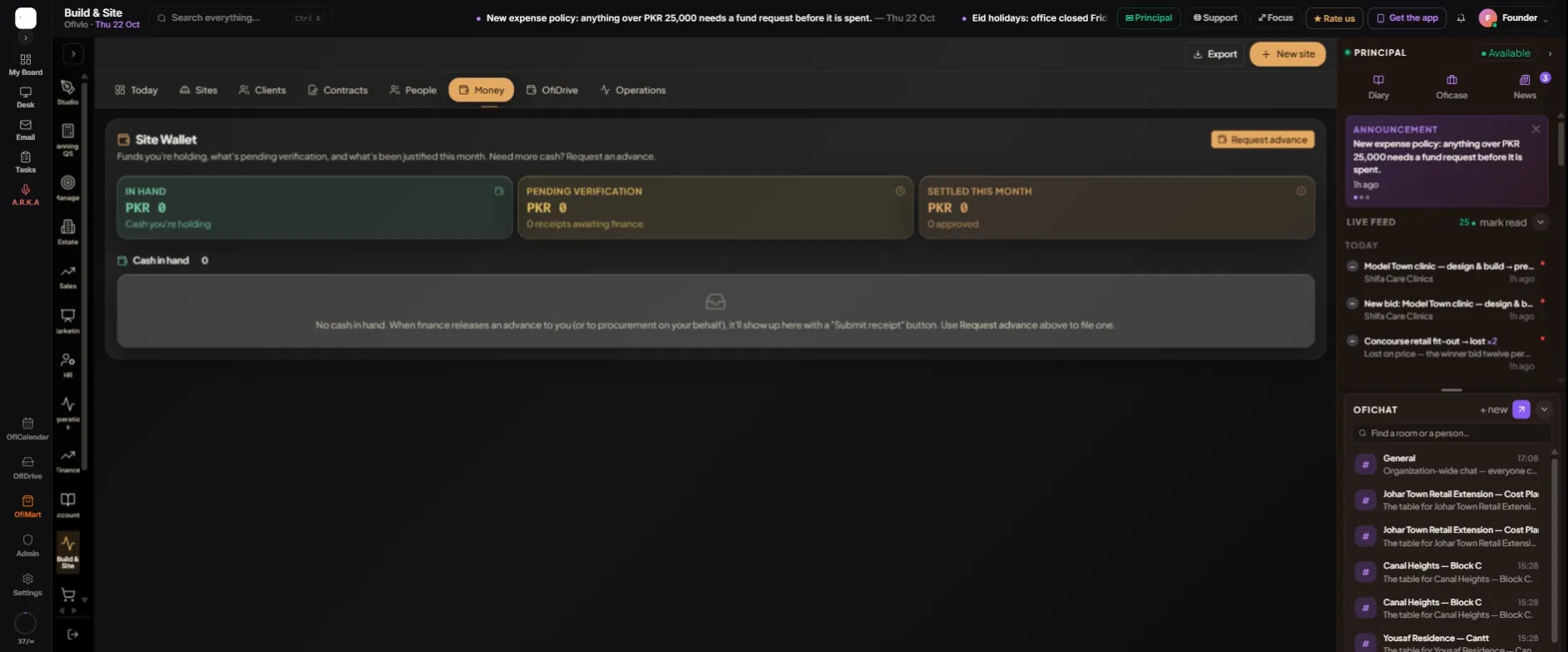
| Money | The Site Wallet. Seats with money access see it. |
| OfiDrive | The firm’s main folder, one shelf of files per site. |
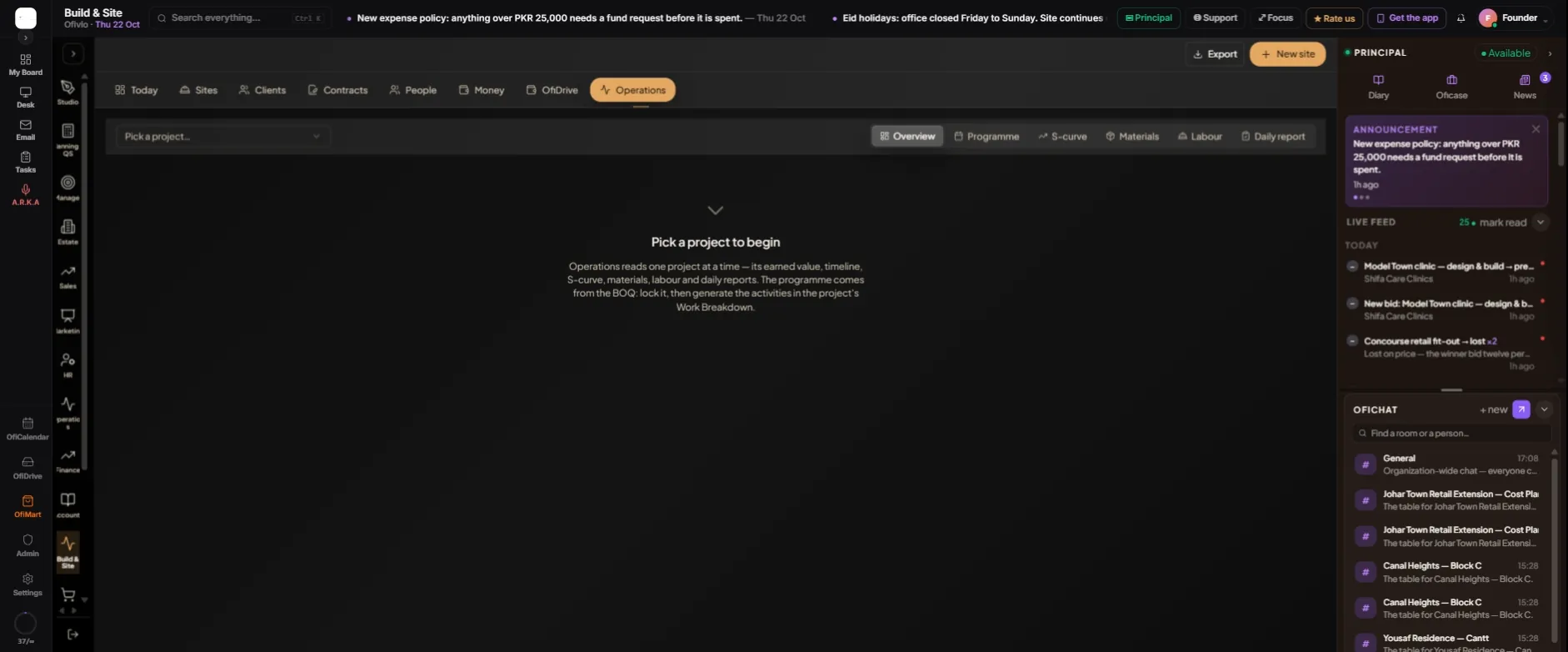
| Operations | One site at a time: earned value, programme, S-curve, materials, labour and daily reports. |
Today also warns you when a site's quantities are still open. A yellow line says how many sites have an unlocked BOQ, with the reason: "Until quantities are locked the contract sum can move underneath the programme, and no cost baseline is held." Locking the bill is the first job on every site (next chapter).
On the Sites tab, a job with execution in its scope that was started in the Studio is shown apart, under "Executing in the Studio", with a "Bring into the Site" button that moves it here.
Money is the Site Wallet. "Request advance" asks for the amount, purpose, category and urgency; "File request" sends it to finance. Released cash appears under "Cash in hand" with a "Submit receipt" button, and each receipt waits under "Pending verification" until finance clears it.
OfiDrive shows one chip per site; pick one and its folder opens on five shelves — Received, Working, For review, Delivery and Reference. Operations asks you to pick a project, then shows the same screens you find inside each site.
- Press "New site" — Top right of Build & Site, or beside the Sites list. Only the principal sees it. At your plan’s site limit it is greyed, with the reason.
- Step 1 · Contract BOQ — Choose the bill you were given — .xlsx, .xls or .pdf, in whatever layout it came. It is read into the site’s BOQ the moment the site is created. No bill yet? Tick "I don't have the bill yet" and the site starts with an empty BOQ. Press "Next".
- Step 2 · Identity — "Site name" is required. "Site code" fills itself; "Auto" makes a fresh one. Pick the "Site type" (New build, Renovation, or Construction — turnkey), then Category, Priority and a short Description.
- Step 3 · Site — "Address" and "City" — enough to place the site and to print on its certificates.
- Step 4 · Schedule — "Expected duration (days)", the "Site supervisor" who runs it day to day, "Start date" and "Target completion".
- Step 5 · Scope of Work — Execution is already ticked. Tick any other module the contract covers. This decides whether the BOQ, procurement, warehouse and Operations switch on for the site.
- Step 6 · Review & Launch — Check the name, type, duration and scope, then press "Create Site".
- Read the done screen — "Site created" says what happened to the bill: "Contract BOQ accepted" with the number of lines read from a plain sheet, or that a PDF is still being read (a long bill takes a minute or two). Press "Open the BOQ" to go straight to it, or "Back to the Site".
Click any site to open it. Its Page rail runs in the contractor's order of work — Agreement, BOQ, Work Breakdown, Scope of Work, Site Reports, Progress & Payment, Completion — then the ON SITE rooms: Materials, Labour, Daily report, S-curve and more. A seat without money access does not see Agreement, BOQ, Progress & Payment or Milestones.
Contract BOQ → Agreement → Work Breakdown → Programme → Daily report → Progress & Payment → Completion